How to Make AI Avatar Video Without a Camera

Creating videos used to mean setting up a camera, adjusting lights, recording multiple takes, and spending hours editing. Today, AI has made the process much easier. With an AI avatar generator, you can create professional talking videos without using a camera, microphone, or recording yourself. All you need is a high quality photo, a script, and an AI tool that transforms them into a realistic speaking avatar.
Whether you're creating YouTube videos, online courses, marketing content, social media posts, product demos, or business presentations, AI avatar technology allows you to produce polished videos from your computer in just a few minutes. This makes it an excellent solution for creators who don't want to appear on camera or don't have access to professional recording equipment.
In this tutorial, you'll learn how to make an AI avatar video without a camera, including how to create your avatar, choose a voice, write an effective script, customize your video, and export a professional quality final result.
What Is an AI Avatar Video?
An AI avatar video is a video featuring a digital version of a person that is generated using artificial intelligence. Instead of filming yourself, AI uses a single photo or a pre built avatar and makes it appear as though it is naturally speaking your script. The technology analyzes your text or voice, synchronizes realistic lip movements, facial expressions, eye movements, and subtle head motions, creating a lifelike presenter without any manual animation.
For example, if you upload a clear portrait photo and enter a script like, "Welcome to my channel. Today I'll show you how to create AI videos," the AI automatically animates the avatar so it appears to speak those exact words with realistic mouth movements and expressions. If you choose voice cloning, the avatar can even speak using your own voice, making the video feel even more authentic.
Because everything is generated by AI, you never need to stand in front of a camera or record multiple takes. Once your avatar is created, you can reuse it to produce unlimited videos simply by changing the script, making AI avatar videos one of the fastest and most scalable ways to create professional content.
What You'll Need Before You Start
Before creating your first AI avatar video, it's helpful to gather a few essential resources. The good news is that you don't need expensive hardware or technical expertise. Most AI avatar platforms are designed for beginners and require only a few simple inputs.
1. A High Quality Front Facing Photo
Your photo is the foundation of your AI avatar. The better the image, the more realistic your avatar will look. Choose a clear, high resolution portrait where your face is fully visible and you're looking directly at the camera. Good lighting and a neutral background help the AI generate more accurate facial movements and expressions.
2. A Well Written Script
Your avatar will speak whatever text you provide, so spend a little time preparing a clear and engaging script. Write in a conversational tone, keep sentences relatively short, and use proper punctuation so the AI can generate more natural speech.
If you're making a tutorial, structure your script like this:
- Start with an attention grabbing introduction.
- Explain the topic step by step.
- End with a clear conclusion or call to action.
3. A Voice
Most AI avatar platforms give you two options:
- Use a built in AI voice from a library of realistic voices.
- Clone your own voice by uploading a voice sample.
If you're creating videos for a personal brand, voice cloning helps maintain authenticity. For business presentations or multilingual content, AI voices are often faster and easier to use.
4. An AI Avatar Generator
You'll also need an AI platform that supports avatar creation, text to speech, and realistic lip synchronization. Most modern tools allow you to upload a photo, generate an avatar, choose a voice, and create a finished video all from a single dashboard.
5. A Stable Internet Connection
Because AI video generation happens in the cloud, a reliable internet connection ensures faster uploads, smoother processing, and quicker video generation.
How to Make an AI Avatar Video using Script
Now that you understand how AI avatar videos work, it's time to create one yourself. In this tutorial, we'll use Zoice to demonstrate the complete process. From creating your AI avatar to generating a finished talking video, the entire workflow takes just a few simple steps.
Step 1: Visit Zoice.com and Click Sign In

Open your preferred web browser and visit Zoice.com. On the homepage, locate the Sign In button in the top-right corner of the screen and click it to access the login page.
- Visit Zoice.com
- Click Sign In in the top-right corner
Tip: If you're using Zoice for the first time, take a few minutes to explore the dashboard so you're familiar with where the avatar and video creation tools are located.
Step 2: Sign In to Your Account

If you already have a Zoice account, enter your registered email address and password, then click Sign In. If you're new to Zoice, create an account by clicking Sign Up or continue with your Google account.
After successfully logging in, you'll be redirected to the Zoice dashboard.
- Enter your registered email address
- Enter your password
- Click Sign In
Step 3: Create a Zoice Account

If you're new to Zoice, create an account by entering your name, email address, and password, then click Register. You can also sign up instantly using your Google account.
- Enter your Name
- Enter your Email Address
- Create a Password
- Click Register
Or
- Click Sign up with Google to create your account faster.
Step 4: Navigate to Avatar Characters

Once you're on the Zoice dashboard, go to the left-hand navigation menu and click New Avatar. This section allows you to create, manage, and customize AI avatars that you can use in your videos.
- Click New Avatar from the left sidebar
Step 5: Click Create New

Inside the New Avatar section, click the Create New button to begin creating a custom AI avatar. This opens the avatar creation page, where you'll upload an image and configure your avatar before generating it.
- Click Create New
- Start a new avatar project
Step 6: Upload a High-Quality Image and Name Your Avatar

Upload a high-quality front facing image that you want to turn into an AI avatar. Then, enter a descriptive name for your avatar so you can easily identify it later in your avatar library.
For the best results, use a clear photo with good lighting, a neutral facial expression, and a clean background.
- Click Upload Image
- Select a high-quality front-facing photo
- Enter an avatar name
- Review your uploaded image
Tip: Avoid blurry images, side profiles, or photos with sunglasses, as they may reduce the quality of the generated avatar.
Note: We named the character David John and uploaded the image.
Step 7: Click Generate Avatar

After uploading your image and naming your avatar, click Generate Avatar. Zoice will process your image and create a realistic AI avatar based on your facial features.
Once the generation is complete, your avatar will automatically be saved to your custom avatar gallery.
- Click Generate Avatar
- Wait for the avatar generation process to complete
- Verify that your avatar appears in the gallery
Step 8: Select Your Avatar

Once Zoice finishes generating your avatar, it will appear in your Avatar Gallery. Click on the avatar you just created to select it before proceeding to the next step.
- Select your generated avatar
Step 9: Select Your Avatar and Click Finish

After selecting your avatar, click the Finish button to complete the avatar creation process. Zoice will save your avatar and redirect you to the next screen, where you can configure your avatar profile, create a voice profile, and prepare it for video generation.
- Click Finish
- Complete the avatar creation process
- Proceed to the avatar configuration page
Step 10: Click on Generate Video

After completing your avatar setup, you can immediately start creating a video by clicking Generate Video from the avatar page. This opens the video generation workspace with your selected avatar already loaded.
If you don't want to create a video immediately, you can return to the dashboard later and click New Avatar Video to start a new project using your saved avatar.
- Click Generate Video
Or
- Return to the dashboard
- Click New Avatar Video later to start a new project
Step 11: Click New Avatar Video (Optional)

After creating and configuring your avatar, you're ready to start building your AI avatar video. From the left-hand navigation menu, click New Avatar Videos to open the video creation workspace. This is where you'll select your avatar, add a voice, write your script, customize the video settings, and generate the final AI avatar video.
- Click New Avatar Videos
Step 12: Select Your Avatar Character

Click Avatar Character at the bottom of the video editor to open your avatar library. This is where you can select the avatar you want to use in your video.
Step 13: Select Your Created Avatar

From the Avatar Character library, click on the custom avatar you created earlier to add it to your video project. Once selected, your avatar will be loaded into the editor and ready for video generation.
Step 14: Configure Your Video Settings

Before generating your AI avatar video, configure the remaining video settings. You can choose a voice for your avatar, adjust the output settings, and add an action prompt to control how your avatar behaves during the video.
- Select Voice
- Configure Output Settings
- Add an Action Prompt
Step 15: Select a Voice from the Voice Library (If you want to use your own voice, skip this step and go directly to Step 15)

Click Select Voice to open the Zoice Voice Library. Browse the available voices, preview them if needed, and choose the one that best matches your content. Once you've found the right voice, click Add Voice to assign it to your avatar.
- Select a voice from the Voice Library
- Click Add Voice
Step 16A: Create Your Own Voice Profile (If you're using a public voice, you can directly go to step 16)

If you'd like to use your own voice, click the + New button in the Voice Library. This will open the voice creation page, where you can upload your voice recording and create a custom AI voice for your avatar.
- Click + New to create a custom voice
Step 16B: Upload Your Voice and Give It a Name

Enter a name for your custom voice profile, then upload a clear voice recording in MP3 or WAV format. This recording will be used to clone your voice for AI avatar videos. You can also add optional details like language, accent, gender, age, and a description to make the voice profile easier to identify later.
- Enter a voice profile name
- Upload your voice recording
- Fill in the optional voice details
Step 16C: Complete the Voice Profile Details

After uploading your voice recording, complete the remaining voice profile information. Select the Language, Accent, Gender, and Age, then optionally add a short description. While these fields are optional, filling them out helps organize your voice profiles and makes them easier to find later.
- Select the language
- Choose the accent
- Select the gender and age
- Add an optional description
Step 16D: Click Generate

Once you've entered the voice profile name, uploaded your voice recording, and completed the profile details, click Generate. Zoice will process the audio and create your custom AI voice, which will then be available in your Voice Library for use in avatar videos.
- Click Generate to create your custom voice
Note: We named the voice David John and uploaded the voice.
Step 16E: Select Your Custom Voice and Click Add Voice

Your newly created voice will now appear in the Voice Library. Select the custom voice profile you just created, then click Add Voice to assign it to your avatar.
- Select your custom voice
- Click Add Voice
Step 17: Configure the Output Settings

Click Output to configure how your final video will be exported. Here, you can select the Aspect Ratio and Resolution based on where you plan to publish your video.
Choose the right aspect ratio:
- 16:9 – Best for YouTube, websites, presentations, and widescreen videos.
- 9:16 – Ideal for TikTok, Instagram Reels, YouTube Shorts, and Facebook Reels.
- 1:1 – Great for Instagram feed posts, Facebook posts, and LinkedIn.
- 4:5 – Recommended for Instagram and Facebook feed posts because it takes up more screen space.
- 21:9 – Best for cinematic or ultra-wide videos.
- 2:3, 3:2, 3:4, 4:3, and 5:4 – Useful for specific creative projects or platforms that require custom dimensions.
Choose the video resolution:
- 480p – Fastest to generate and suitable for quick previews or drafts.
- 720p – Good balance between quality and rendering speed.
- 1080p (Full HD) – Recommended for most YouTube videos, marketing content, and professional use.
- 2K/4K (if available) – Best for premium-quality videos, large displays, and commercial projects.
Once you've selected the appropriate aspect ratio and resolution, you're ready to add your script and generate your AI avatar video.
Step 18: Add an Action Prompt

Click Action Prompt to define how your AI avatar should behave while speaking. You can either write your own prompt or choose one of the suggested presets provided by Zoice, such as Professional, Casual/Warm, or other presentation styles.
The action prompt controls your avatar's body language, facial expressions, eye contact, and hand gestures, making the final video feel more natural and engaging. While this step is optional, adding an action prompt can significantly improve the realism of your AI avatar videos.
- Click Action Prompt.
- Type your own action prompt or select one of the suggested prompts.
- Click Add Action to apply it to your video.
Step 19: Add Your Script and Configure the Voice Model

Click inside the "Enter or paste script here..." box and type or paste the script you want your AI avatar to speak. You can also choose a Voice Model and apply Audio Tags to control the emotion, tone, and speaking style of your narration.
Audio Tags help make your avatar sound more natural by adding emotions such as Excited, Sad, or Angry, delivery styles like Dramatic, Whispers, or Pause, and natural reactions such as Laughs, Clears Throat, or Gasps. If you prefer, you can leave these settings at their default values.
Once everything is set, click Add Script to save your script and return to the video editor.
- Enter or paste your script.
- Select a Voice Model.
- Add Audio Tags to customize voice delivery (optional).
- Click Add Script.
Step 20: Enable Audio Preview (Optional)

Before generating your final video, you can turn on Enable Audio Preview to listen to your narration before the video is rendered. This lets you check the voice quality, pronunciation, pacing, and overall delivery without spending credits on a full video generation.
If you're satisfied with the audio preview, you can proceed to generate the final avatar video. If not, simply edit your script, voice, or audio tags and preview it again.
- Turn on Enable Audio Preview (optional).
- Review the voice before generating the video.
- Continue to the next step to generate your AI avatar video.
Step 21: Click Generate

After selecting your avatar, voice, output settings, action prompt, and script, click the Generate button to start creating your AI avatar video.
Zoice will process your settings and begin generating an audio preview before rendering the final video. The time required depends on the length of your script and the selected video quality.
- Review all your settings.
- Click Generate.
- Wait while Zoice prepares your video preview.
Step 22: Review the Audio Preview

Before generating the final video, Zoice automatically creates an audio preview of your script. Listen to the preview to make sure the voice, pronunciation, pacing, and overall delivery sound exactly the way you want.
If you're happy with the result, click Generate Avatar Video to start rendering the final AI avatar video. If you need to make changes, simply go back, edit your script or voice settings, and generate a new preview.
- Review the generated audio preview.
- Play the preview to check the voice quality.
- Click Generate Avatar Video to create the final video.
Step 23: Wait for the Video to Generate

After you click Generate Avatar Video, Zoice begins rendering your final video. During this stage, you'll see a Processing screen showing the current generation status and an estimated time remaining.
The rendering time depends on your script length, selected resolution, and server load. Simply wait until the process is complete. Once finished, your AI avatar video will be ready to preview and download.
- Wait while Zoice generates your video.
- Monitor the processing status and estimated time.
- After rendering is complete, your video will be available for preview and download.
Step 24: Preview and Download Your AI Avatar Video

Once the rendering is complete, Zoice displays your finished AI avatar video in the preview window. Watch the video to ensure everything looks and sounds the way you expected. If you're satisfied with the result, download the video and use it for YouTube, social media, presentations, courses, marketing campaigns, or any other content.
If you'd like to make changes, simply update the script, voice, action prompt, or output settings and generate the video again.
- Preview your generated AI avatar video.
- Verify the voice, lip sync, and overall quality.
- Download the final video to your device.
- Regenerate the video if you want to make any changes.
Example Script and Generated Avatar Video
"Have you ever wanted to create professional videos without appearing on camera? Thanks to AI, that's now easier than ever. You can create realistic avatar videos that look professional, speak naturally, and help you share your ideas without using a camera or recording yourself.
Whether you're making YouTube videos, online courses, business presentations, or social media content, AI avatars can save you time while giving your videos a polished look. Simply prepare your content, choose a voice and an avatar that fits your style, and let the AI bring your script to life.
The result is a high-quality video that looks like it was recorded in a studio, even though everything was created digitally. It's a great solution for anyone who wants to create content consistently without worrying about lighting, cameras, or filming.
If you've been waiting for an easy way to make professional videos, AI avatars are definitely worth trying. Start creating today and see how simple video production has become with AI."
How to Make an AI Avatar Video using Audio
Step 1: Visit Zoice.com and Sign In

Open your web browser and visit Zoice.com. Click Sign In in the top-right corner and log in to your account. If you're new to Zoice, create an account using your email or Google account.
- Visit Zoice.com
- Click Sign In
- Enter your login credentials
- Or create a new account
Step 2: Sign In or Create a Zoice Account

If you already have a Zoice account, enter your email address and password, then click Login. If you're new to Zoice, click Sign up to create a new account, or continue with your Google account.
- Enter your email address
- Enter your password
- Click Login
- Or click Sign up to create a new account
- You can also continue with your Google account
Step 3: Create Your Zoice Account

If you're a new user, enter your name, email address, and password, then click Register to create your Zoice account. You can also sign up instantly using your Google account.
- Enter your name
- Enter your email address
- Create a password
- Click Register
- Or click Sign up with Google
Step 4: Open Avatar Characters

After signing in, navigate to the left sidebar and click Avatar Characters. This is where you can create, manage, and use your custom AI avatars for video generation.
- Go to the left sidebar
- Click Avatar Characters
Tip: If you've already created an avatar, you can select it from this page. Otherwise, create a new avatar before generating your AI avatar video.
Step 5: Click Create New

On the Avatar Characters page, click Create New to start creating a new custom AI avatar. This will open the avatar creation workspace, where you can upload your image and configure your avatar.
- Go to Avatar Characters
- Click Create New
Tip: If you've already created an avatar, you can skip this step and select an existing avatar for your video.
Step 6A: Upload an Image and Name Your Avatar

Upload a clear, front-facing image that you want to turn into an AI avatar. Then, enter a unique name to help you identify your avatar later. Once you've added both, you're ready to generate your avatar.
- Enter an avatar name
- Click Upload Image
- Select a clear front-facing image
Tip: For the best results, use a high-quality image with good lighting, a neutral facial expression, and a clean background.
Step 6B: Generate an Avatar with AI Prompt (Skip this step if You Have an Image)

If you don't have an image, click AI Prompt to generate an avatar using a text description. Enter a unique avatar name, describe the appearance you want, then click Generate Avatar.
- Click AI Prompt
- Enter an avatar name
- Describe your desired avatar
- Click Generate Avatar
Tip: Be as descriptive as possible about the avatar's appearance, clothing, hairstyle, expression, and background to achieve the best results.
Step 7: Generate Your AI Avatar

After entering your avatar name and uploading your image, click Generate Avatar. Zoice will process the image and create your custom AI avatar.
- Review your avatar name
- Confirm the uploaded image
- Click Generate Avatar
Tip: Avatar generation usually takes a few moments. Once completed, your avatar will be added to your Avatar Characters library and ready to use in your videos.
Step 8: Select Your Generated Avatar

Once your avatar has been generated, it will appear in the Avatar Characters library. Click on your newly created avatar to select it and continue with the video creation process.
- Locate your generated avatar
- Click the avatar to select it
Tip: If you have multiple avatars, use the avatar name to quickly identify the one you want to use.
Step 9: Click Generate Video

After selecting your avatar, click Generate Video to open the avatar video editor. Your selected avatar will automatically be added to the project, where you can upload audio, configure the video settings, and generate your AI avatar video.
- Click Generate Video
- Open the avatar video editor
- Continue creating your AI avatar video
Step 10: Select the Video Generation Mode

In the video editor, click the Generate from Script dropdown and choose your preferred video generation method. You can create an avatar video from a script or switch to Generate from Audio if you want to upload or record audio instead.
- Click the Generate from Script dropdown
- Select your preferred generation mode
- Generate from Script
- Generate from Audio
Step 11: Select Generate from Audio

Click the Generate from Script dropdown and select Generate from Audio. This switches the editor to audio mode, allowing you to upload an audio recording and generate an AI avatar video with accurate lip sync.
- Click Generate from Script
- Select Generate from Audio
Step 12: Upload or Record Your Audio

After selecting Generate from Audio, you can either upload an existing audio file or record your voice directly in Zoice. Once your audio is ready, it will be used to generate a lip synced AI avatar video.
- Click Upload Audio to upload an audio file
- Or click Record to record your voice directly in Zoice
Tip: For the best lip sync results, use a clear audio recording with minimal background noise.
Step 13: Upload Your Audio File

After uploading or recording your audio, Zoice will display the selected audio file in the editor. Review the uploaded file to ensure it is correct before proceeding with the video generation.
- Upload your audio file
- Verify that the correct audio file has been added
- Preview the audio if needed
Tip: If you uploaded the wrong file, click the Remove (✕) icon and upload a different audio recording before generating the video.
Step 14: Configure Your Video Settings

Click Output to configure your video settings. Select your preferred Aspect Ratio and Resolution based on where you plan to publish your avatar video.
- Click Output
- Choose the Aspect Ratio
- Select the Resolution
Tip: Use 9:16 for Shorts, Reels, and TikTok, 16:9 for YouTube, and 1:1 for Instagram posts.
Step 15: Add an Action Prompt (Optional)
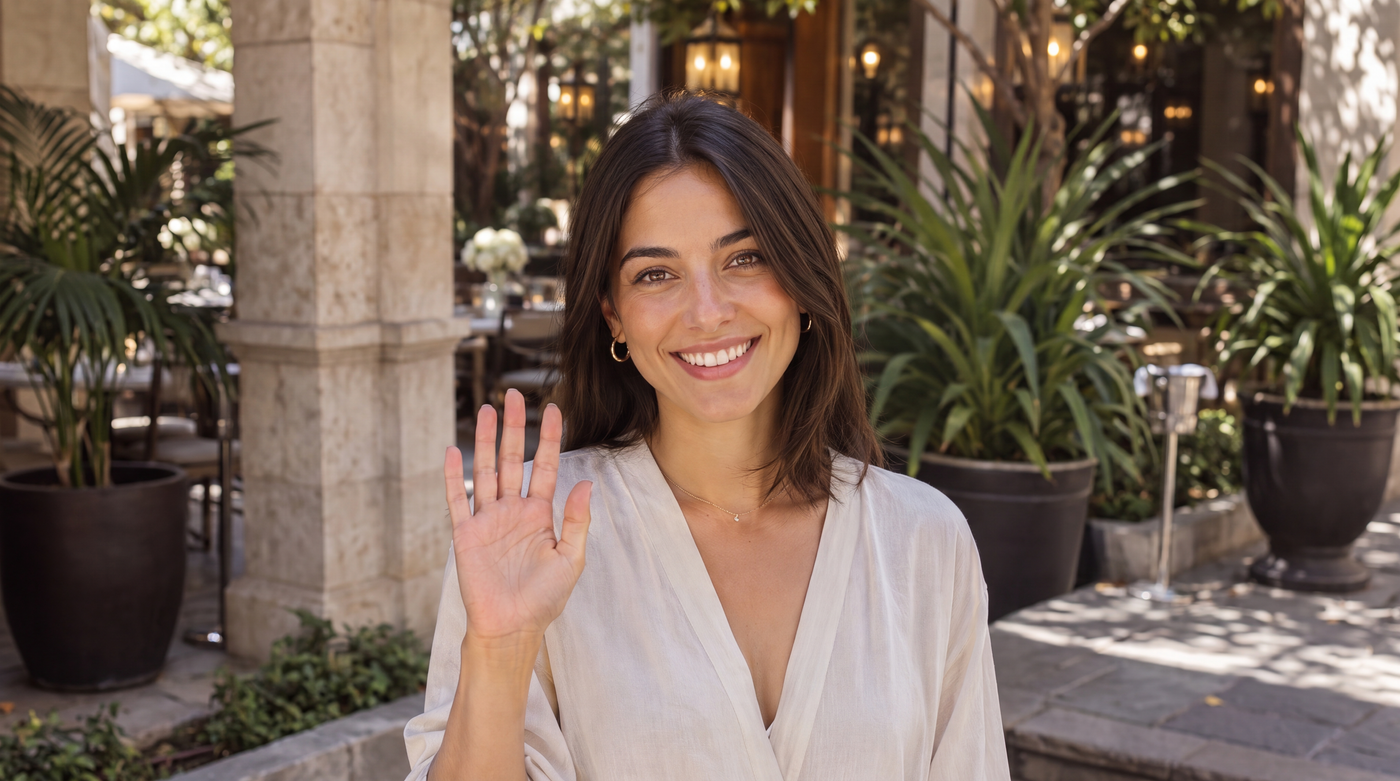
Click Action Prompt to control your avatar's gestures, posture, and facial expressions during the video. You can write your own prompt or choose one of the suggested action prompts, then click Add Action to apply it.
- Enter a custom action prompt or select a suggested one
- Click Add Action
Note: This step is optional. You can skip it if you don't need specific avatar movements.
Step 16: Generate Your AI Avatar Video

Once you've uploaded your audio and configured the video settings, click Generate to start creating your AI avatar video. Zoice will process your audio, synchronize it with your selected avatar, and render the final video.
- Review your audio and settings
- Click Generate
Step 17: Preview the Audio and Generate the Avatar Video

If you enabled Enhance Audio, Zoice will first generate an audio preview before creating the video. Play the preview to check that the voice sounds natural and that the pronunciation, pacing, and overall quality meet your expectations.
If you're satisfied with the audio, click Generate avatar video to start creating the final AI avatar video.
- Play the generated audio preview
- Review the voice quality and pronunciation
- Click Generate avatar video to generate the final video
Step 18: Wait for the Avatar Video to Generate

After clicking Generate avatar video, Zoice will begin processing your project. During this stage, your audio is synchronized with the selected avatar, facial expressions, lip sync, and animations are applied, and the final video is rendered.
The generation time depends on the length of your audio, the selected resolution, and current server load. Once the process is complete, your AI avatar video will be ready to preview and download.
- Wait while Zoice generates your avatar video
- Once completed, proceed to preview the generated video
Tip: Longer audio files and higher resolutions such as 2K may take more time to process than shorter videos or lower resolutions.
Step 19: Preview and Download Your Video

Once the video generation is complete, preview your AI avatar video to ensure everything looks and sounds correct. If you're satisfied with the result, download it to your device.
- Preview the generated video
- Click Download to save it
Example Audio and Generated Avatar Video
To demonstrate the final result, below is the audio used to generate the avatar video, followed by the AI avatar video created by Zoice.
Audio Used
Embed or attach the audio file used in this tutorial.
Example:
Generated AI Avatar Video
Below is the final avatar video generated from the uploaded audio using Zoice.
Example:
Tip: Compare the uploaded audio with the generated avatar video to see how accurately Zoice synchronizes lip movements, facial expressions, and speech.
Why Use Zoice Over Other AI Video Tools?
There are many AI avatar generators available today, but Zoice stands out by combining realistic avatars, advanced voice cloning, customizable AI voices, and an intuitive workflow in a single platform. Instead of switching between multiple tools to create an avatar, clone a voice, and generate a video, Zoice lets you complete the entire process from one dashboard.
Another advantage is that once you've created your avatar and voice profile, you can reuse them for unlimited future videos. Simply write a new script, select your saved avatar and voice, and generate a new video within minutes. This makes Zoice an excellent choice for creators, businesses, educators, and marketers who produce content regularly.
Some of the features that make Zoice stand out include:
- Create realistic AI avatars from a single photo
- Clone your own voice or choose from AI voice profiles
- Natural lip synchronization and facial expressions
- Built in action prompts for realistic body language
- Multiple output resolutions and aspect ratios
- Beginner friendly interface
- Fast cloud based video generation
- Reusable avatars and voice profiles
How to Make Your AI Avatar Video Feel Real
Even the best AI avatar generator performs better when you follow a few best practices. Small improvements in your photo, script, and voice can make a significant difference in how realistic your final video appears.
To create more natural looking AI avatar videos:
- Use a high resolution front facing photo.
- Record a clean voice sample with minimal background noise.
- Write your script in a conversational tone instead of sounding robotic.
- Use punctuation naturally to improve speech rhythm.
- Select an action prompt that matches your content style.
- Choose the correct aspect ratio for your publishing platform.
- Keep your videos concise and engaging.
- Preview the voice before generating the final video.
The combination of a quality image, natural voice, and well written script produces the most lifelike AI avatar videos.
What Can You Create Using AI Avatar Videos?
AI avatar videos are incredibly versatile and can be used for almost any type of video content. Since you don't need a camera, microphone, or professional recording setup, you can create high quality videos much faster than with traditional video production. Whether you're an individual creator, educator, marketer, or business owner, AI avatars help you produce engaging videos consistently while saving time and production costs.
Below are some of the most popular ways people use AI avatar videos.
YouTube Videos
Many YouTube creators use AI avatars to produce educational content, explain complex topics, review products, or share tutorials without appearing on camera. Once you've created your avatar, you can publish videos consistently by simply writing a new script and generating another video.
Popular YouTube content includes:
- Tutorials and how to videos
- Tech reviews
- Educational content
- News and commentary
- Finance and business videos
Short Form Social Media Content
AI avatar videos are perfect for creating vertical videos for platforms like TikTok, Instagram Reels, Facebook Reels, and YouTube Shorts. By selecting the appropriate aspect ratio, you can quickly generate engaging short form content without spending time filming or editing.
Examples include:
- Daily tips
- Motivational videos
- Product highlights
- Social media advertisements
- Trending educational content
Online Courses and Educational Videos
Teachers, trainers, and course creators can use AI avatars to deliver lessons in a professional and engaging way. Instead of recording every lecture, you can simply update your script whenever your course changes and generate a new version within minutes.
AI avatar videos work well for:
- Online courses
- Employee training
- Software tutorials
- Educational presentations
- Language lessons
Marketing and Promotional Videos
Businesses can use AI avatars to create professional marketing videos without hiring presenters or setting up expensive video shoots. AI avatars make it easy to explain products, introduce services, and communicate with customers while maintaining a consistent brand image.
Common marketing videos include:
- Product demonstrations
- Promotional campaigns
- Landing page videos
- Company introductions
- Brand awareness videos
Customer Support and Product Tutorials
Instead of writing lengthy help articles, businesses can create AI avatar videos that guide customers through common questions and product features. Video tutorials are often easier to understand and provide a better user experience than text only documentation.
Some common examples include:
- FAQ videos
- Product setup guides
- Feature walkthroughs
- Troubleshooting tutorials
- Customer onboarding videos
Sales and Business Presentations
AI avatars can also be used to create professional presentations for clients, investors, or internal teams. Because the avatar delivers the presentation consistently every time, businesses can create polished videos without scheduling live meetings or recording multiple takes.
Popular business use cases include:
- Sales presentations
- Investor pitches
- Company announcements
- Internal communications
- Team training videos
Personal Branding
Professionals such as coaches, consultants, speakers, and freelancers use AI avatars to build their personal brand online. By creating videos regularly without appearing on camera, they can establish authority, grow their audience, and reach more potential clients with minimal effort.
Personal branding videos include:
- Thought leadership content
- Coaching tips
- Industry insights
- LinkedIn videos
- Portfolio introductions
Common Mistakes People Make
Although AI avatar generators are easy to use, a few common mistakes can reduce the quality of your final video.
Avoid these mistakes whenever possible:
- Uploading blurry or low resolution photos
- Using side profile images instead of front facing photos
- Recording voice samples with background noise
- Writing long, complex sentences
- Ignoring punctuation in the script
- Choosing the wrong aspect ratio for the platform
- Making videos longer than necessary
- Skipping the audio preview before generating the video
- Using action prompts that don't match the video's tone
Taking a few extra minutes to prepare your assets can dramatically improve the final result.
What Makes AI Avatar Videos So Popular?
AI avatar videos have become increasingly popular because they make professional video creation accessible to everyone. Instead of spending hours filming, editing, and recording multiple takes, creators can generate high quality talking videos using just a photo and a script.
Businesses appreciate AI avatars because they reduce production costs while making it easier to create personalized content at scale. Content creators benefit from faster publishing, educators can produce lessons without being on camera, and marketers can quickly create promotional videos for different audiences.
Some of the biggest reasons for their popularity include:
- No camera or studio required
- Faster video production
- Lower production costs
- Consistent branding across videos
- Easy multilingual content creation
- Realistic AI voices and avatars
- Scalable content production
- Beginner friendly workflow
Best Practices for Creating Professional AI Avatar Videos
While AI avatar generators make video creation much easier, the quality of your final video depends on the choices you make throughout the process. Everything from the image you upload to the way you write your script affects how realistic and engaging your avatar appears. By following a few best practices, you can create videos that look more professional and keep viewers watching.
Use a High Quality Image
Your avatar is created from the photo you upload, so start with the best image possible. A clear, high resolution, front facing photo with good lighting allows the AI to generate more accurate facial features, smoother lip synchronization, and natural expressions. Avoid blurry photos, side profiles, or images where your face is partially covered.
Write Like You Speak
AI voices sound much more natural when the script is conversational. Instead of using long or overly formal sentences, write the way you would normally speak. Short sentences with proper punctuation help the AI produce smoother speech and more realistic pauses.
Choose the Right Voice
The voice is just as important as the avatar. Whether you're using an AI voice or a cloned voice, select one that matches the purpose of your video. A professional voice works well for business presentations, while a friendly and energetic voice is better suited for tutorials or social media content.
Match the Action Prompt to Your Content
Action prompts control how your avatar behaves during the video. For example, a business presentation may require confident gestures and a calm tone, while a promotional video might benefit from more expressive movements. Choosing the right action prompt makes your avatar appear more lifelike and engaging.
Select the Correct Aspect Ratio
Before generating your video, choose an aspect ratio that matches the platform where you'll publish it. Horizontal videos work best for YouTube, while vertical videos are ideal for TikTok, Instagram Reels, and YouTube Shorts. Selecting the correct format from the start prevents unnecessary editing later.
Keep Videos Concise
Although AI avatars can generate long videos, shorter videos are usually more effective. Break lengthy topics into smaller sections whenever possible. This improves viewer engagement and also makes it easier to update your content in the future.
Always Preview Before Downloading
Before downloading the final video, review the voice, lip synchronization, pronunciation, and overall presentation. A quick preview allows you to catch small mistakes that can easily be corrected before publishing.
Frequently Asked Questions
Do I need a camera to create an AI avatar video?
No. One of the biggest advantages of AI avatar generators is that you don't need a camera or record yourself. You can create a realistic talking avatar using a single high quality photo, a script, and either an AI generated voice or your own cloned voice.
What type of photo works best for creating an AI avatar?
For the best results, use a high resolution, front facing photo with good lighting and a neutral facial expression. Your face should be fully visible without sunglasses, hats, or heavy filters. A professional headshot or a clear smartphone portrait usually produces the most realistic avatar.
Can I use my own voice in an AI avatar video?
Yes. Zoice allows you to create a custom voice profile by uploading a voice recording. Once your voice profile is generated, you can use it in all future AI avatar videos, making your content more authentic and personalized.
Can I use an AI voice instead of cloning my voice?
Absolutely. If you don't want to record your own voice, you can choose from Zoice's built in Voice Library, which offers a variety of natural sounding AI voices in different languages, accents, and speaking styles.
How long does it take to generate an AI avatar video?
The time depends on the length of your script, the selected video resolution, and current server load. Most videos are generated within a few minutes after you click the Generate button.
Can I reuse my AI avatar for multiple videos?
Yes. Once your avatar has been created, it is saved to your Zoice account. You can use the same avatar to create unlimited videos by simply changing the script, voice, or output settings without creating a new avatar each time.
Which aspect ratio should I choose?
Choose the aspect ratio based on where you plan to publish your video:
- 16:9 for YouTube and presentations
- 9:16 for TikTok, Instagram Reels, and YouTube Shorts
- 1:1 for Instagram and Facebook posts
Selecting the correct aspect ratio ensures your video looks great on every platform.