How to Create AI Real Estate Videos
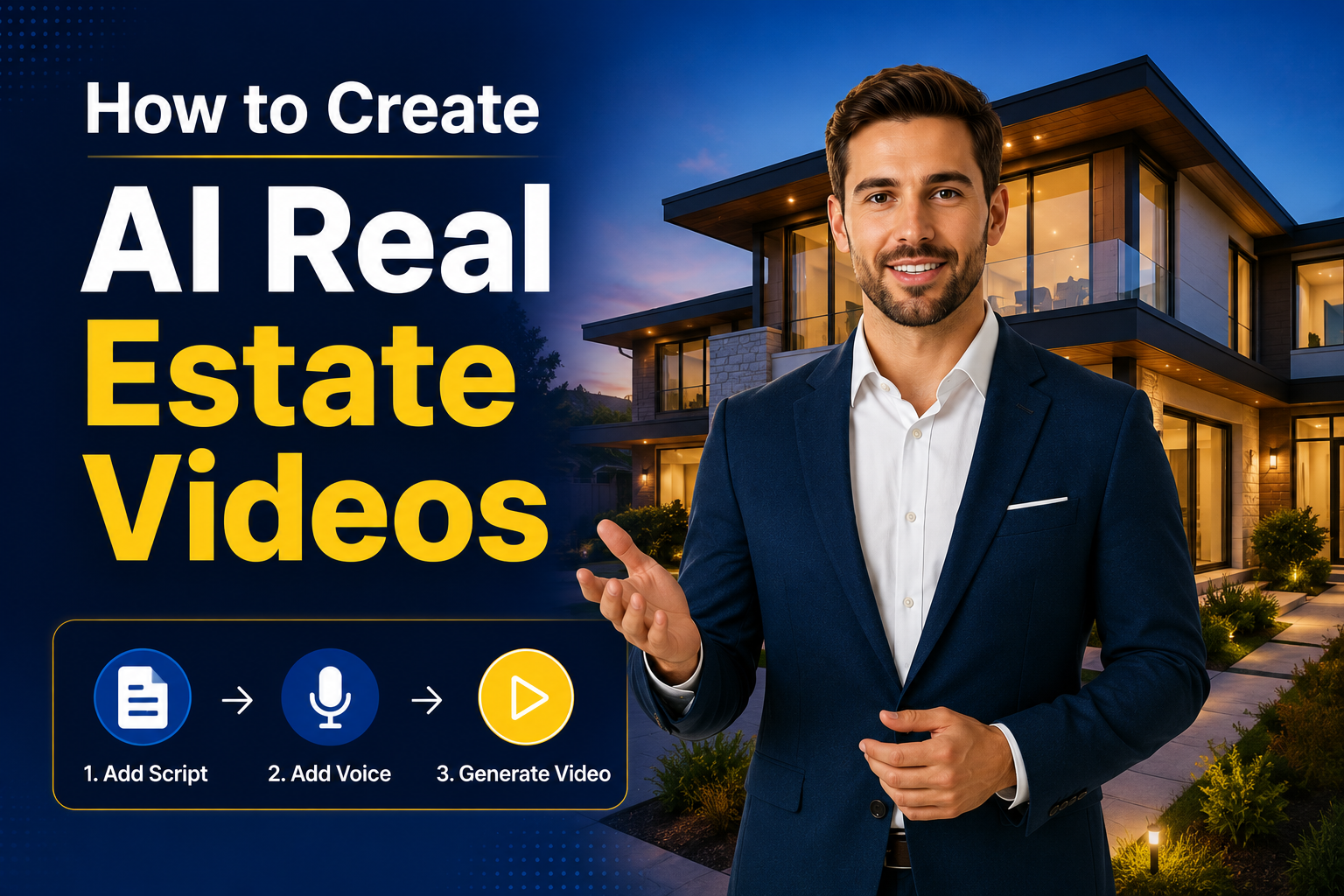
Real estate videos have become one of the most effective ways to showcase properties, attract buyers, and generate more leads. However, recording property tours, hiring presenters, and editing professional videos can be time consuming and expensive.
AI real estate video generators simplify the entire process. Instead of filming every listing, you can use AI avatars, voiceovers, scripts, and property images to create professional real estate videos in minutes.
Whether you're a real estate agent, broker, property developer, or marketing agency, AI can help you produce high quality listing videos, neighborhood guides, property updates, and promotional content without appearing on camera.
In this article, you'll learn how to create AI real estate videos using Zoice, along with tips, best practices, and ideas for creating engaging real estate content.
What Are AI Real Estate Videos?
AI real estate videos are property marketing videos created using artificial intelligence. Instead of recording a presenter or editing footage manually, AI combines avatars, voiceovers, scripts, and property images or videos to produce professional looking presentations.
These videos can include:
- Property walkthroughs
- Apartment listings
- Luxury home presentations
- Commercial property videos
- Neighborhood guides
- Investment property showcases
- Rental property advertisements
Using AI, you can quickly turn listing information into engaging videos for websites and social media.
How to Create AI Real Estate Videos Using Zoice
Creating professional real estate videos no longer requires expensive cameras, professional presenters, or advanced video editing skills. With Zoice, which is an ai avatar generator, you can turn property information into engaging AI powered videos using a realistic AI avatar, natural sounding voice, and a well written script.
Step 1: Visit Zoice
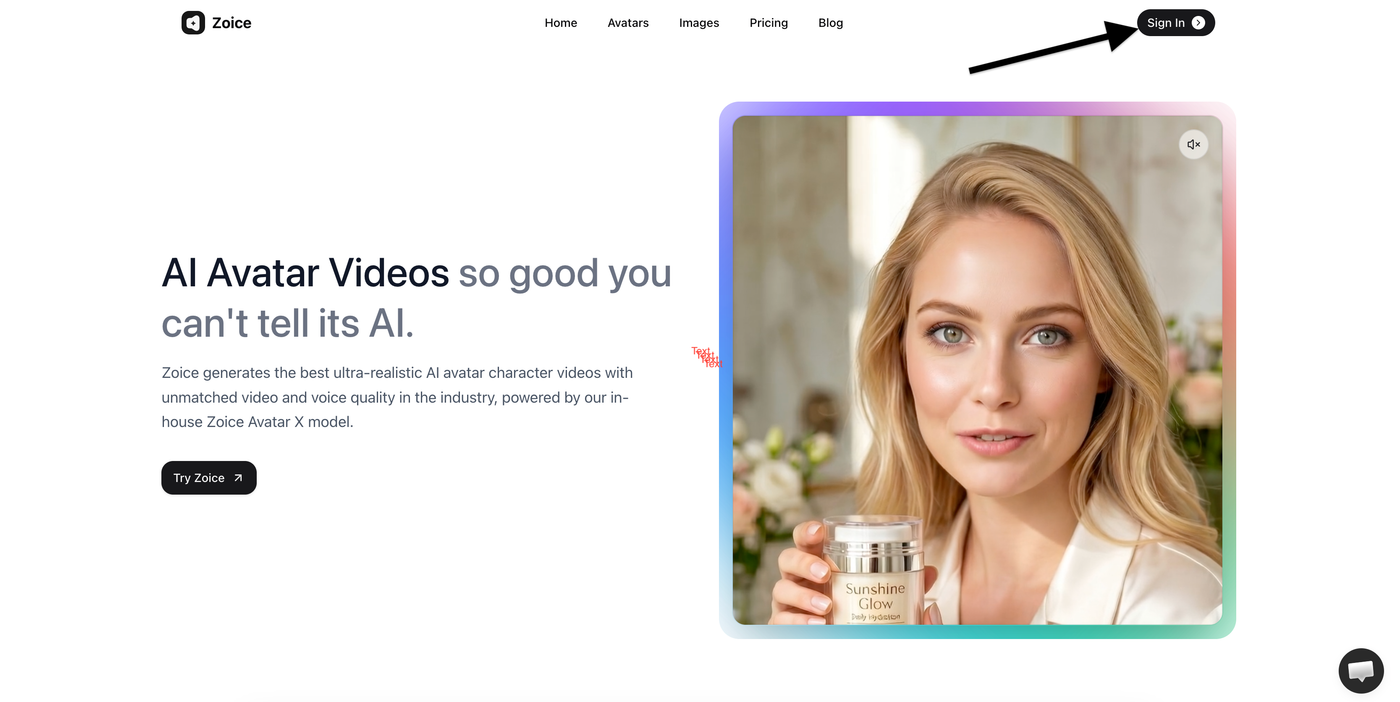
Open your preferred browser and visit Zoice.
- Go to Zoice.com
- Click Sign In
This will take you to the login page where you can access your account or create a new one.
Step 2: Sign In to Your Account
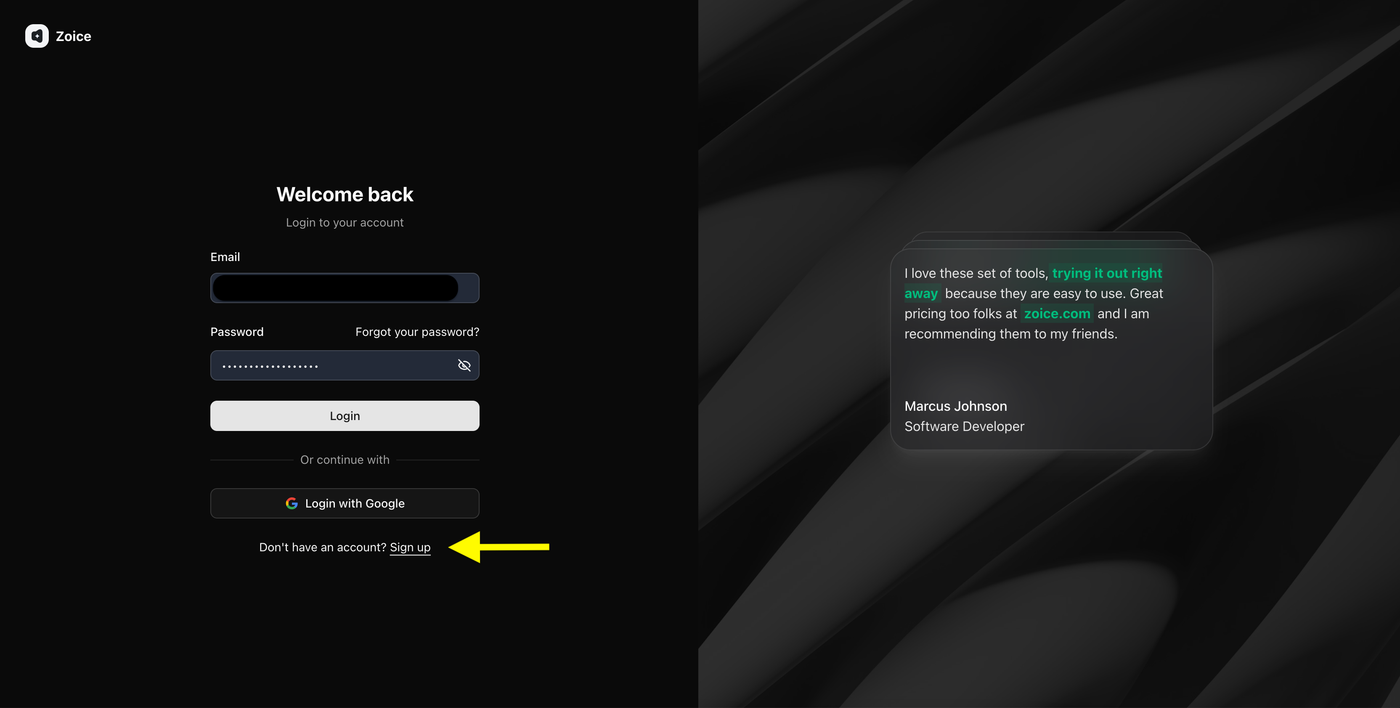
Enter your login credentials to access your Zoice dashboard.
- Enter your email address
- Enter your password
- Click Login
If you don't have an account, click Sign Up to create one.
Step 3: Create a Zoice Account (New Users)
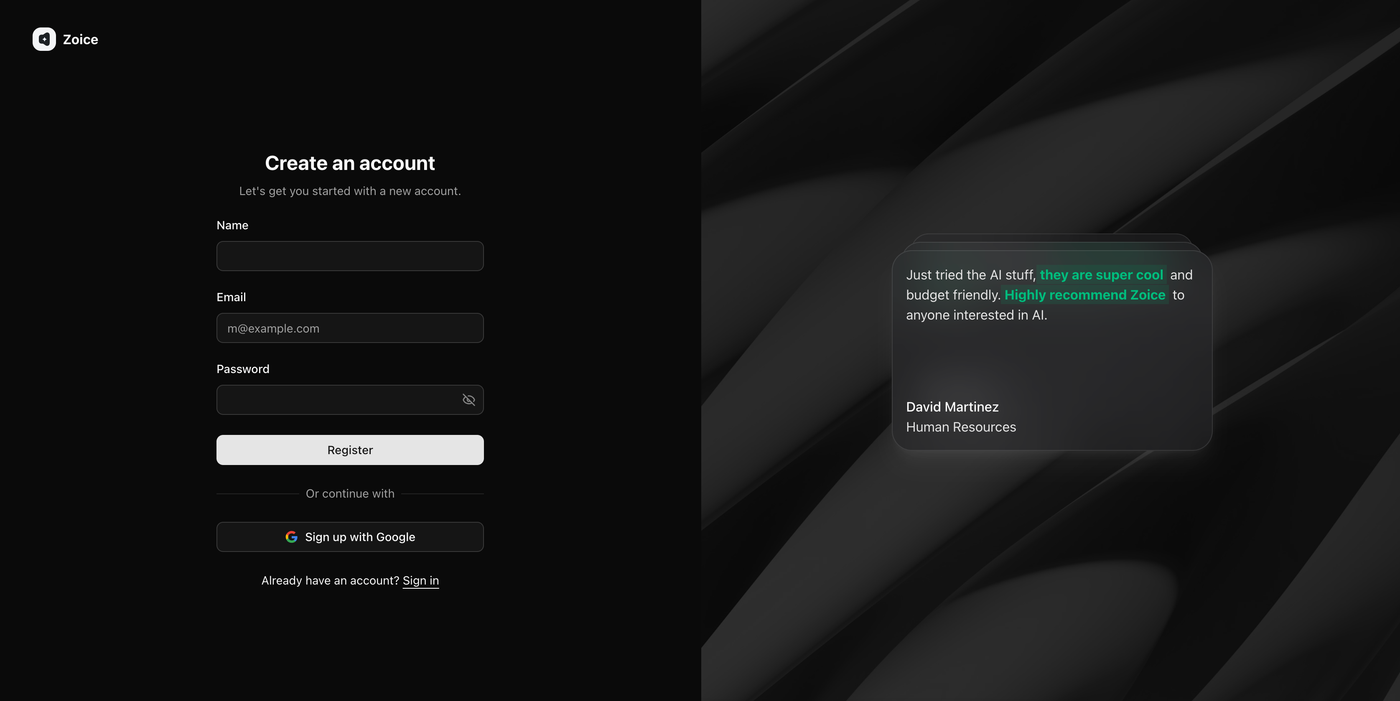
If you're using Zoice for the first time, create your account by entering:
- Name
- Email address
- Password
Then click Register.
You can also choose Sign up with Google for faster registration.
Step 4: Open Avatar Characters
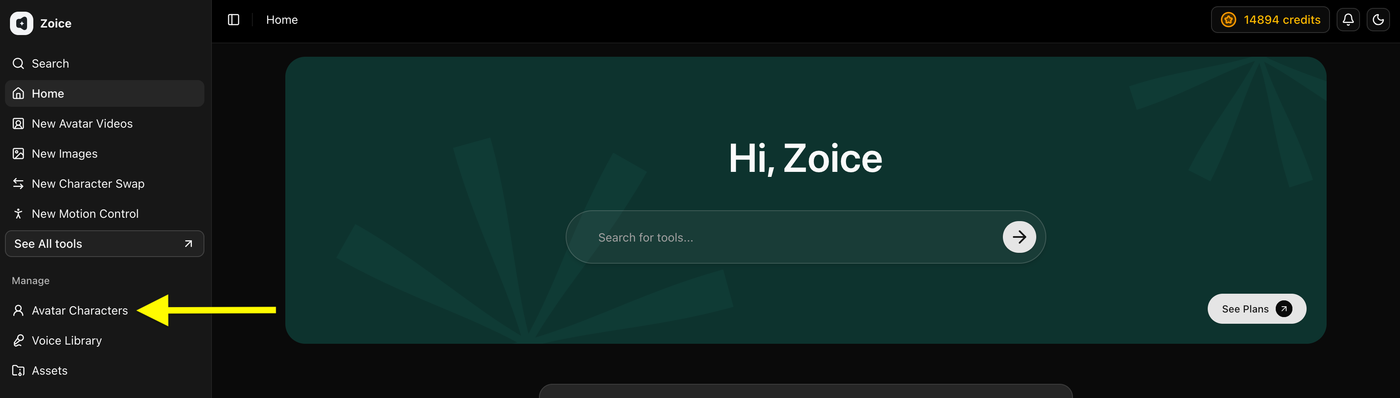
After logging in, navigate to the left sidebar.
Click Avatar Characters to access the avatar management page, where you can create and manage your AI avatars.
Step 5: Create a New Avatar
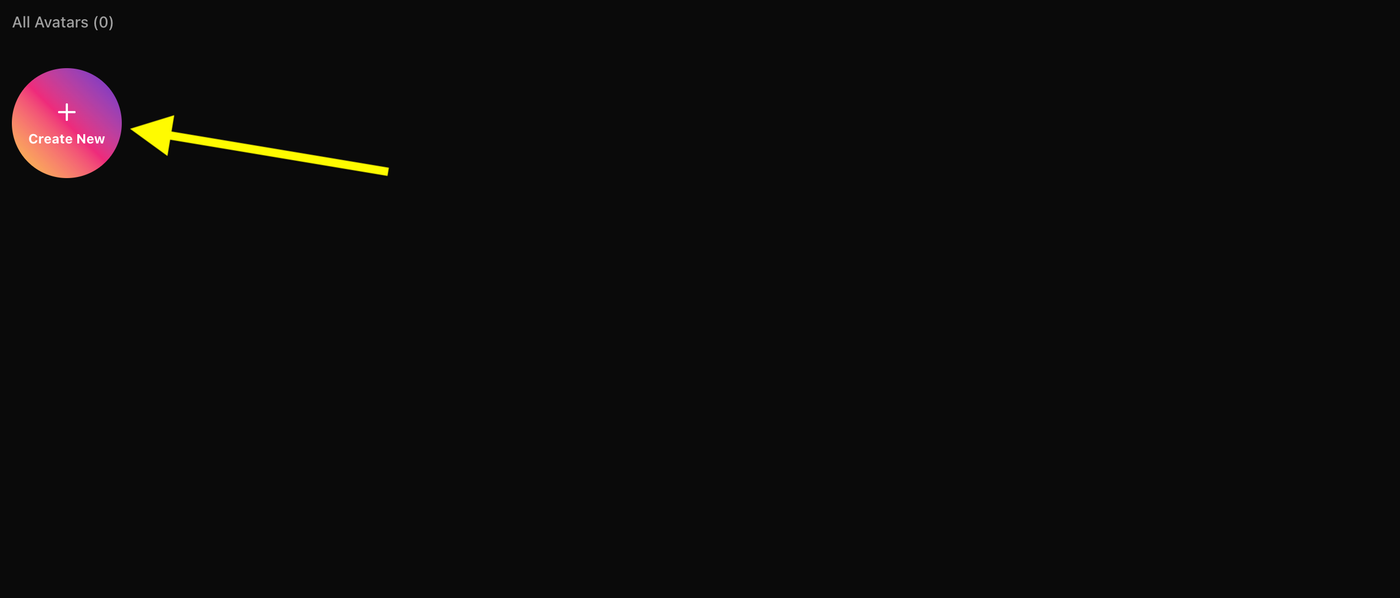
Inside the Avatar Characters section, click Create New.
You can create your avatar by either:
- Uploading your own image
- Generating one using an AI prompt
Step 6: Create Your AI Avatar
Choose one of the following methods to create your avatar:
Option 1: Upload an Image
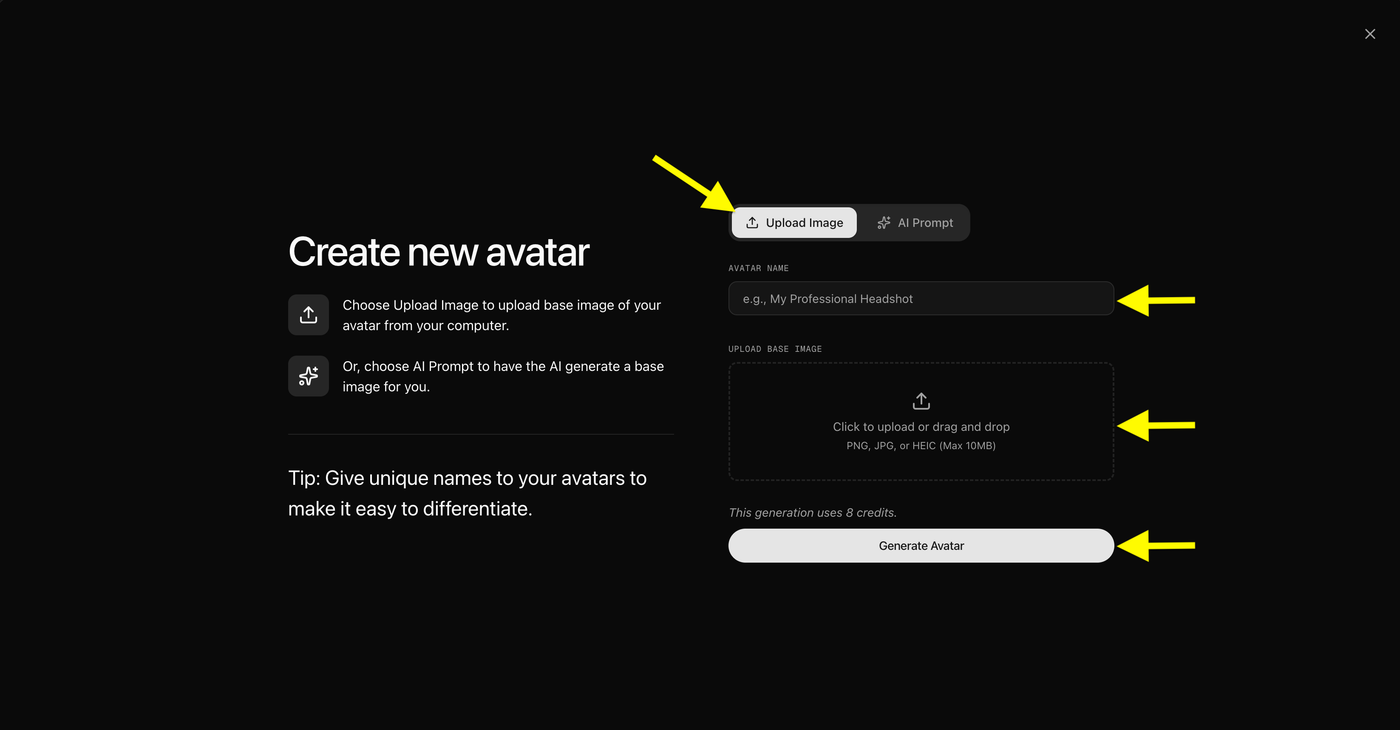
Upload a clear, front facing image and enter a unique avatar name.
For the best results:
- Use a high-resolution image
- Make sure your face is clearly visible
- Avoid blurry or heavily filtered photos
Note: If you upload your own image, skip the AI Prompt option and continue to the next step.
Option 2: Generate an Avatar with AI Prompt
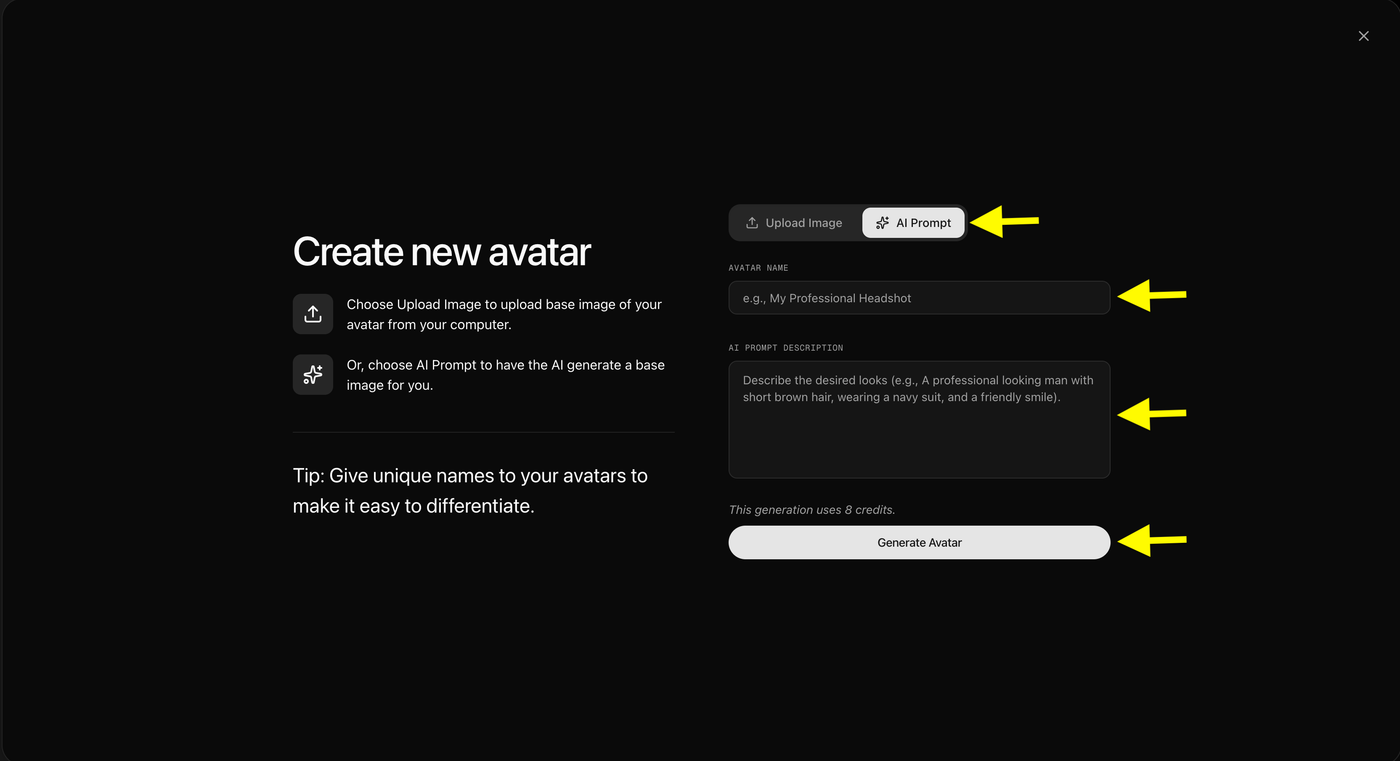
If you don't have an image, click AI Prompt and describe how you want your avatar to look.
Include details such as:
- Appearance
- Clothing
- Profession
- Style
- Background
Then:
- Enter an avatar name
- Click Generate Avatar
Zoice will create a custom AI avatar based on your prompt.
Step 7: Generate Your Avatar
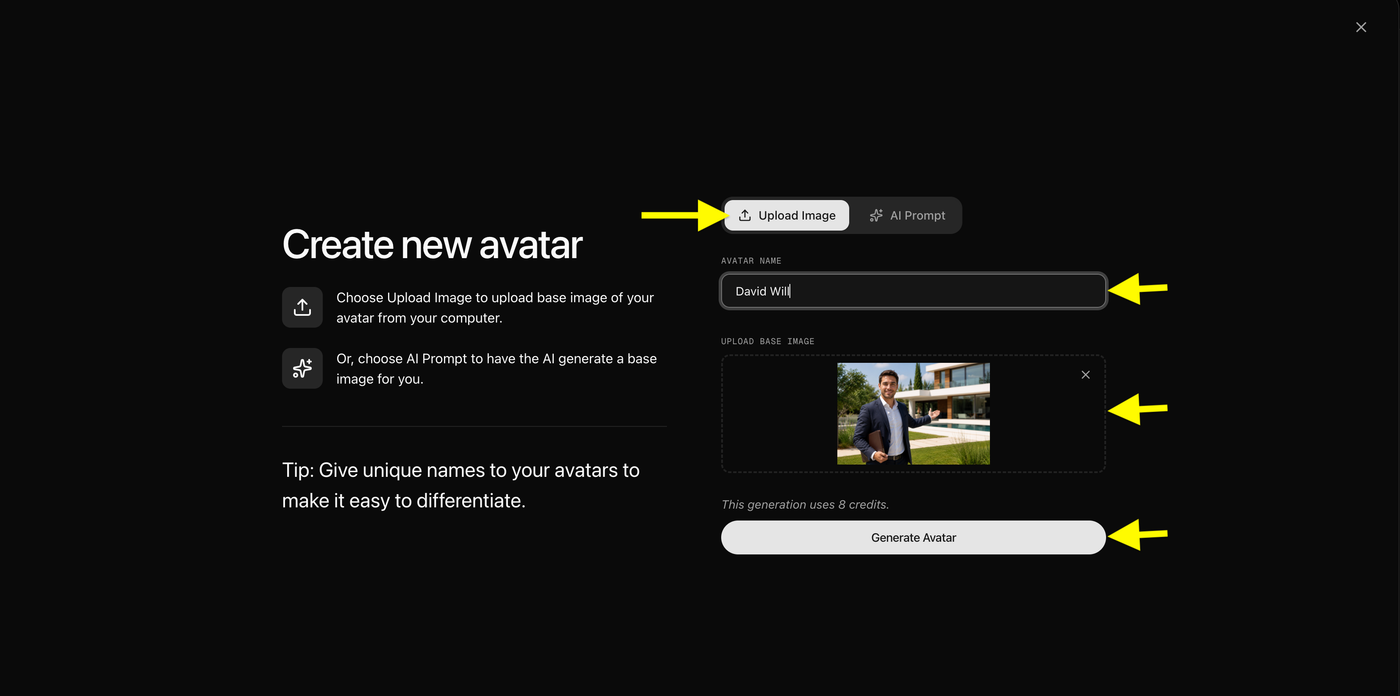
After uploading your image or generating one with an AI prompt, review your details.
Make sure you have:
- Added your avatar name
- Uploaded your image or generated one using AI
Finally, click Generate Avatar.
Zoice will process your request and create your custom AI avatar, which you can use to generate professional AI avatar videos.
Step 8: Select Your Created Avatar
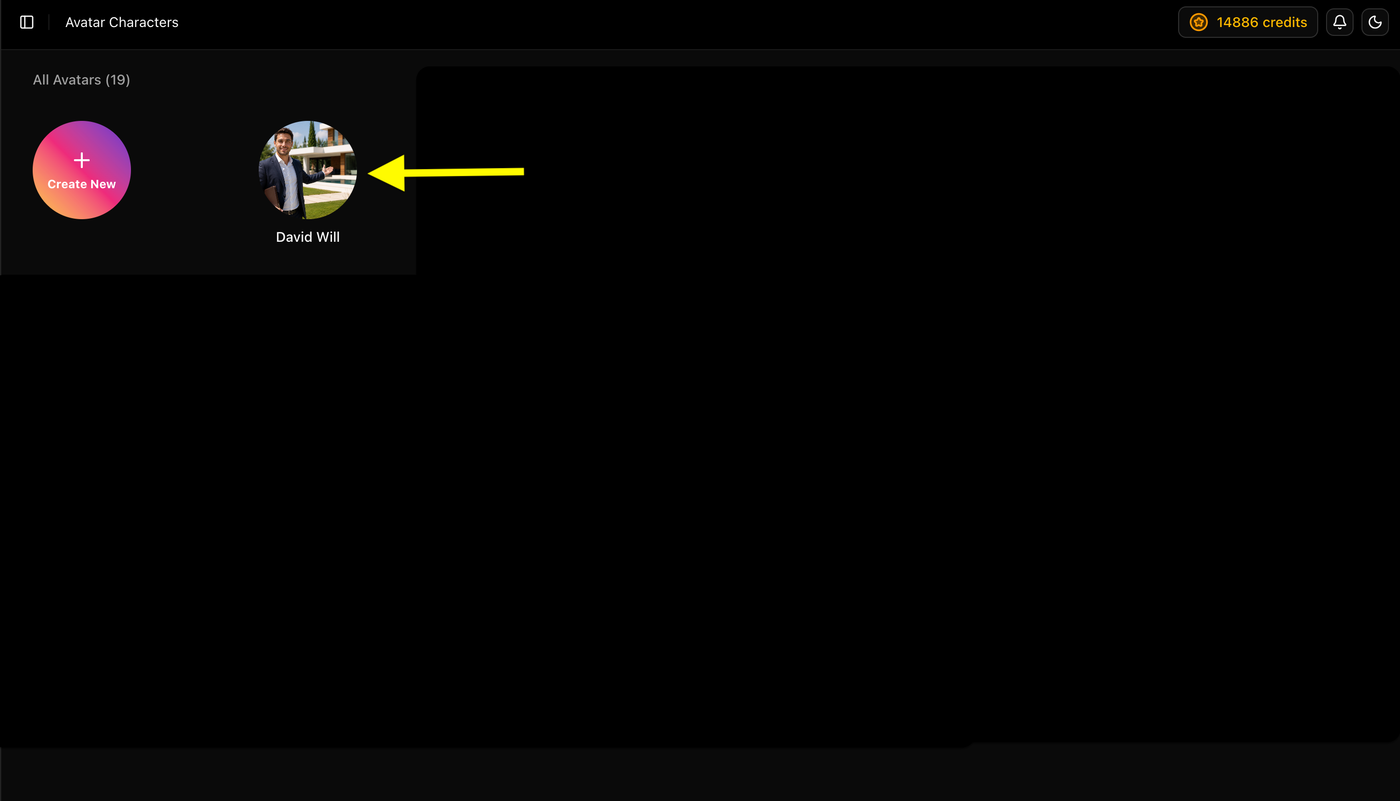
After your AI avatar is generated, it will appear in the Avatar Characters section.
Click the avatar you created to open its details and continue with video creation.
- Locate your generated avatar
- Click the avatar to select it
This will open your avatar, allowing you to start creating an AI real estate video in the next step.
Step 9: Open the AI Video Editor
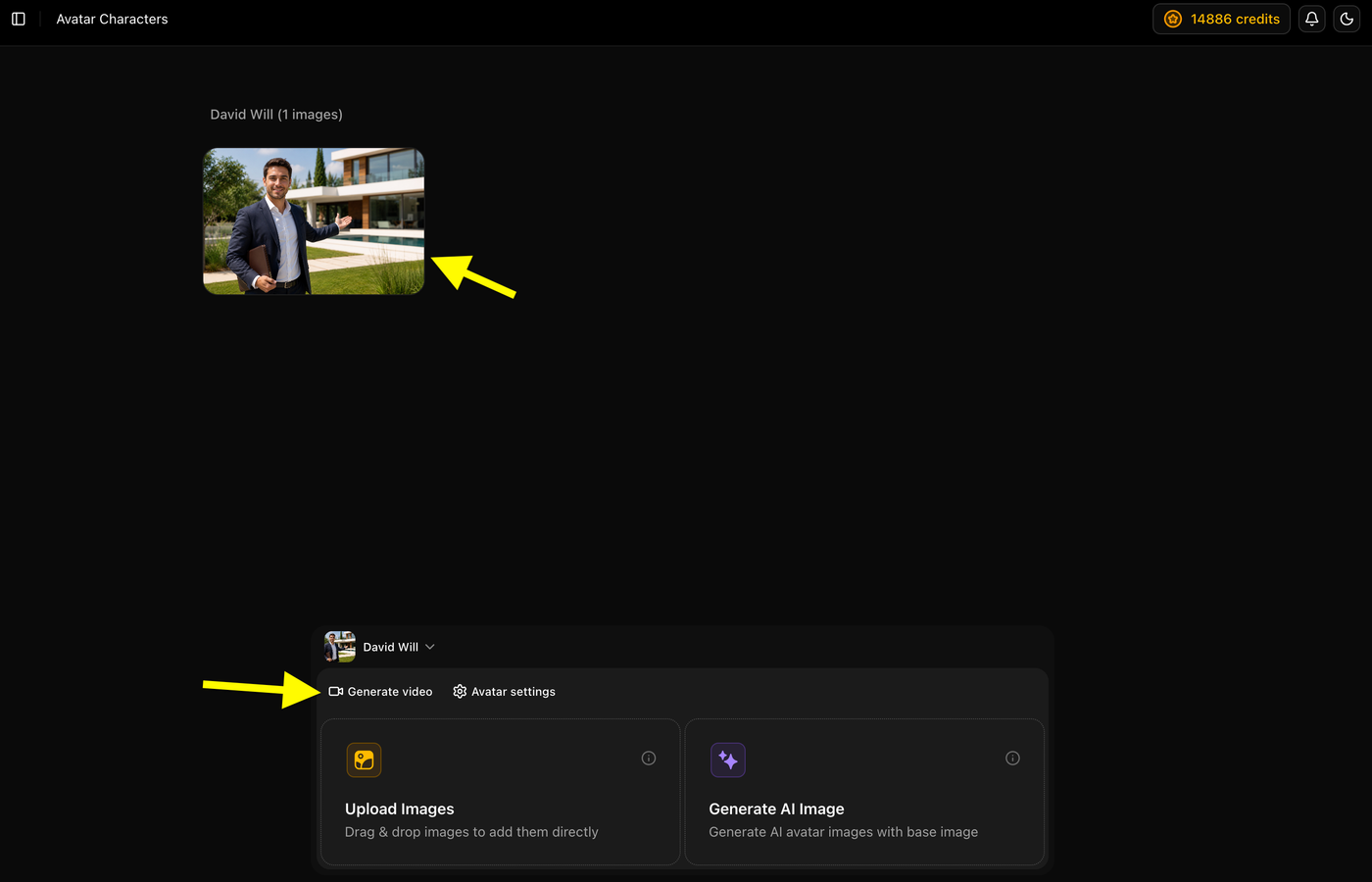
After selecting your avatar, click Generate Video to open the AI video editor. Your selected avatar will automatically be added, allowing you to start creating your AI real estate video.
- Click Generate Video
- Wait for the AI video editor to open
From here, you can add your property script, choose a voice, configure the output settings, and generate your AI real estate video.
Step 10: Add Your Real Estate Script
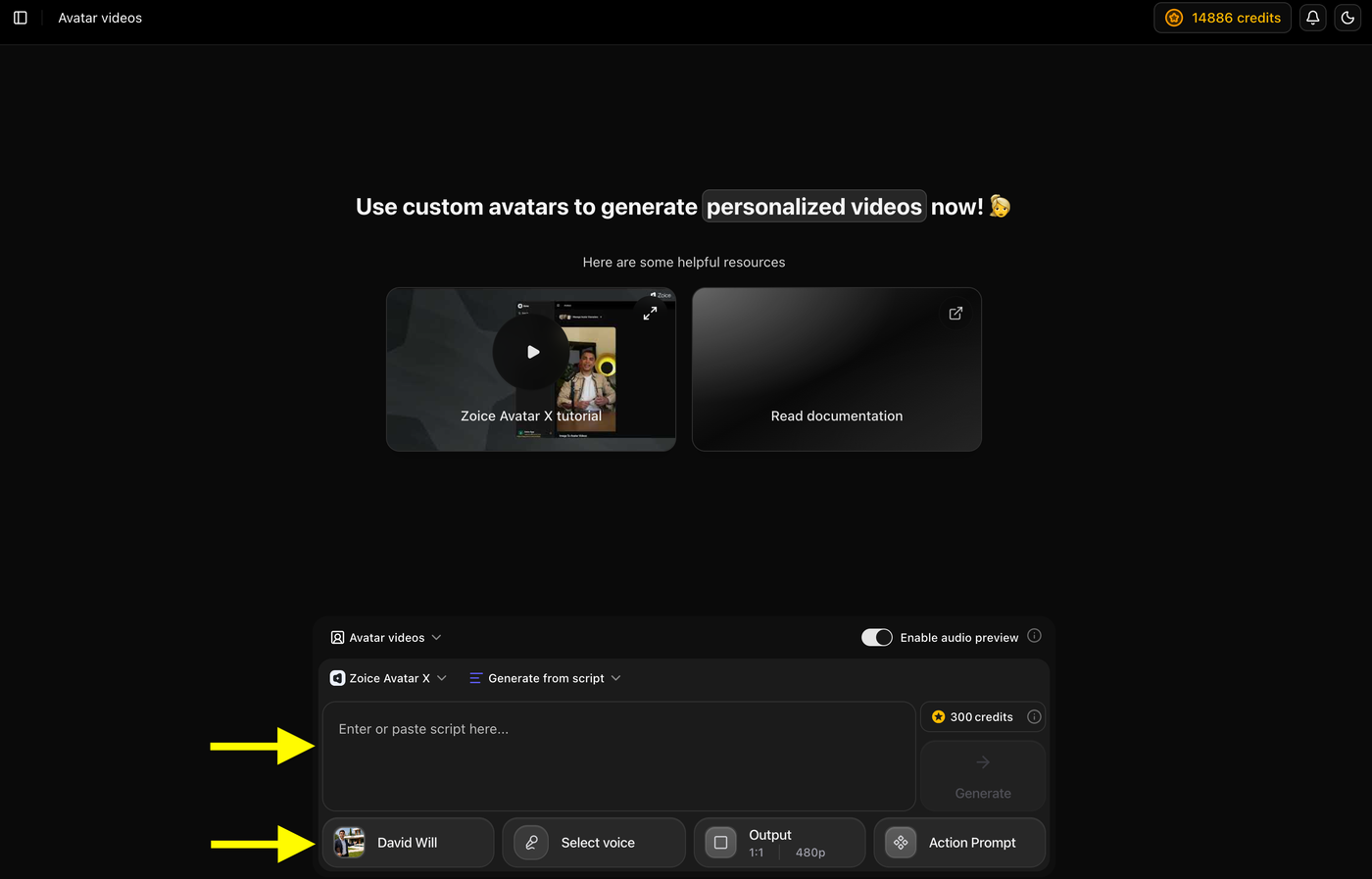
Click the Enter or paste script here field and add the script you want your AI avatar to present. Your avatar will use this script to narrate the property details in the final video.
- Click Enter or paste script here
- Type or paste your real estate script
- Review the script before continuing
Tip: Write your script in a natural, conversational tone. Highlight the property's key features, location, amenities, and finish with a clear call to action to encourage potential buyers to get in touch.
Step 11: Write or Paste Your Script
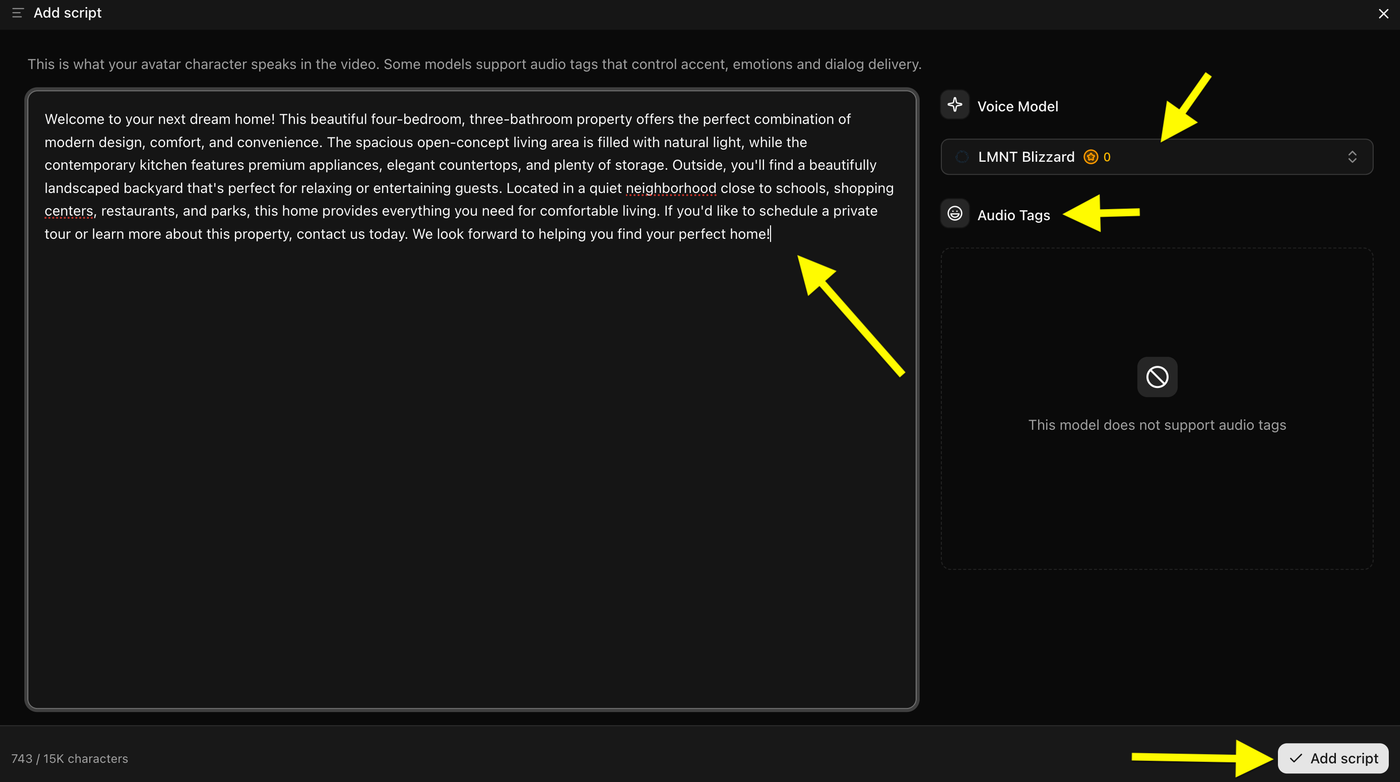
Write or Paste your real estate script, choose a Voice Model if required. Some voice models also support Audio Tags, which let you adjust the delivery, emotion, and speaking style.
Once your script is ready, click Add Script to continue.
- Review your script
- Select a Voice Model (if applicable)
- Add Audio Tags (optional)
- Click Add Script
Tip: Use a professional and natural sounding voice model for property listings to make your AI real estate video more engaging and trustworthy.
Step 12: Select a Voice
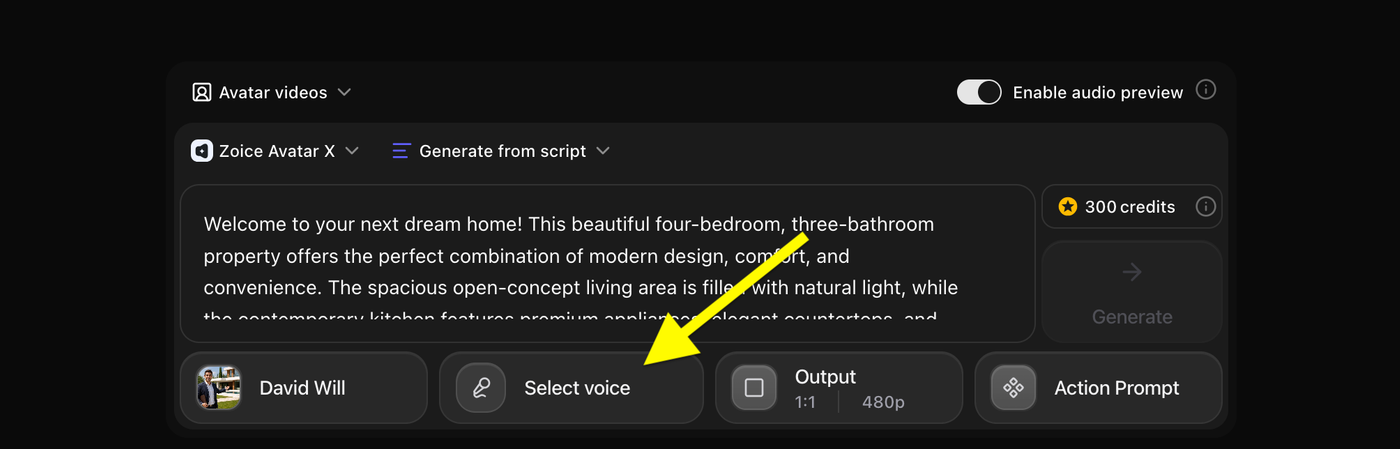
After adding your script, click Select Voice to choose the voice that will narrate your AI real estate video.
You can either use your own custom voice or select one from Zoice's public voice library.
- Click Select Voice
- Open the voice library
Tip: Choose a voice that sounds clear, confident, and professional to create a more engaging property presentation.
Step 13: Choose a Voice Profile
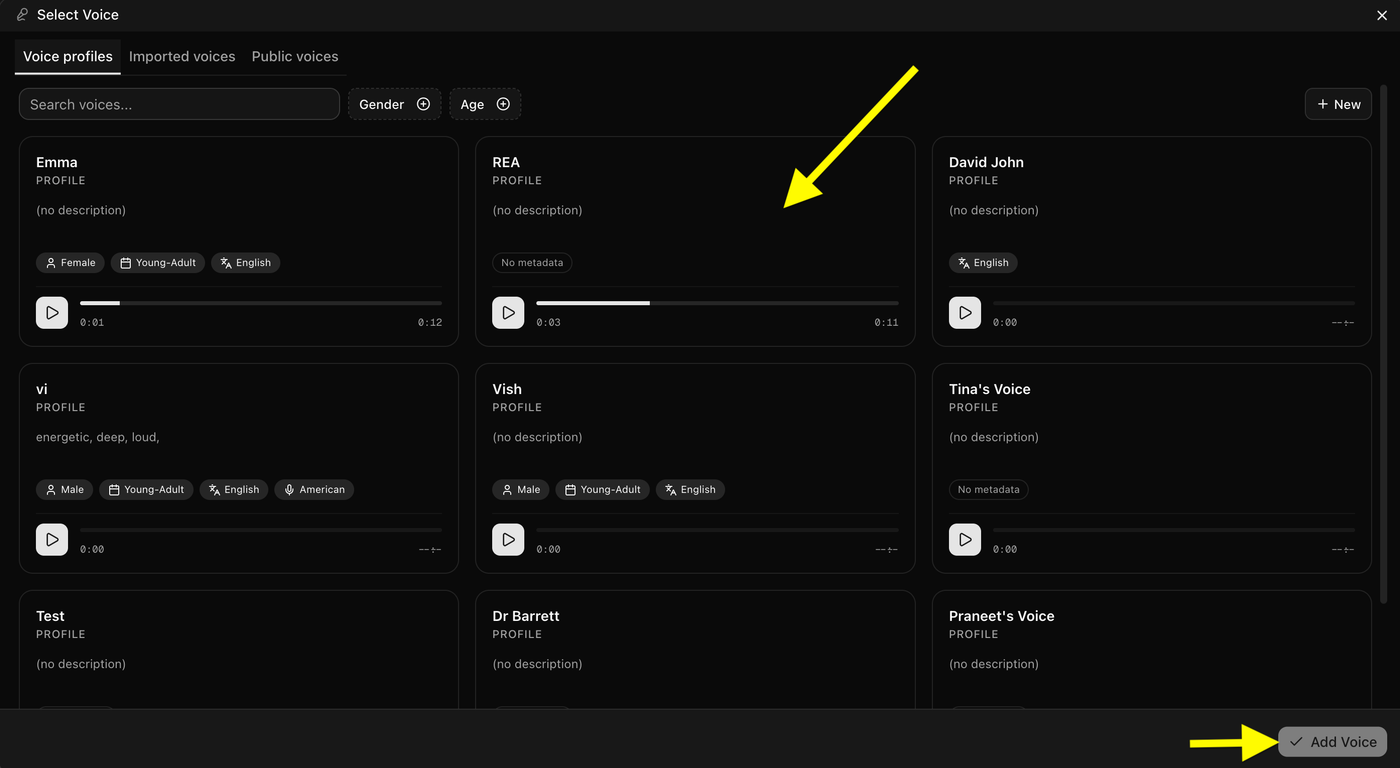
If you have already created a custom voice, you can select it from the Voice Profiles tab.
Click your preferred voice profile, then click Add Voice to apply it to your AI real estate video.
- Open Voice Profiles
- Select your custom voice
- Click Add Voice
Tip: A custom voice helps keep your branding consistent and gives your real estate videos a more personal and professional feel.
Step 14: Open Output Settings
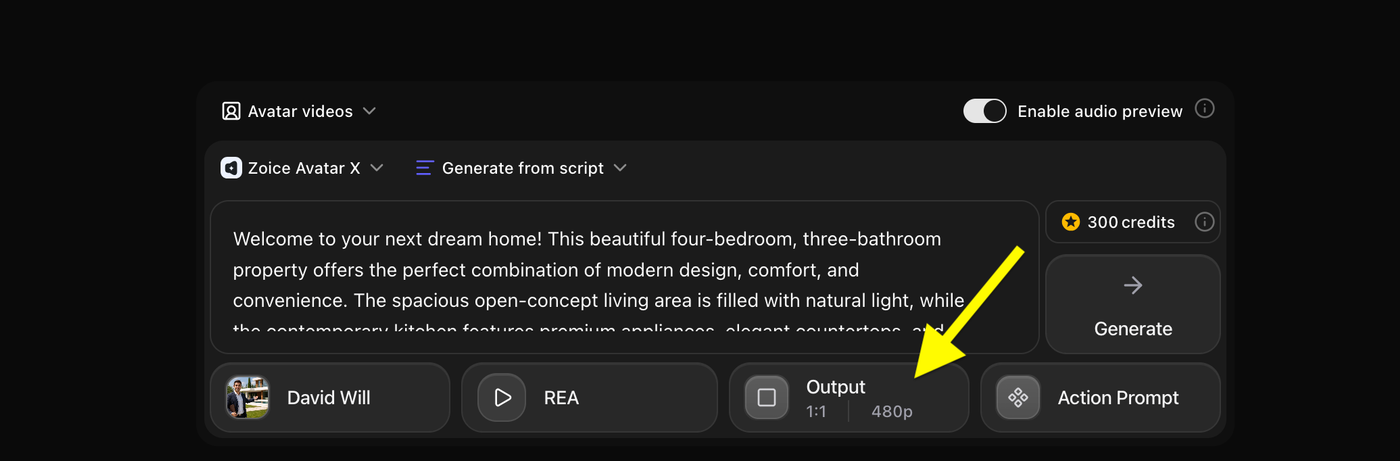
Click Output to open the video output settings, where you can configure the aspect ratio and resolution for your AI real estate video.
- Click Output
Step 15: Choose the Aspect Ratio and Resolution
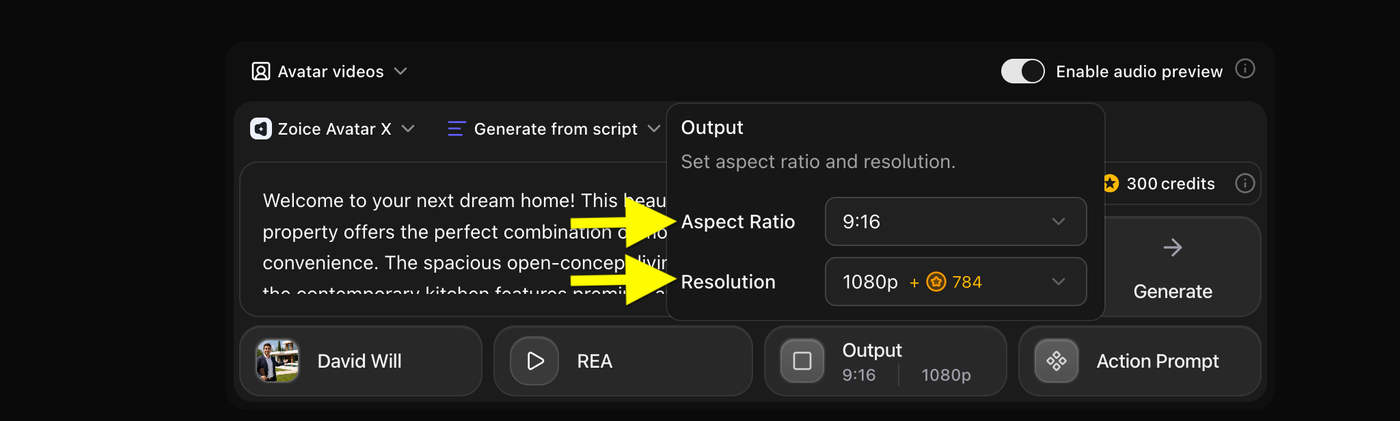
Select the Aspect Ratio and Resolution for your AI real estate video based on where you plan to publish it.
- Select your preferred Aspect Ratio
- Choose your desired Resolution
Recommended Settings:
- 9:16 for TikTok, Instagram Reels, Facebook Reels, and YouTube Shorts
- 16:9 for YouTube and property websites
- 1080p for the best video quality
Tip: Use 9:16 with 1080p to create high quality vertical real estate videos for social media platforms.
Step 16: Open Action Prompt
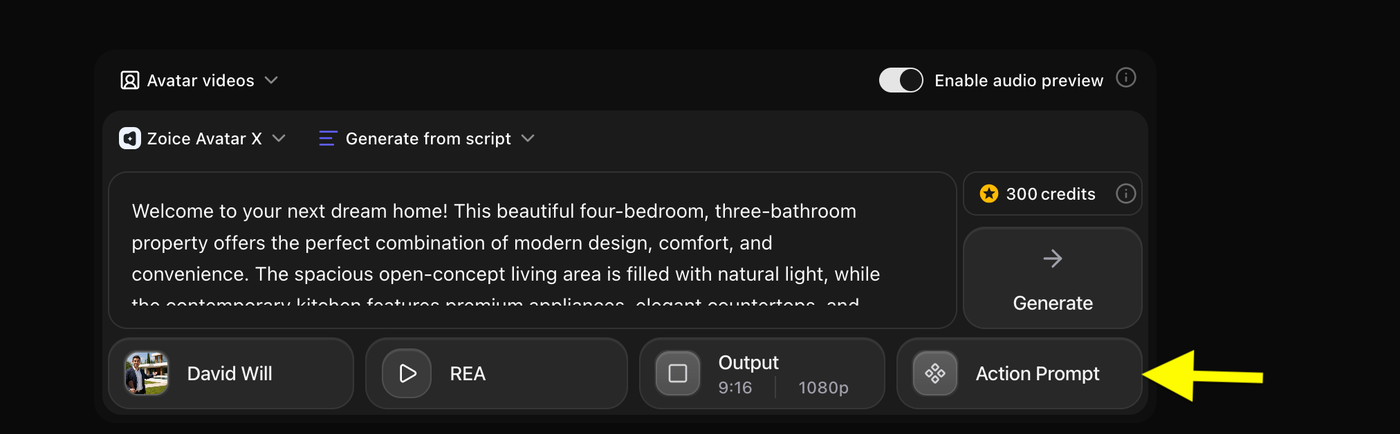
Click Action Prompt to open the action prompt settings, where you can control your AI avatar's gestures, facial expressions, and body movements.
- Click Action Prompt
Step 17: Add an Action Prompt
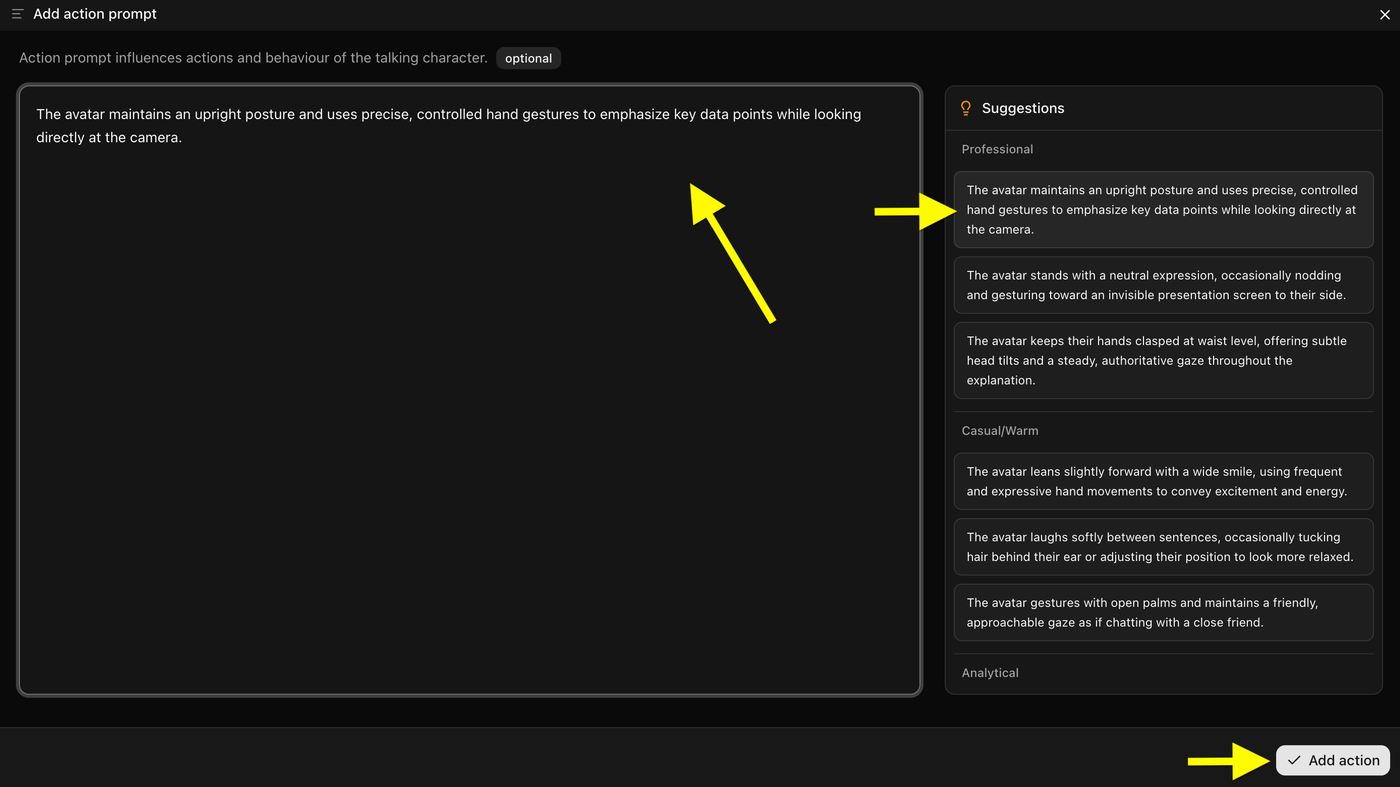
Choose one of the suggested Action Prompts or write your own custom prompt to control your avatar's body language and gestures. Then click Add action to apply it.
- Select a suggested action prompt or enter your own.
- Click Add action.
Step 18: Click on Generate
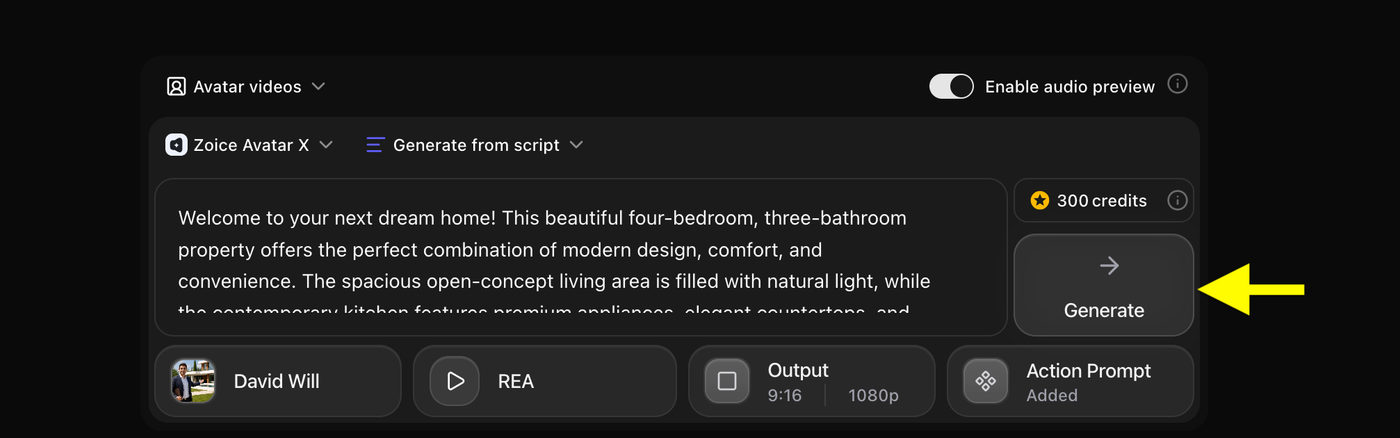
After configuring your avatar, script, voice, output settings, and action prompt, you're ready to create the final video.
Click the Generate button. Zoice will process your settings and generate a realistic AI real estate video with synchronized lip movements, natural voice narration, and facial expressions.
Note: Video generation time depends on your selected resolution and the length of your script. Higher resolutions may take a little longer to process.
Step 19: Preview Audio and Generate the Final Video
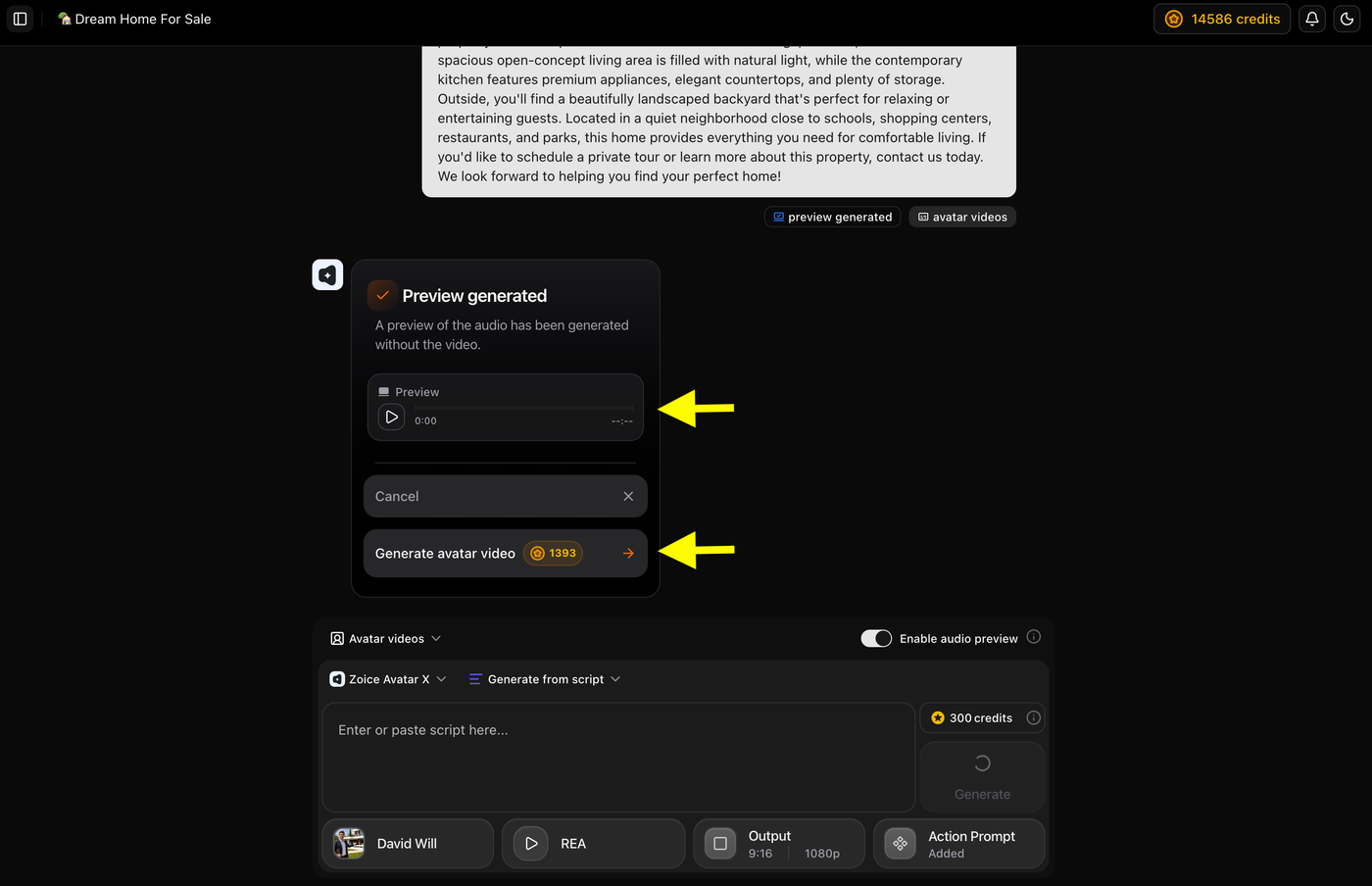
Before generating the final video, you can play the audio preview to check the voice, pronunciation, and pacing. If everything sounds good, click Generate avatar video to create your final AI real estate video.
Tip: Previewing the audio helps you catch any script or pronunciation issues before spending credits on the final video generation.
Step 20: Wait for the Video to Finish Generating
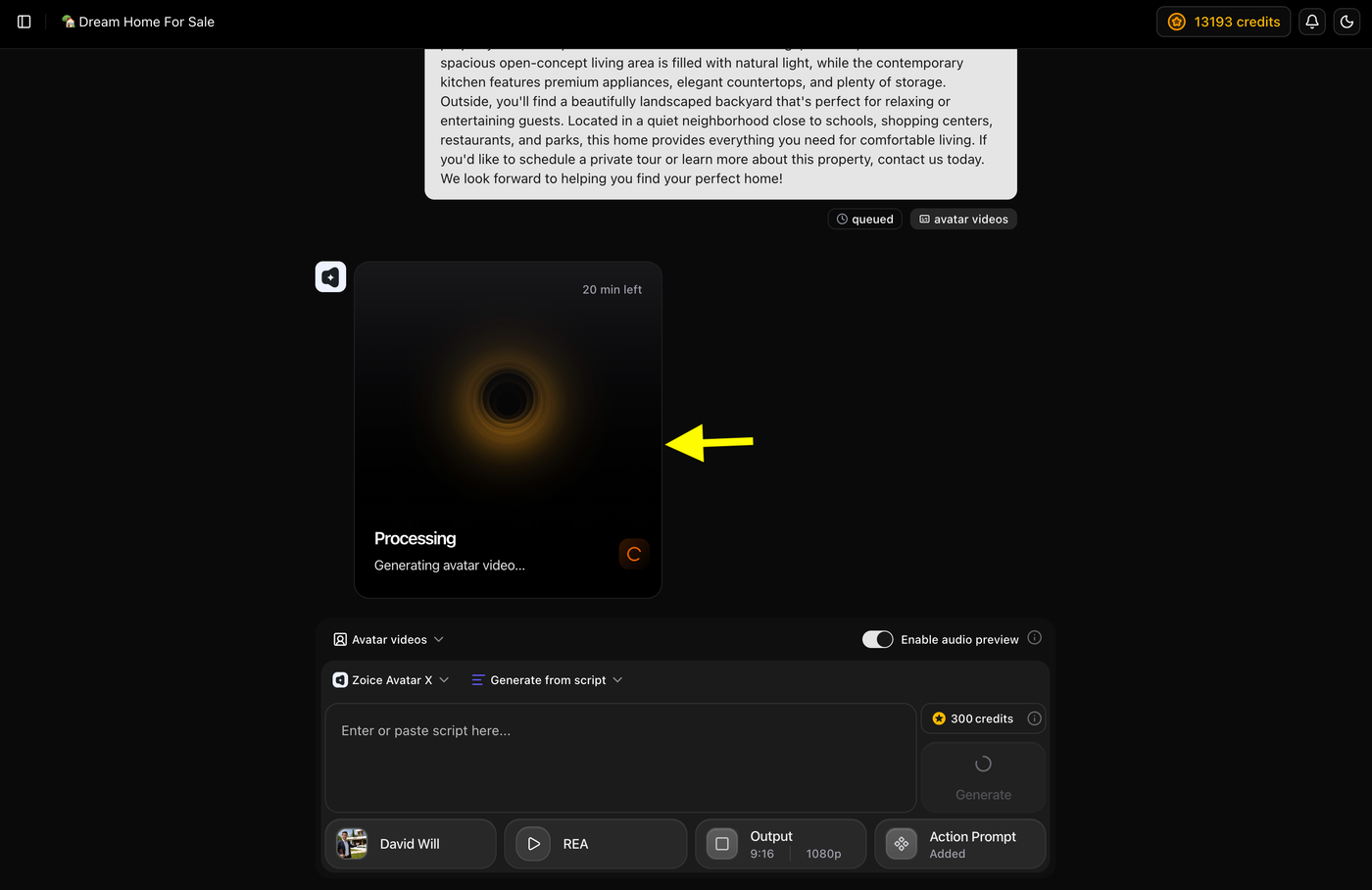
After clicking Generate avatar video, Zoice starts processing your request. During this stage, your video is added to the generation queue and rendered using the selected avatar, voice, script, and settings.
Generation time depends on factors such as the script length, selected resolution, and current server workload. Once processing is complete, your AI real estate video will be available to preview, download, or share.
Tip: You can continue working on other projects while your video is being generated. Zoice will notify you when the video is ready.
Step 21: Preview and Download Your AI Real Estate Video
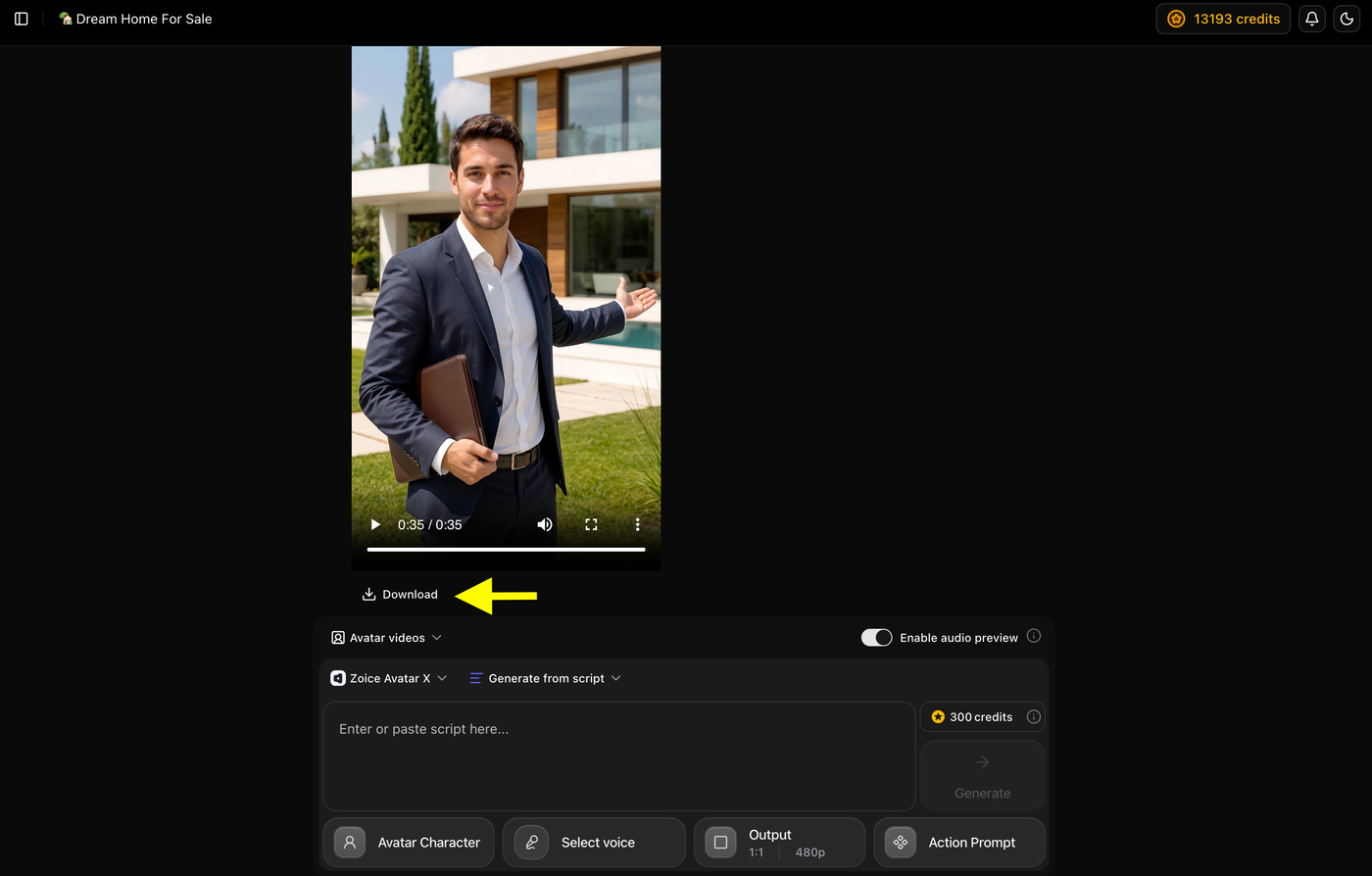
Once the video generation is complete, preview the final output to ensure everything looks and sounds the way you want. If you're satisfied with the result, click Download to save the video to your device.
You can now upload your AI real estate video to platforms like TikTok, Instagram Reels, YouTube Shorts, Facebook, or share it directly with potential buyers and clients.
Example Script and Generated AI Real Estate Video
To demonstrate the final result, we created an AI real estate video using Zoice. We uploaded a custom real estate avatar, added a property listing script, selected an AI voice, configured the output settings, and generated a professional property showcase video.
Script Used
Below is the script used to generate the AI real estate video.
Example:
"Welcome to your next dream home! This beautiful four-bedroom, three-bathroom property offers the perfect combination of modern design, comfort, and convenience. The spacious open-concept living area is filled with natural light, while the contemporary kitchen features premium appliances, elegant countertops, and plenty of storage. Outside, you'll find a beautifully landscaped backyard that's perfect for relaxing or entertaining guests. Located close to schools, shopping centers, restaurants, and parks, this home provides everything you need for comfortable living. Contact us today to schedule your private tour and make this stunning property your new home."
Generated AI Real Estate Video
Below is the final AI real estate video created with Zoice using the above script, AI avatar, and selected voice.
Example:
Tip: Compare the original property script with the generated video to see how Zoice transforms text into a realistic AI real estate presentation with natural voice narration, synchronized lip movements, and lifelike facial expressions.
Why Use AI for Real Estate Videos?
AI makes real estate video creation faster, more affordable, and easier to scale.
Save Hours of Video Production
Create professional property videos without cameras, microphones, or video editing software.
Create Videos for Every Listing
Instead of producing videos manually, AI lets you generate videos for multiple properties quickly.
Build Trust with AI Presenters
Use realistic AI avatars as virtual real estate agents to introduce properties and explain key features.
Reach Global Buyers
Generate videos in multiple languages using AI voices to attract international clients.
Maintain Consistent Branding
Use the same avatar, voice, logo, and presentation style across every property video.
Why Use Zoice for AI Real Estate Videos?
Zoice combines AI avatars, voice generation, and video creation into one platform, making it easy to create professional real estate videos without complex editing software.
AI Avatar Presenters
Create a realistic digital presenter using your own image or an AI generated avatar to showcase properties professionally.
Custom and AI Voices
Upload your own voice or choose from the built in public voice library to narrate your property listings naturally.
Action Prompts
Control your avatar's gestures, expressions, and body language to create more engaging property presentations.
Multiple Video Formats
Generate videos in vertical or horizontal formats for websites, YouTube, TikTok, Instagram Reels, Facebook, and more.
Audio Preview
Preview your narration before generating the final video to ensure everything sounds correct.
Fast Video Generation
Turn scripts into professional AI real estate videos within minutes.
What You Need Before Creating an AI Real Estate Video
Prepare these assets before starting:
- Property photos or videos
- Property details
- Listing price
- Location information
- Property highlights
- Contact details
- Company branding
- Video script
Having everything ready makes video creation faster.
Types of AI Real Estate Videos You Can Create
Zoice can be used for many types of real estate content.
Property Listing Videos
Present homes, apartments, villas, and commercial spaces with an AI presenter.
Luxury Home Tours
Showcase premium properties using professional AI narration.
New Project Launches
Promote newly launched residential or commercial developments.
Rental Property Videos
Create attractive rental listings with AI generated presentations.
Real Estate Tips
Share buying, selling, financing, or investment advice using an AI avatar.
Neighborhood Guides
Introduce schools, shopping centers, transportation, and nearby attractions.
Tips for Creating Better AI Real Estate Videos
Creating an AI real estate video is more than simply adding property details to an AI avatar. A well structured video can attract more buyers, generate inquiries, and make your listings stand out. Follow these tips to create professional real estate videos.
Use High-Quality Property Photos and Videos
The quality of your property visuals has a direct impact on your final video. Use clear, high resolution photos or videos that showcase every room, outdoor space, and key selling point. Well lit images help make the property look more attractive and professional.
Keep Your Script Clear and Concise
Write a short, conversational script that highlights the property's most important features. Instead of describing every detail, focus on what makes the property unique, such as the location, layout, amenities, or recent upgrades.
Highlight the Best Features First
Capture viewers' attention within the first few seconds by mentioning the property's strongest selling points. Whether it's a modern kitchen, a spacious backyard, a luxury interior, or a prime location, introduce these features early to encourage viewers to keep watching.
Choose a Professional AI Voice
Select a voice that sounds natural, confident, and easy to understand. A professional voice creates trust and makes your property presentation more engaging for potential buyers.
Include Your Branding and Contact Information
Always include your company logo, agency name, phone number, email address, or website at the end of the video. This makes it easier for interested buyers to contact you after watching the property presentation.
Optimize the Video for Each Platform
Choose the correct aspect ratio before generating your video. Use 16:9 for YouTube and property websites, 9:16 for TikTok, Instagram Reels, and YouTube Shorts, and 1:1 for social media posts where square videos perform better.
Common Mistakes to Avoid When Creating AI Real Estate Videos
Even with AI, small mistakes can reduce the quality and effectiveness of your property videos. Avoid these common issues to create more professional real estate content.
Using Low Quality Property Images
Blurry, dark, or low resolution images can make even premium properties look less attractive. Always use high quality visuals to showcase your listings.
Writing Long and Complicated Scripts
Long scripts can make viewers lose interest before reaching the most important information. Keep your script concise and focus on the property's key selling points.
Choosing the Wrong Video Format
Uploading a horizontal video to TikTok or a vertical video to YouTube can reduce viewer engagement. Always select the correct aspect ratio for your target platform.
Selecting an Unnatural Voice
A robotic or inappropriate voice can make your presentation sound less professional. Choose an AI voice that matches your audience and the tone of your property listing.
Forgetting to Add Contact Details
Without clear contact information, interested buyers may not know how to reach you. Always include your phone number, email, website, or agency details at the end of your video.
FAQs About Creating AI Real Estate Videos
1. What are AI real estate videos?
AI real estate videos are property presentation videos created using artificial intelligence. They combine AI avatars, voiceovers, scripts, and property images or videos to showcase listings without traditional filming.
2. Can I create real estate videos without appearing on camera?
Yes. With Zoice, you can use a realistic AI avatar to present properties, allowing you to create professional videos without recording yourself.
3. Can I use my own voice in AI real estate videos?
Yes. Zoice lets you upload a voice sample and create a custom voice profile. You can also choose from a library of public AI voices.
4. Which aspect ratio is best for AI real estate videos?
It depends on where you plan to publish your videos:
- 16:9 for YouTube, websites, and property presentations
- 9:16 for TikTok, Instagram Reels, Facebook Reels, and YouTube Shorts
- 1:1 for Instagram and Facebook feed posts
5. What types of real estate videos can I create with AI?
You can create property listing videos, luxury home tours, apartment showcases, rental property advertisements, neighborhood guides, commercial property presentations, and real estate marketing videos.
6. Why should I use Zoice for AI real estate videos?
Zoice combines AI avatars, custom voice cloning, public AI voices, action prompts, and flexible video formats in one platform. This allows real estate professionals to create high quality property videos quickly without advanced editing skills.
Conclusion
AI has transformed the way real estate professionals create property marketing videos. Instead of spending hours filming, recording voiceovers, and editing content, you can use Zoice to produce professional AI real estate videos in just a few steps.
Whether you're showcasing a luxury home, promoting a new development, or advertising a rental property, Zoice helps you create engaging videos using realistic AI avatars, natural sounding voices, and customizable presentation styles. By combining high quality property visuals with clear scripts and professional narration, you can attract more buyers, strengthen your brand, and create consistent real estate content for websites, YouTube, TikTok, Instagram, and other marketing channels.