How to Create AI Legal Advisor Video
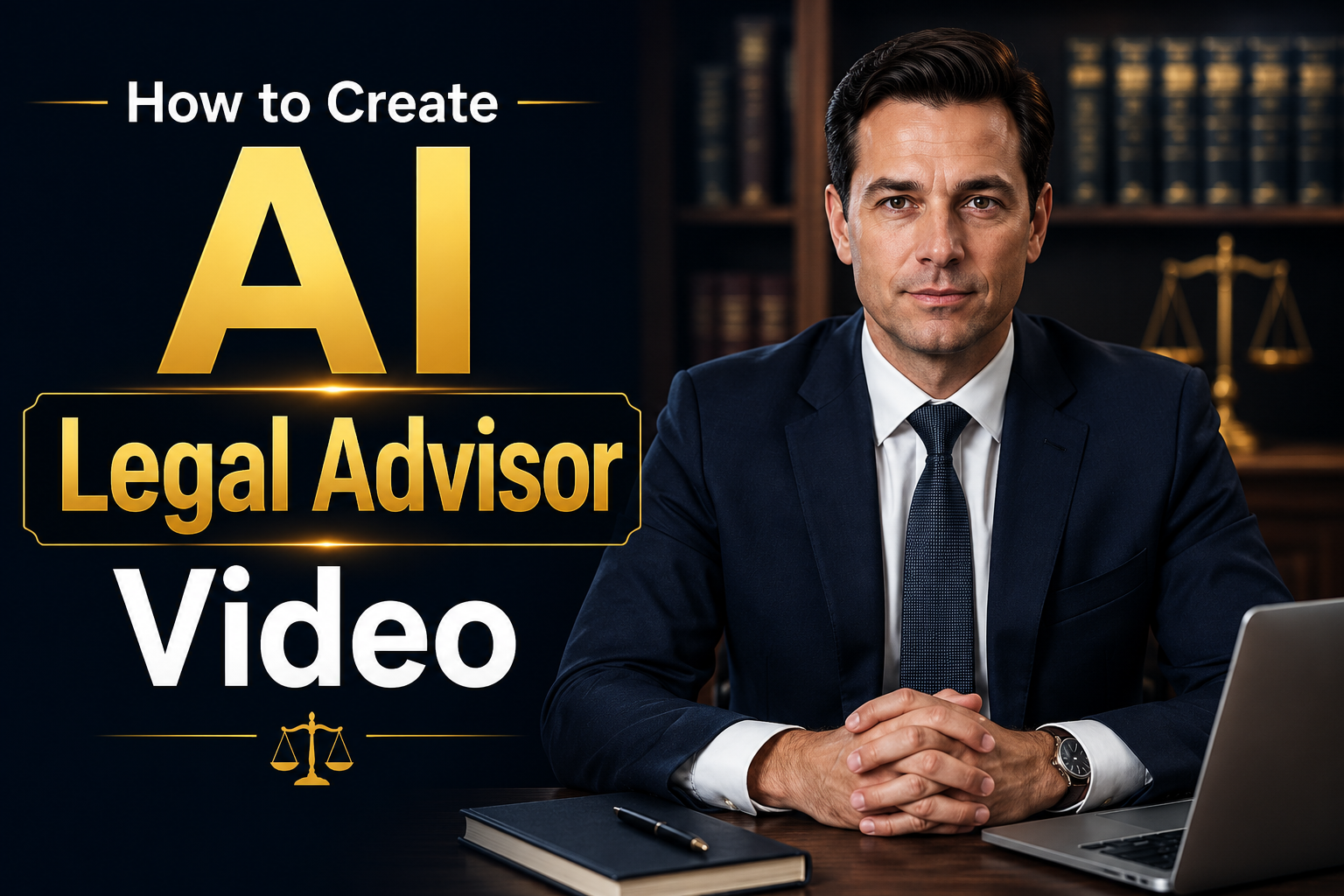
Legal content is becoming increasingly popular on YouTube, LinkedIn, Instagram, and business websites. Lawyers, legal consultants, law firms, and legal educators are using videos to explain complex legal concepts in a simple and engaging way. From explaining contracts and consumer rights to discussing business regulations and legal procedures, video content helps make legal information more accessible.
Traditionally, creating professional legal videos requires recording equipment, editing software, and time spent filming. With AI avatar technology, you can create realistic legal advisor videos without appearing on camera. Simply create an AI avatar, add your legal script, choose a voice, and generate a professional-looking video within minutes.
In this tutorial, you'll learn how to create AI legal advisor videos using Zoice.
What Are AI Legal Advisor Videos?
AI legal advisor videos are created using AI avatar technology that allows virtual presenters to speak naturally and deliver legal information professionally. Modern AI Avatar Generator tools make it possible to create realistic digital presenters without recording yourself.
These videos are ideal for:
- Legal education
- Consumer rights explainers
- Contract law tutorials
- Business compliance videos
- Employment law content
- Real estate legal guides
- Legal marketing videos
- Law firm presentations
- Corporate legal training
- Social media legal content
Why Create AI Legal Advisor Videos?
If you're a lawyer or legal consultant who prefers not to appear on camera, an AI Talking Head Video Generator can help you create professional-looking legal videos for social media, websites, and online courses.
Some of the key benefits include:
- No camera or studio setup required
- Create professional legal videos in minutes
- Maintain a consistent legal presenter across videos
- Produce multilingual legal content
- Save time on recording and editing
- Create videos for multiple platforms
- Easily update videos when laws or regulations change
- Build trust with professional AI presenters
How to Create an AI Legal Advisor Video Using Zoice
Creating an AI legal advisor avatar in Zoice is quick and easy. Follow the steps below to create a professional legal presenter, add your script, choose a voice, and generate high-quality AI legal videos for YouTube, LinkedIn, Instagram, TikTok, and other platforms.
Step 1: Visit Zoice.com and Open the Sign In Page
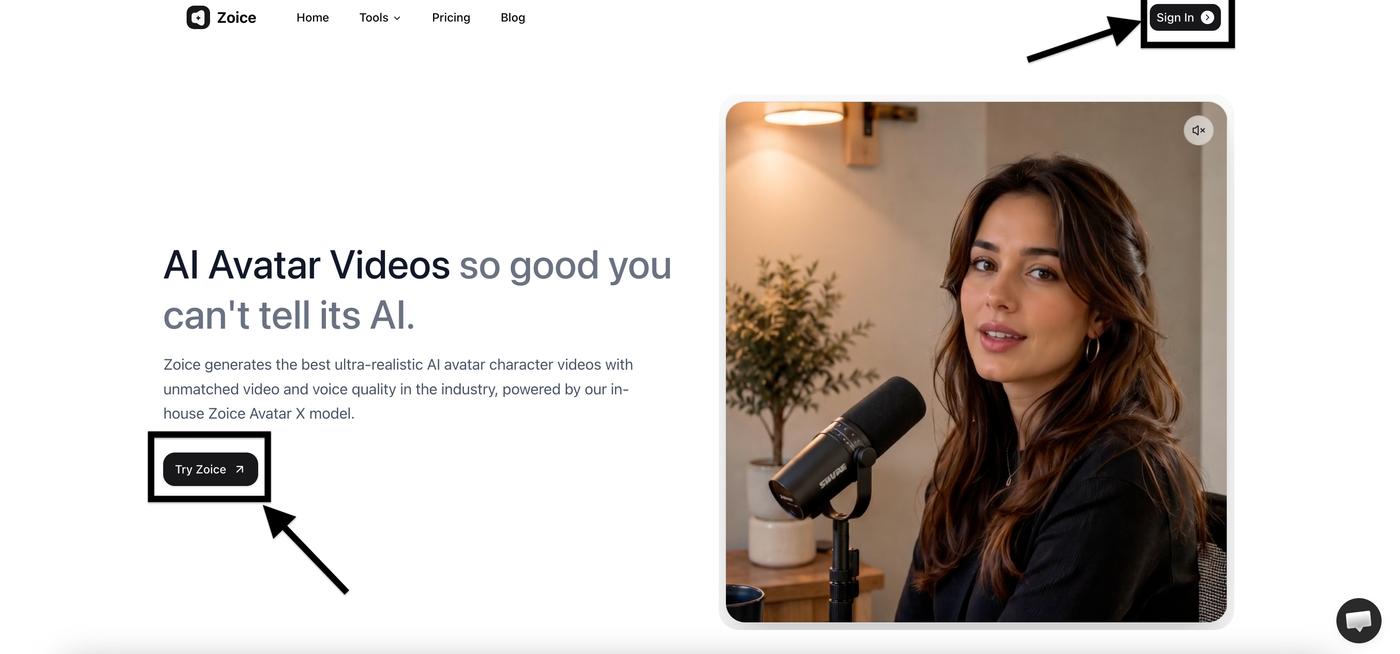
Go to Zoice.com and click either Sign In or Try Zoice. Both buttons will take you to the sign-in page.
- Visit Zoice.com.
- Click Sign In or Try Zoice.
Step 2: Sign In to Your Zoice Account
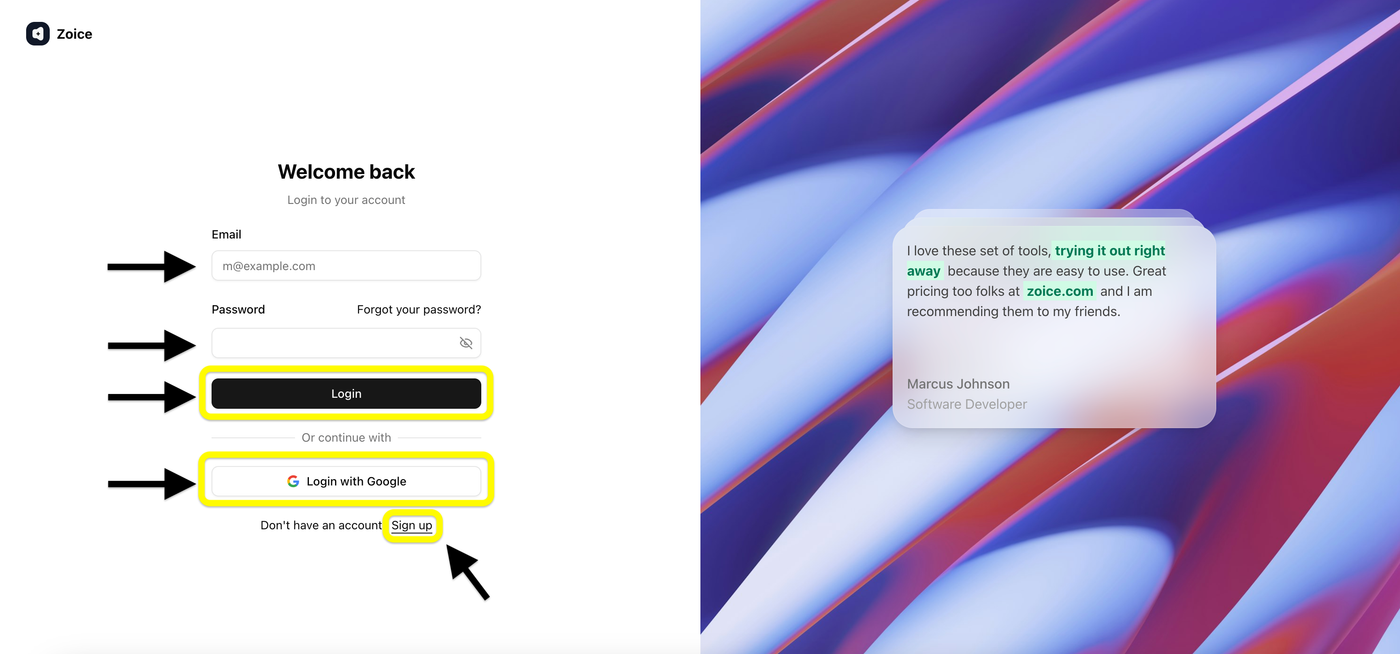
If you already have a Zoice account, enter your login credentials to access your dashboard.
- Enter your email address.
- Enter your password.
- Click Login.
- Or, sign in using your Google account.
Step 3: Create a New Zoice Account
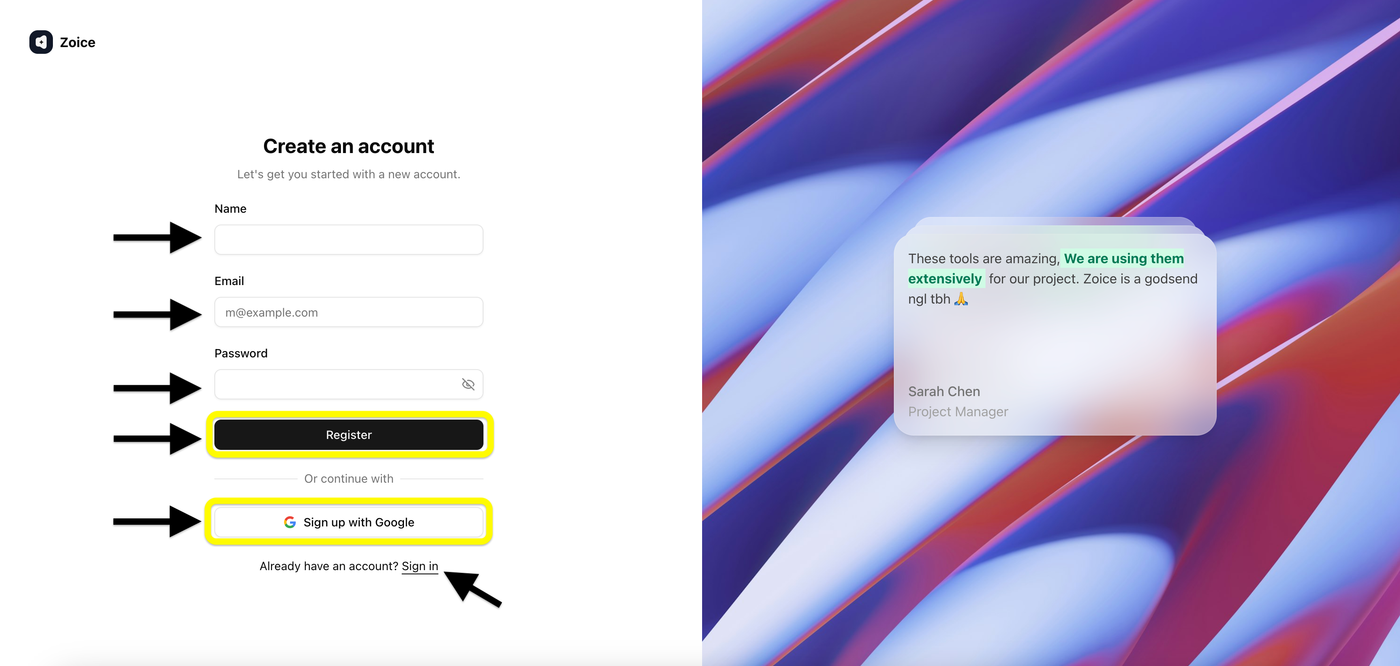
If you're new to Zoice, create an account to get started.
- Enter your name.
- Enter your email address.
- Create a password.
- Click Register.
- Or, click Sign up with Google.
Step 4: Open Avatar Characters
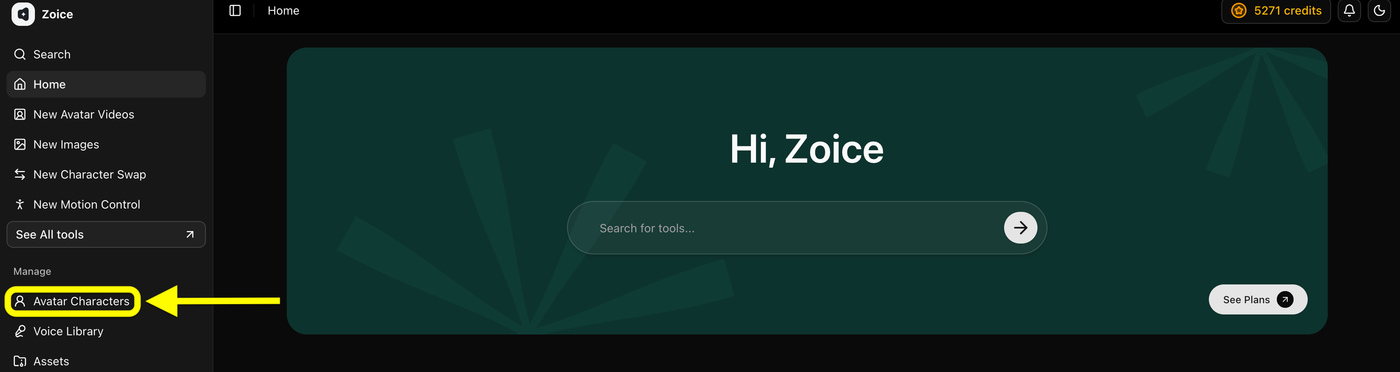
After signing in, navigate to the Avatar Characters section from the left sidebar.
- Click Avatar Characters.
- Open the avatar management page.
Step 5: Click Create New
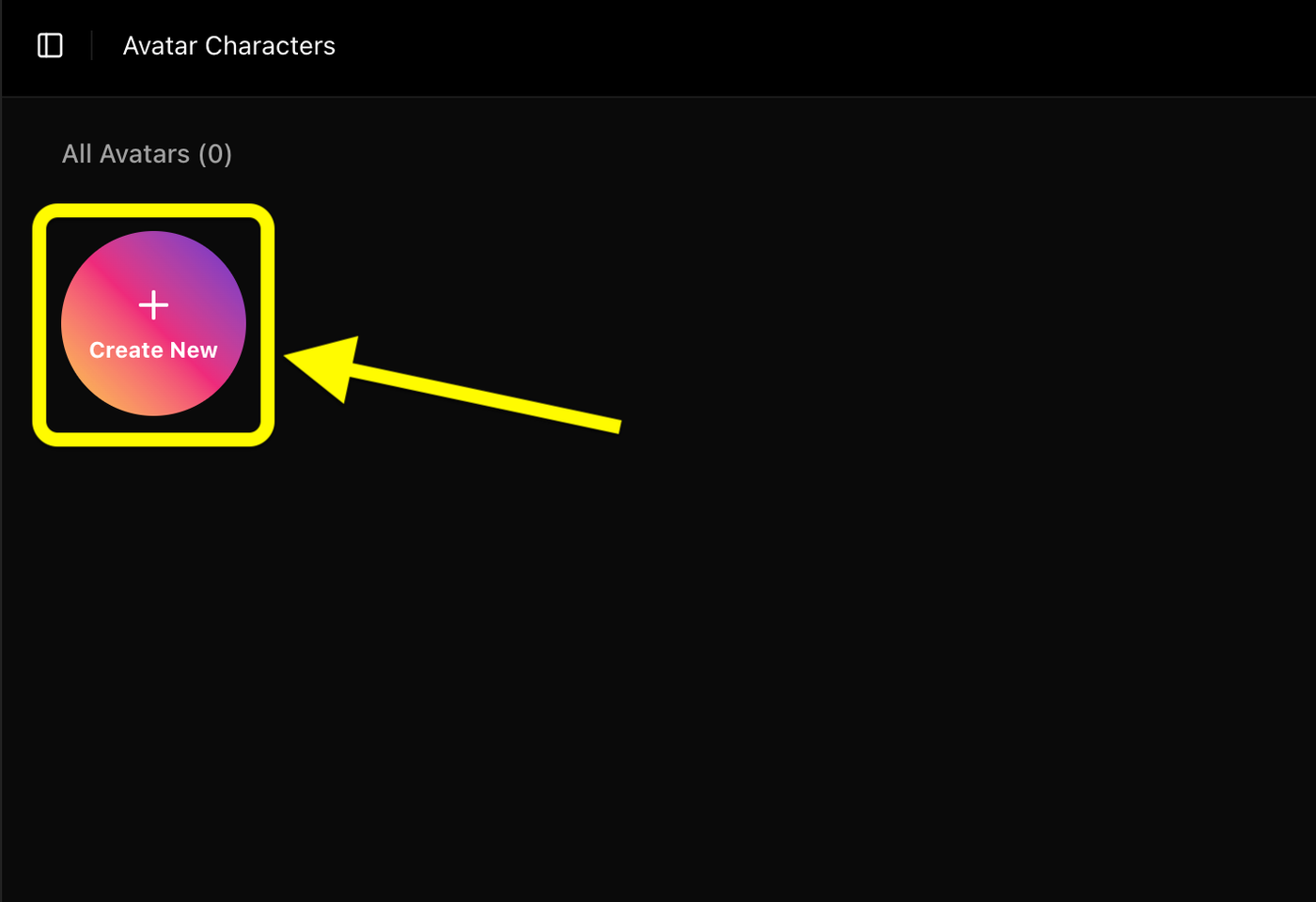
Create a new avatar for your AI legal advisor video.
- Click Create New.
- Proceed to the avatar creation page.
Step 6: Upload Your Image or Use AI Prompt
You can upload your own image or generate one using an AI prompt.
Option 1: Upload an Image
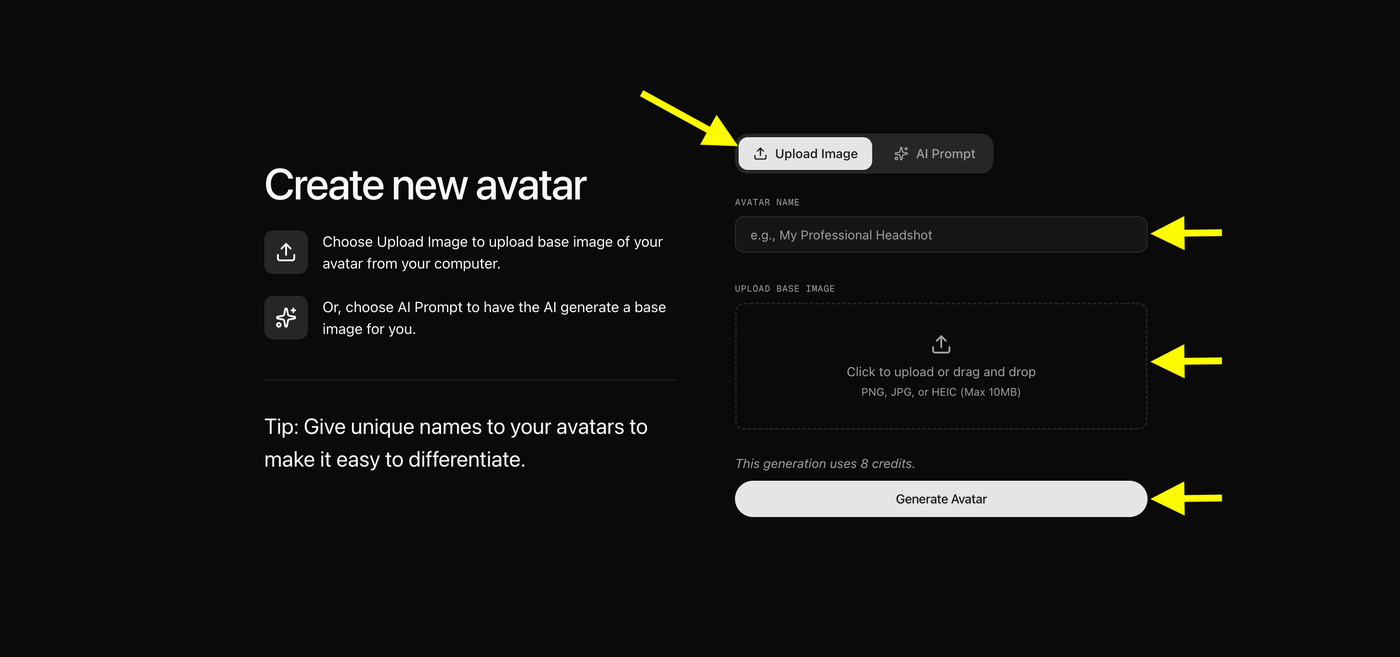
- Upload a clear, front-facing image.
- Enter an avatar name.
- Click Generate Avatar.
Option 2: Generate an Avatar with AI Prompt
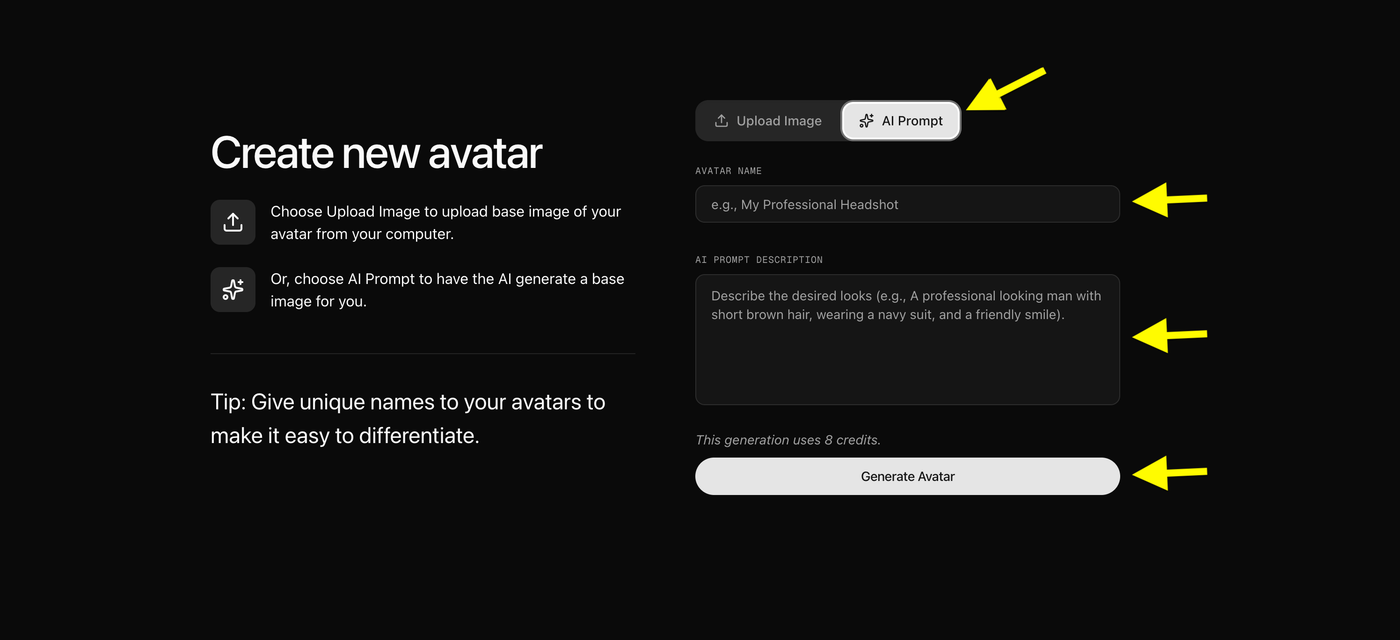
- Click AI Prompt.
- Enter an avatar name.
- Describe your AI legal advisor.
- Click Generate Avatar.
Zoice will generate your custom AI legal advisor avatar in just a few moments.
Step 7: Upload Your Image and Generate the Avatar
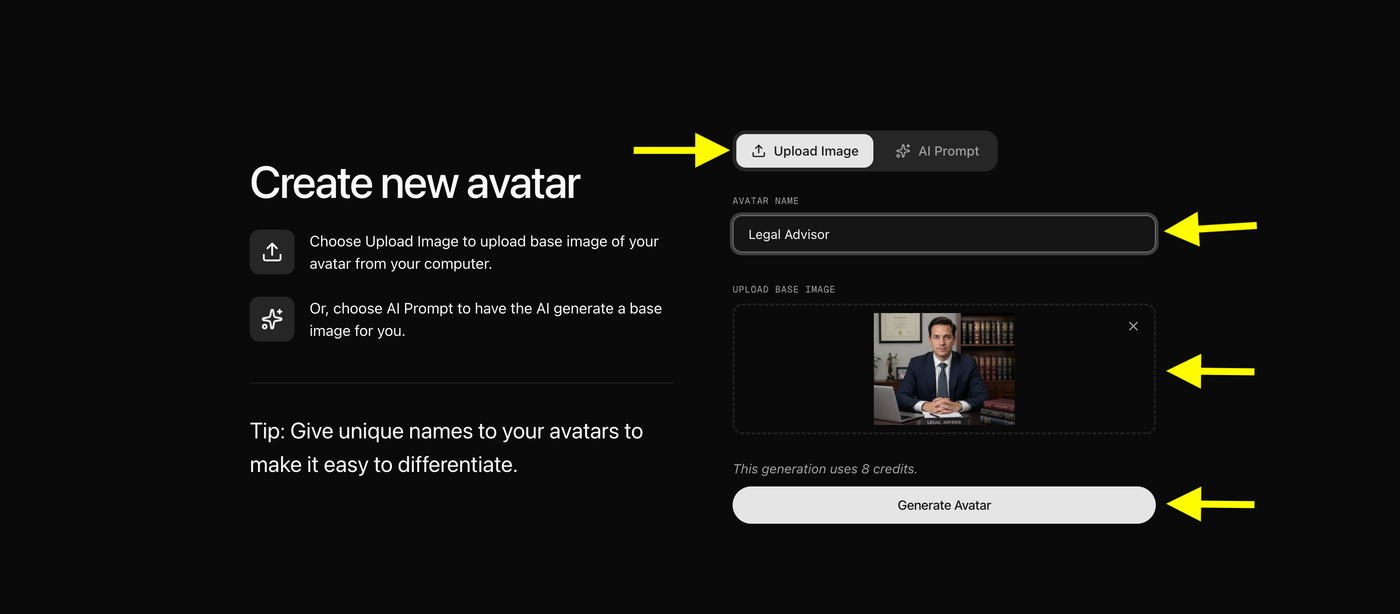
After selecting the Upload Image option, enter a name for your avatar and upload your image. Once everything is ready, click Generate Avatar to create your avatar.
- Select the Upload Image option.
- Enter an avatar name.
- Upload your image.
- Click Generate Avatar.
- Wait a few moments for the avatar to be generated.
Your avatar will now be ready to use for creating videos.
Step 8: Select Your Avatar
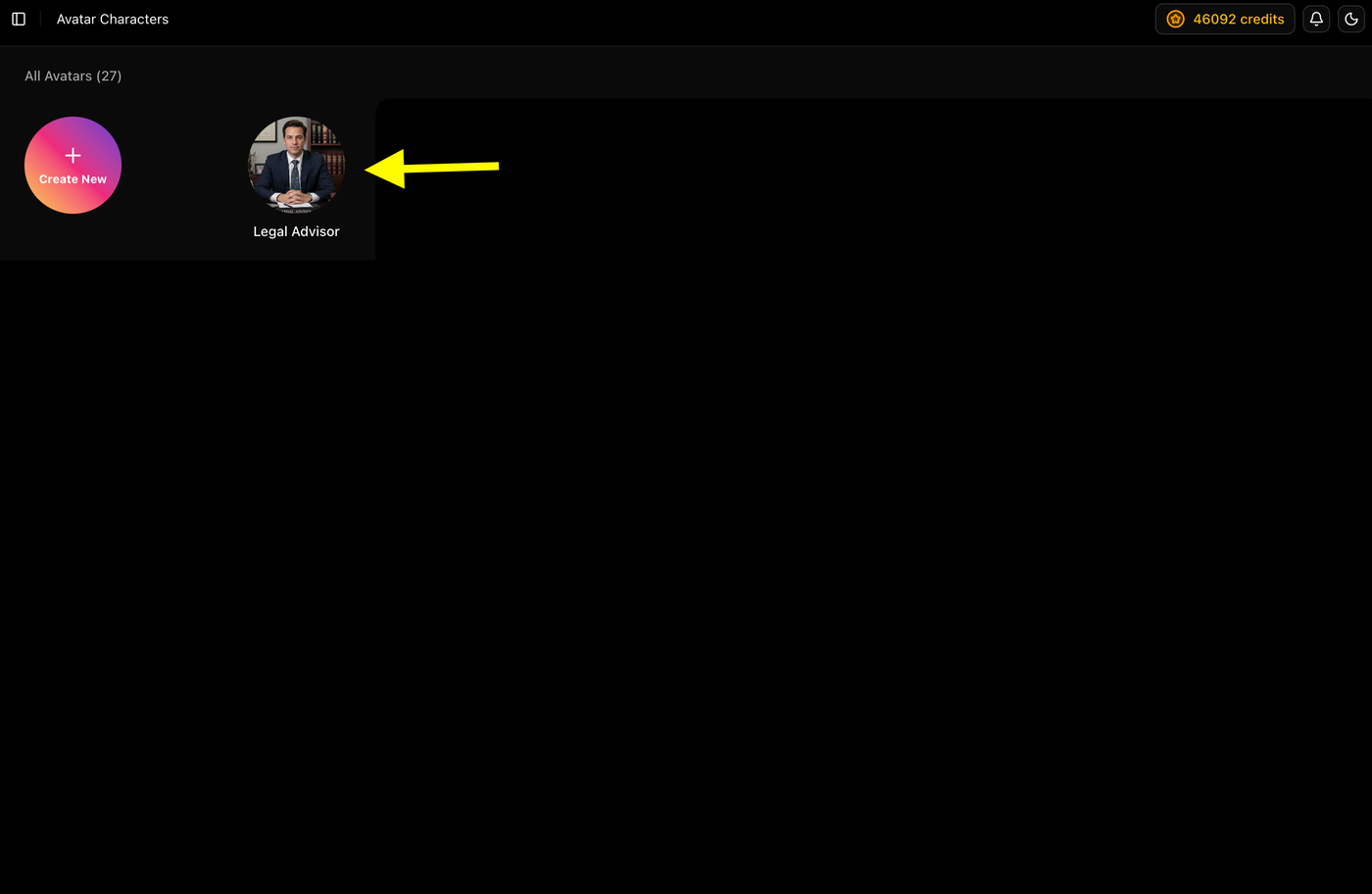
After your avatar has been generated, it will appear on the Avatar Characters page. Simply select the avatar you want to use to continue creating your video.
- Locate your newly created avatar.
- Click on the avatar to open its settings.
- Proceed to the video generation options.
Once selected, you'll be ready to add your script, choose a voice, and customize your video settings.
Step 9: Generate Your Video
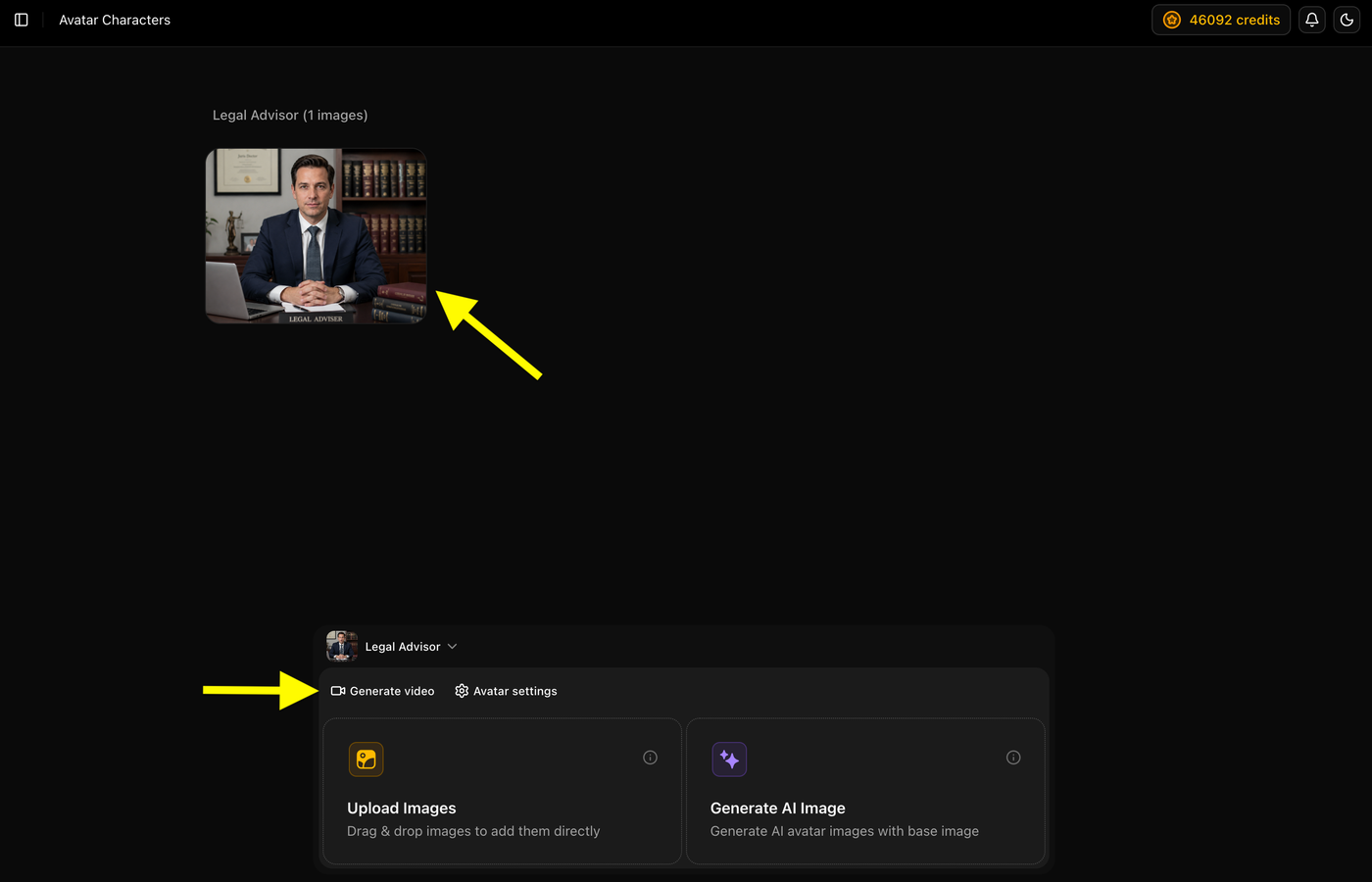
After selecting your avatar, click the Generate Video option to start creating your video. This will take you to the video generation workspace, where you can add your script, choose a voice, customize the output settings, and generate your final video.
- Select your avatar.
- Click Generate Video.
- Open the video generation workspace.
- Proceed to customize your video settings.
Step 10: Write or Paste Your Script
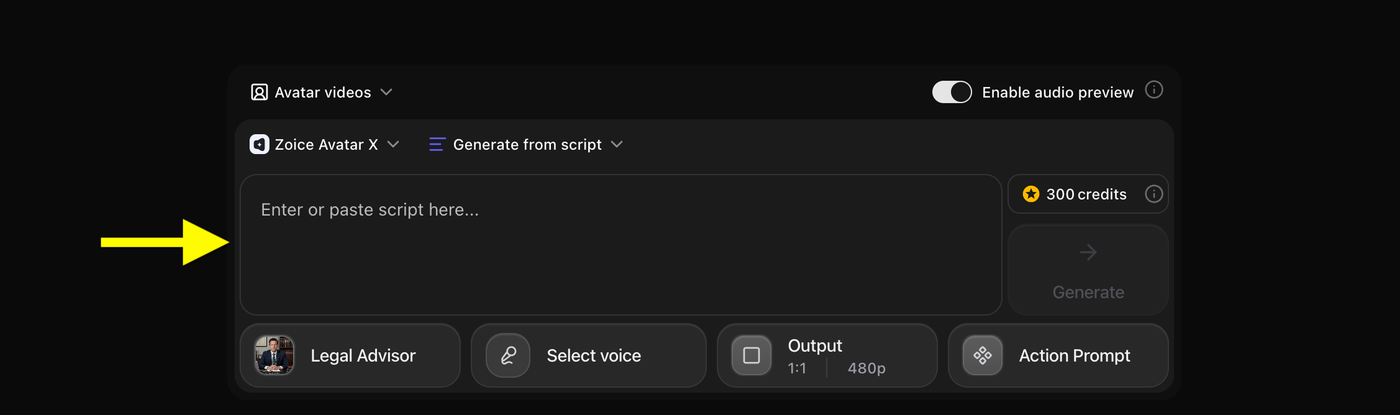
Enter the script that you want your avatar to speak in the video. You can write your own script or paste pre-written content directly into the text box. Keep your script clear, concise, and easy to understand for the best results.
- Write or paste your script into the text box.
- Review the script for spelling and grammar errors.
- Use short paragraphs and natural language for better delivery.
- Make sure your script matches the purpose of your video.
Once your script is ready, you can proceed to select a voice for your avatar.
Step 11: Write or Paste Script and Select Voice Model
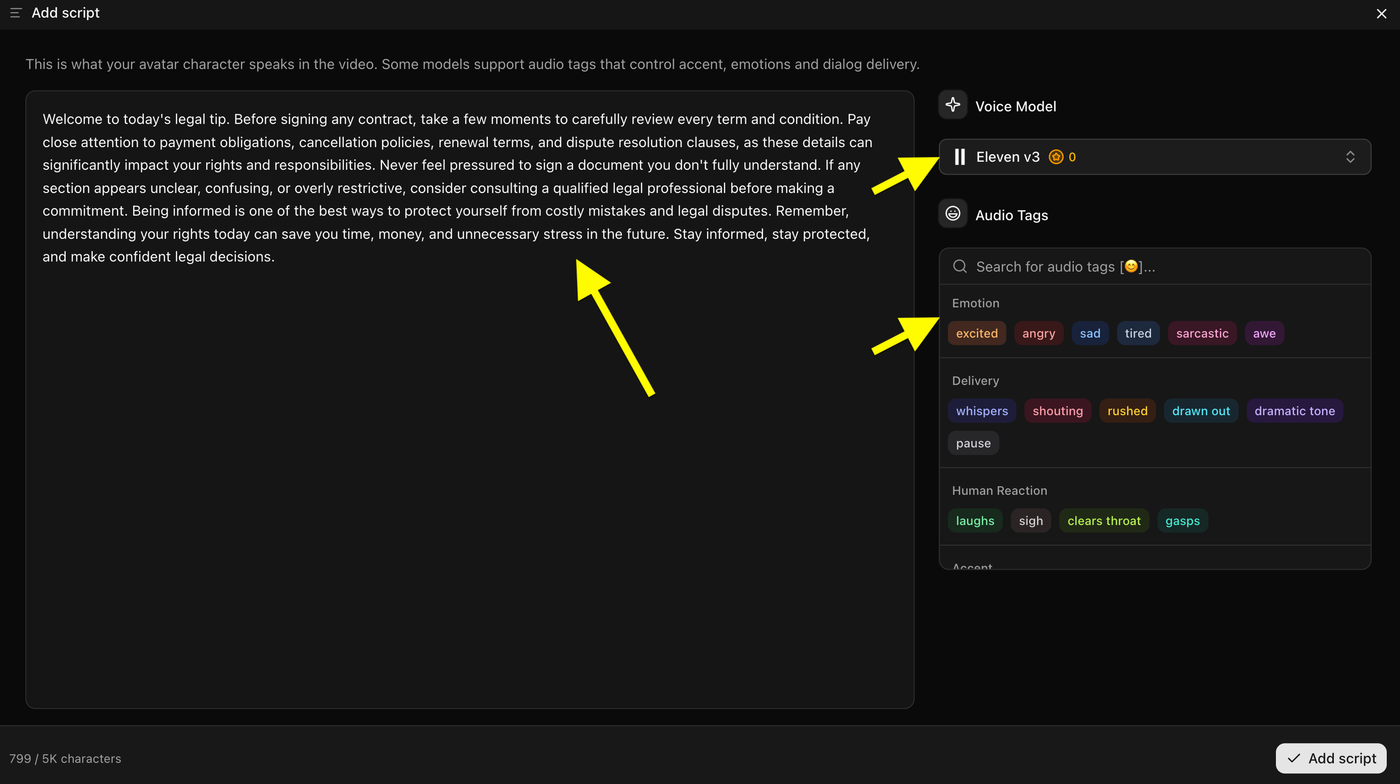
After adding your script, you can customize how your avatar sounds in the video.
- Select your preferred Voice Model from the available options.
- Preview the voice to make sure it matches the tone and style of your content.
- Use Audio Tags to control emotions, delivery style, accents, and human reactions.
- You can add tags such as excited, calm, dramatic tone, pause, or whispers to make the narration sound more natural and engaging.
- Once you're satisfied with the voice settings, click Add Script to continue.
Tip: Audio Tags are optional, but they can make your AI avatar sound more expressive and realistic.
Step 12: Click on Select Voice
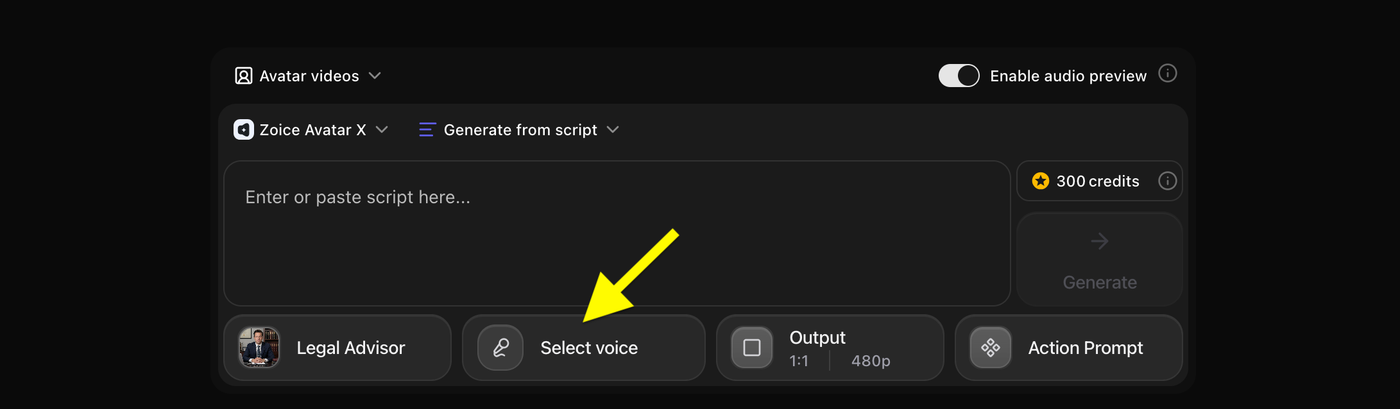
The next step is to choose a voice for your avatar video.
- Click on Select Voice to open the voice library.
- Browse the available voice profiles or use the search and filter options to find a suitable voice.
- Preview different voices to see which one best matches your avatar and content style.
- Select the voice you want to use for your video before proceeding to the next step.
Tip: A natural and professional voice can significantly improve the overall quality and engagement of your AI avatar video.
Step 13: Select a Voice Profile
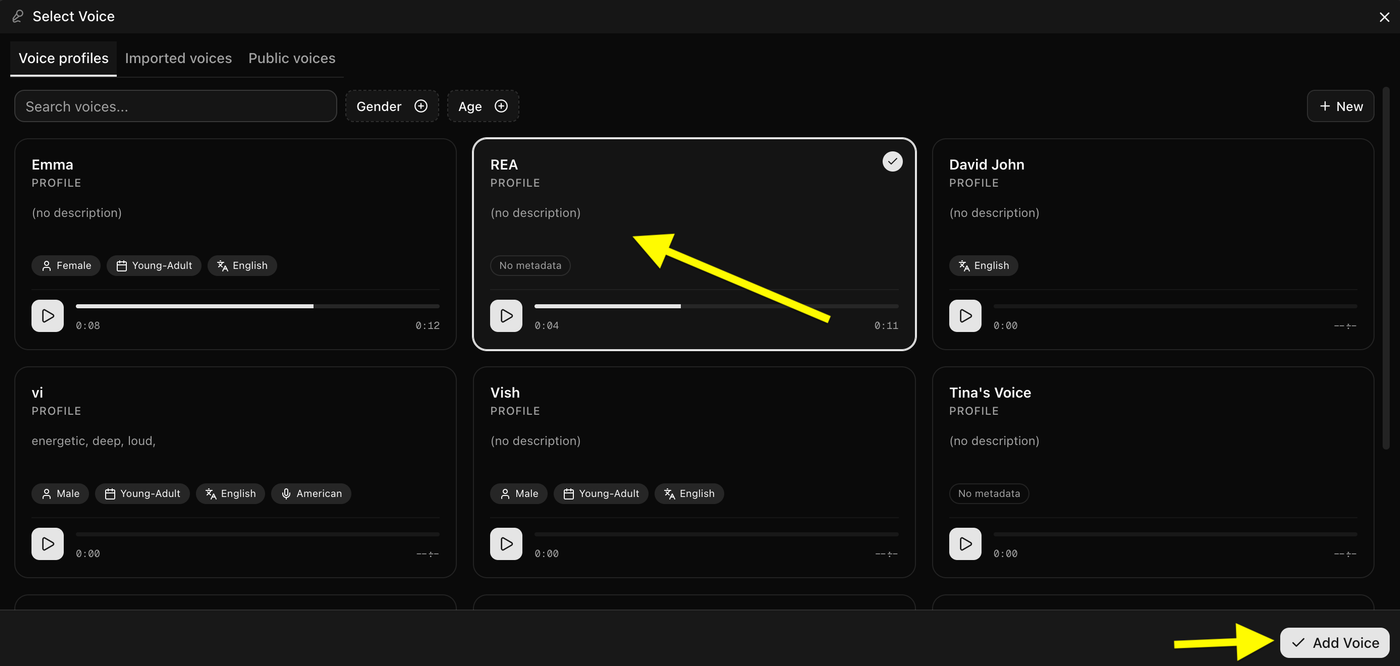
Now it's time to choose the voice for your avatar video.
- Browse the available voice profiles or use the search and filter options to find the most suitable voice.
- Preview different voices to make sure they match your avatar's personality and speaking style.
- Select the voice profile you want to use for your video.
- Click Add Voice to apply the selected voice to your avatar.
Tip: Choose a voice that complements your avatar and the type of content you're creating. A professional and natural-sounding voice can make your video more engaging and realistic.
Step 14: Configure Output Settings
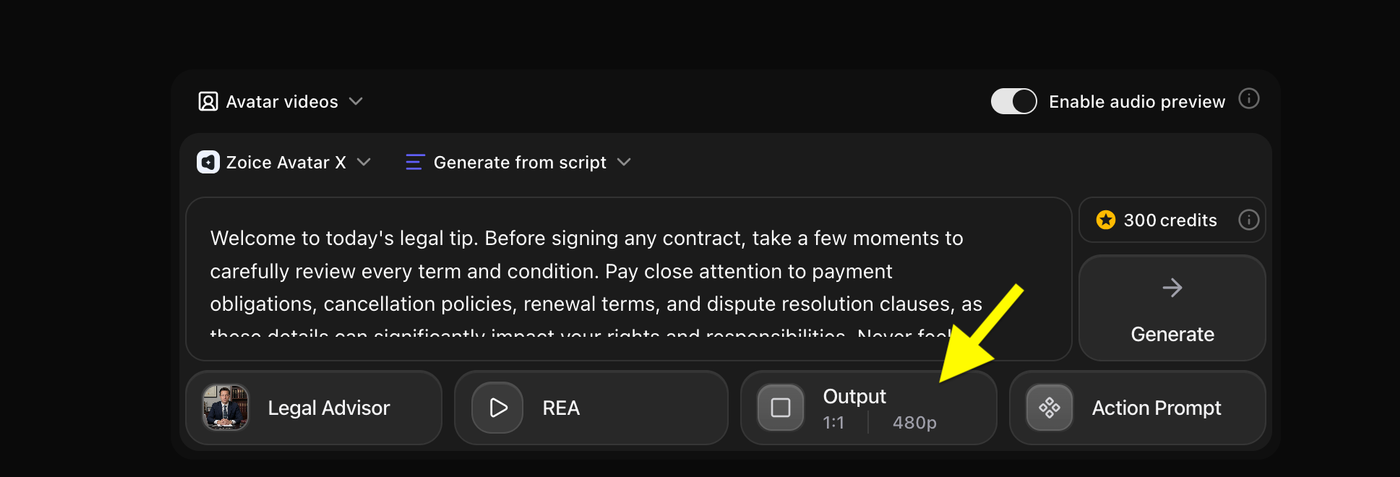
Before generating your video, choose the output settings that best fit the platform where you'll publish it.
- Click on Output to open the aspect ratio and resolution settings.
- Select the appropriate Aspect Ratio for your content. For example, 9:16 works best for YouTube Shorts, Instagram Reels, and TikTok, while 16:9 is ideal for YouTube videos.
- Choose your preferred Resolution, such as 480p, 720p, or 1080p. Higher resolutions provide better video quality but may require additional credits.
- Review your selected settings before moving to the next step.
Tip: For professional-looking videos on social media platforms, using a 9:16 aspect ratio with 1080p resolution is recommended.
Step 15: Select the Aspect Ratio and Resolution
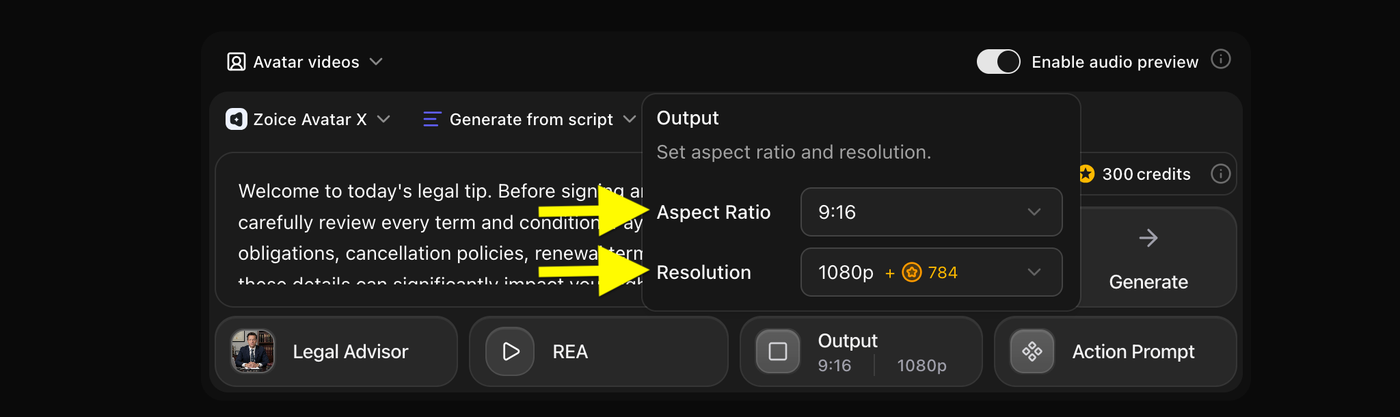
Choose the output settings based on where you plan to publish your video.
- Select an Aspect Ratio that matches your target platform. For example, use 9:16 for YouTube Shorts, Instagram Reels, and TikTok, or 16:9 for standard YouTube videos.
- Choose the Resolution for your video. Higher resolutions, such as 1080p, provide better visual quality but may consume additional credits.
- Review your selections to ensure they meet your content and quality requirements before proceeding.
Tip: If you're creating short-form content, a 9:16 aspect ratio with 1080p resolution is recommended for the best viewing experience on mobile devices.
Step 16: Click on Action Prompt (Optional)
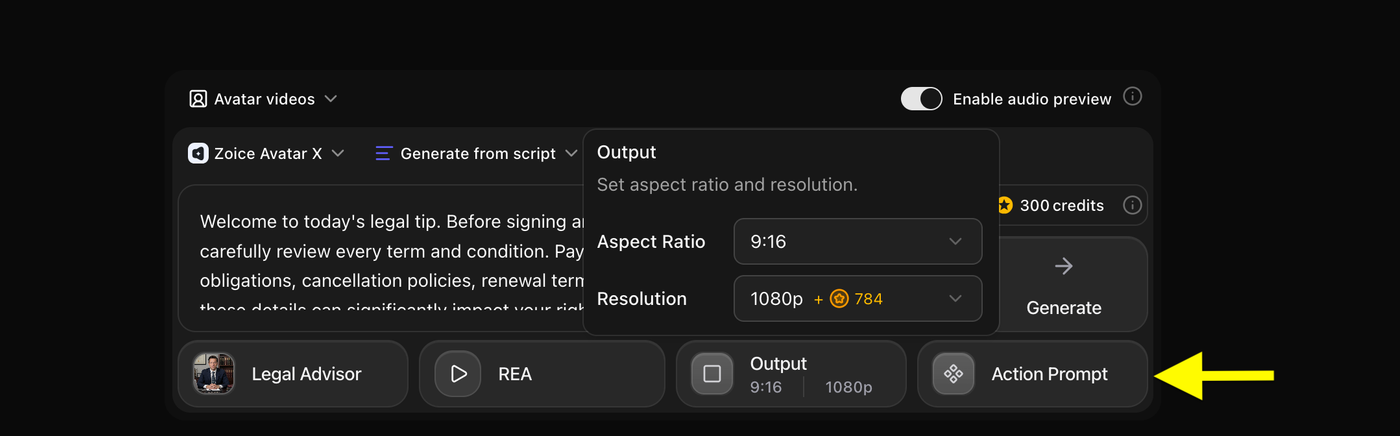
You can add an Action Prompt to control your avatar's body language and on-screen behavior during the video.
- Click on Action Prompt to open the settings.
- Describe how you want your avatar to move, gesture, or interact while speaking.
- You can specify details such as posture, hand movements, facial expressions, and eye contact.
- Keep your instructions simple and natural for the most realistic results.
- If you don't need any custom movements, you can skip this step.
Tip: Use Action Prompts to make your avatar appear more professional and engaging. For example, you can instruct your avatar to maintain eye contact, use subtle hand gestures, or speak with a confident posture.
Step 17: Add an Action Prompt
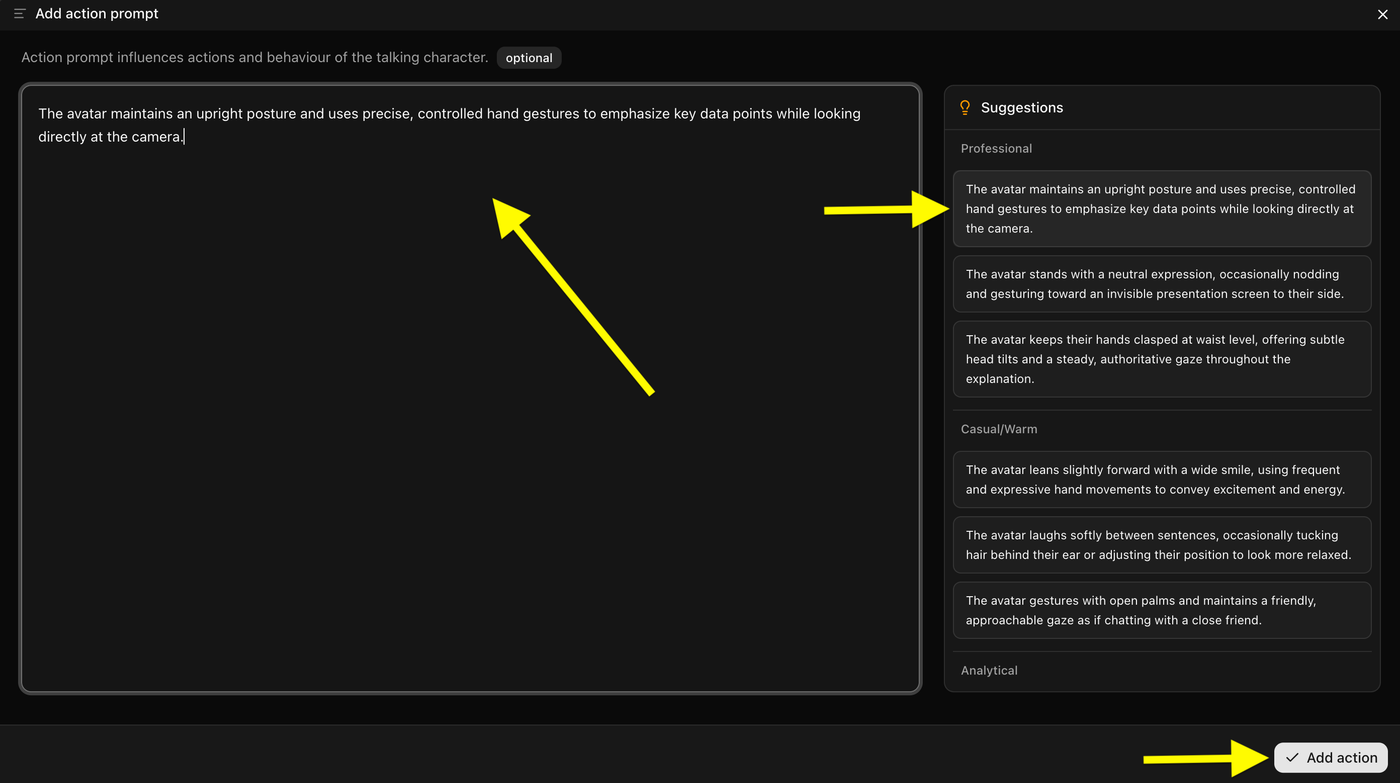
You can customize how your avatar behaves while speaking by adding an Action Prompt. This helps create more natural and professional-looking videos.
- Write your own Action Prompt or choose one from the suggested options.
- Describe your avatar's posture, facial expressions, hand gestures, and overall speaking style.
- Keep the instructions simple and realistic for the best results.
- Once you're satisfied with the prompt, click Add Action to apply it to your video.
Tip: Action Prompts are optional, but they can make your avatar look more engaging and lifelike. Subtle gestures and natural eye contact often produce the most realistic results.
Step 18: Click on Generate
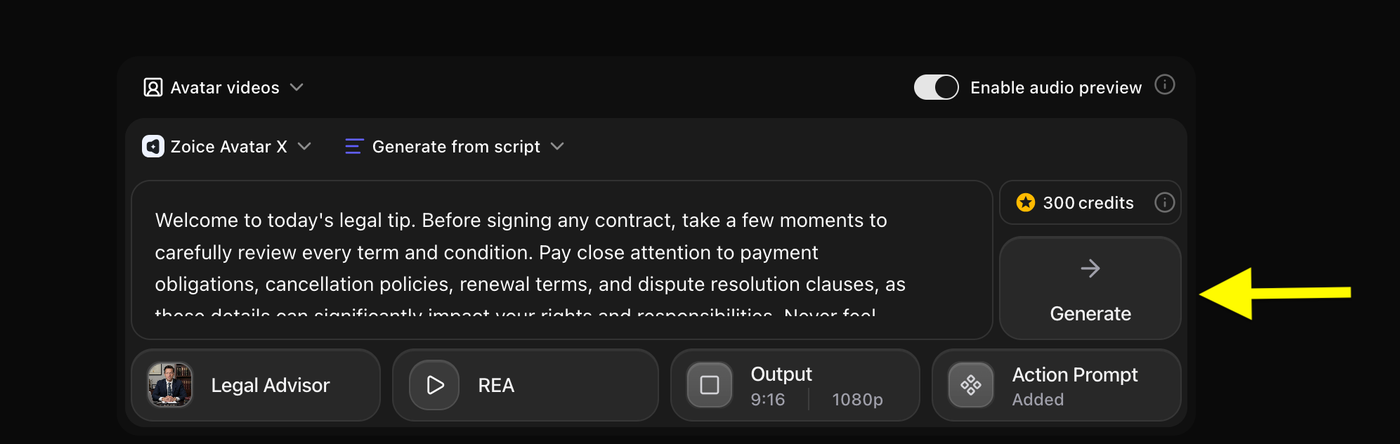
Once you have added your script, selected a voice, configured the output settings, and added an action prompt, you're ready to generate your video.
- Review all your settings to make sure everything is correct.
- Click the Generate button to start creating your avatar video.
- Zoice will begin processing your request and generate the final video based on your selected avatar, voice, and video settings.
- The processing time may vary depending on the script length and output resolution.
Tip: Double-check your script and settings before generating the video to avoid using credits unnecessarily.
Step 19: Preview the Audio and Generate the Video
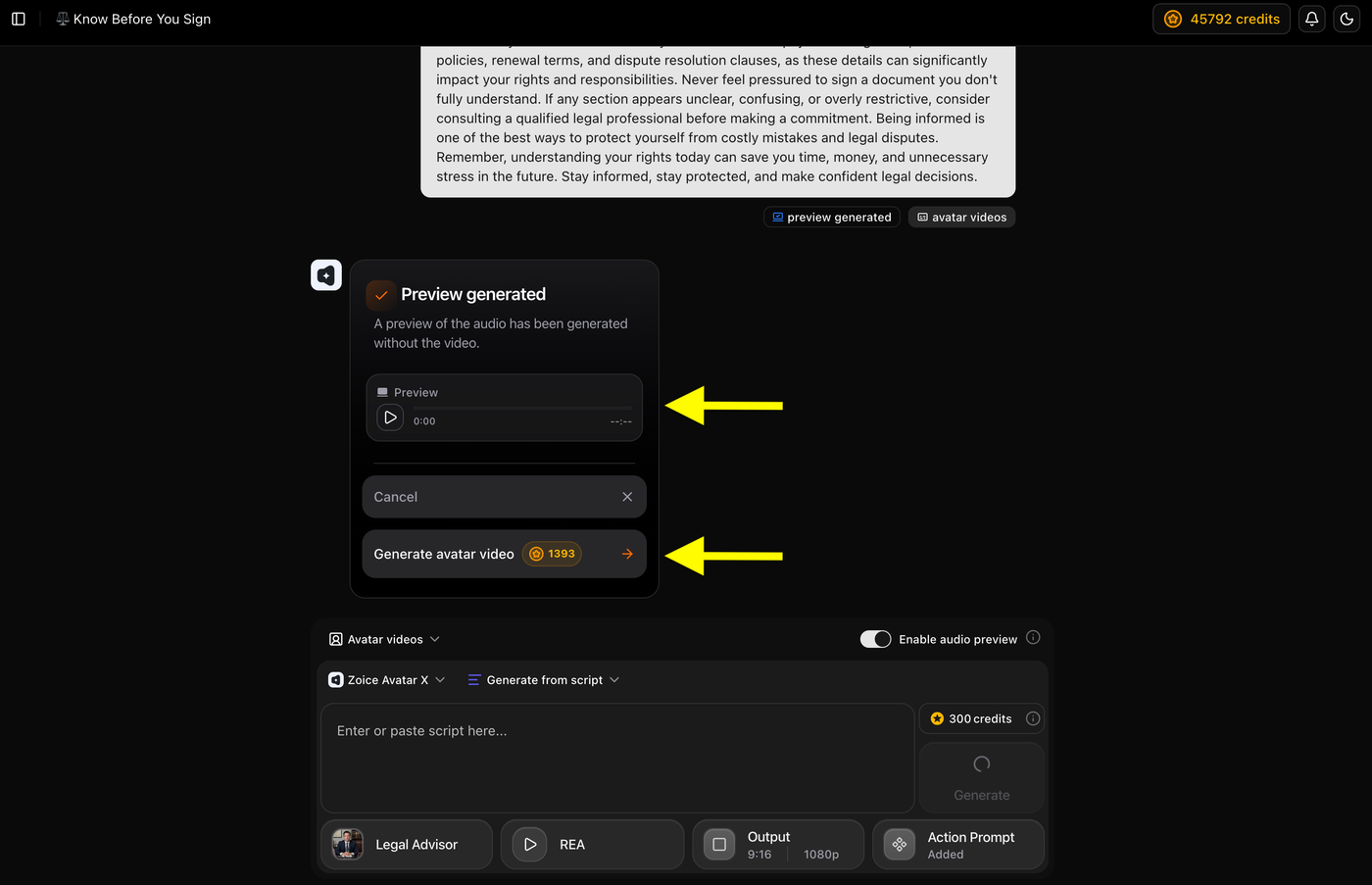
Before generating the final video, you can listen to the audio preview to make sure the voice, pronunciation, and pacing sound natural.
- Click the Play button in the Preview section to listen to the generated audio.
- Review the voice quality and make any necessary changes to your script or voice settings if needed.
- Once you're satisfied with the preview, click Generate Avatar Video to create your final AI legal advisor video.
- Zoice will process your video based on your selected avatar, voice, output settings, and action prompt.
Tip: Always preview the audio before generating the video. It helps you catch pronunciation or pacing issues and saves credits by avoiding unnecessary video regenerations.
Step 20: Wait for the Video to Generate
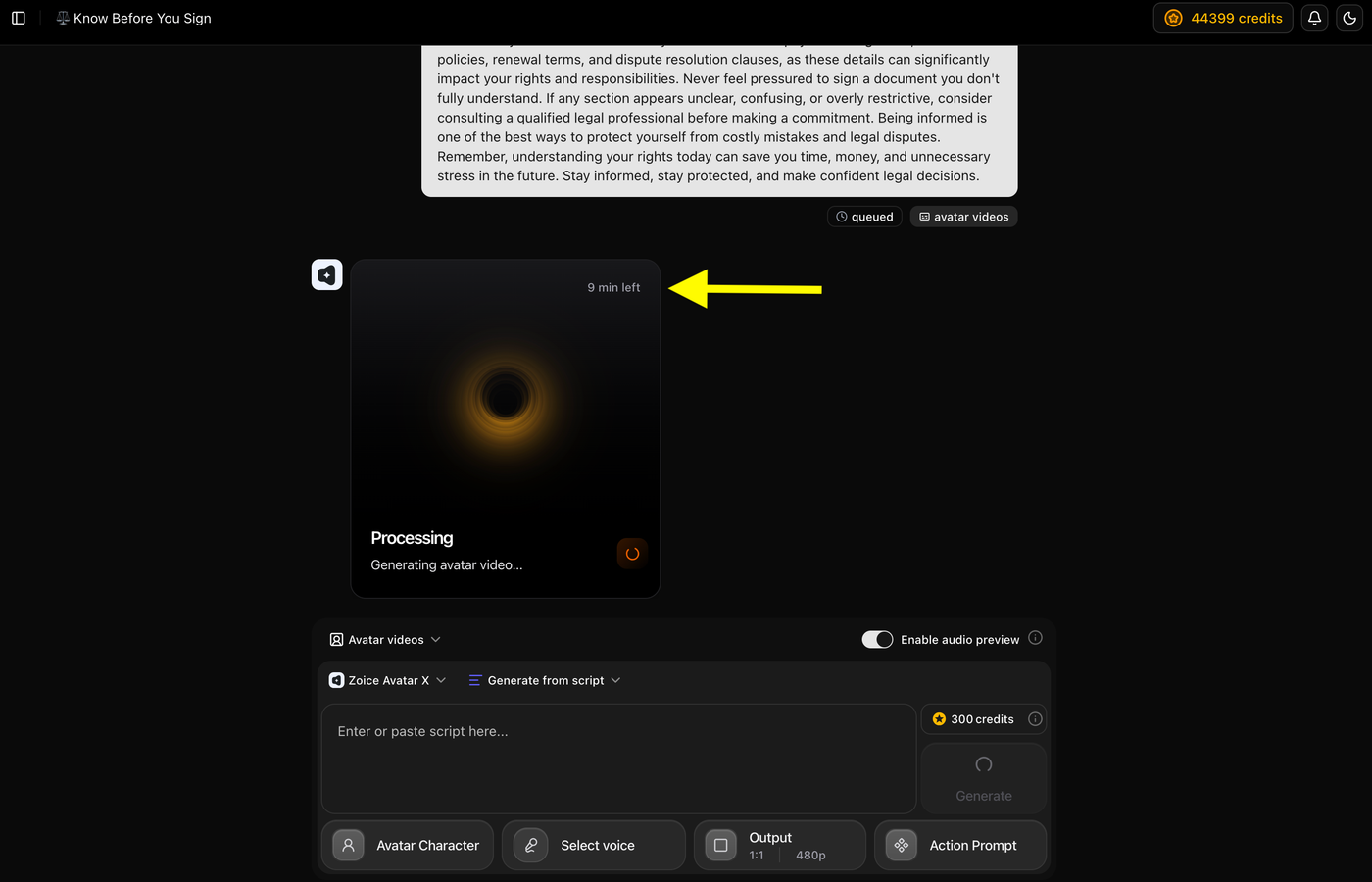
Zoice will now process your avatar video. Once the generation is complete, your video will be ready to preview and download.
- Wait for the processing to finish.
- Check the estimated time displayed on the screen.
- Keep the tab open until the video is generated.
Step 21: Preview and Download Your Video
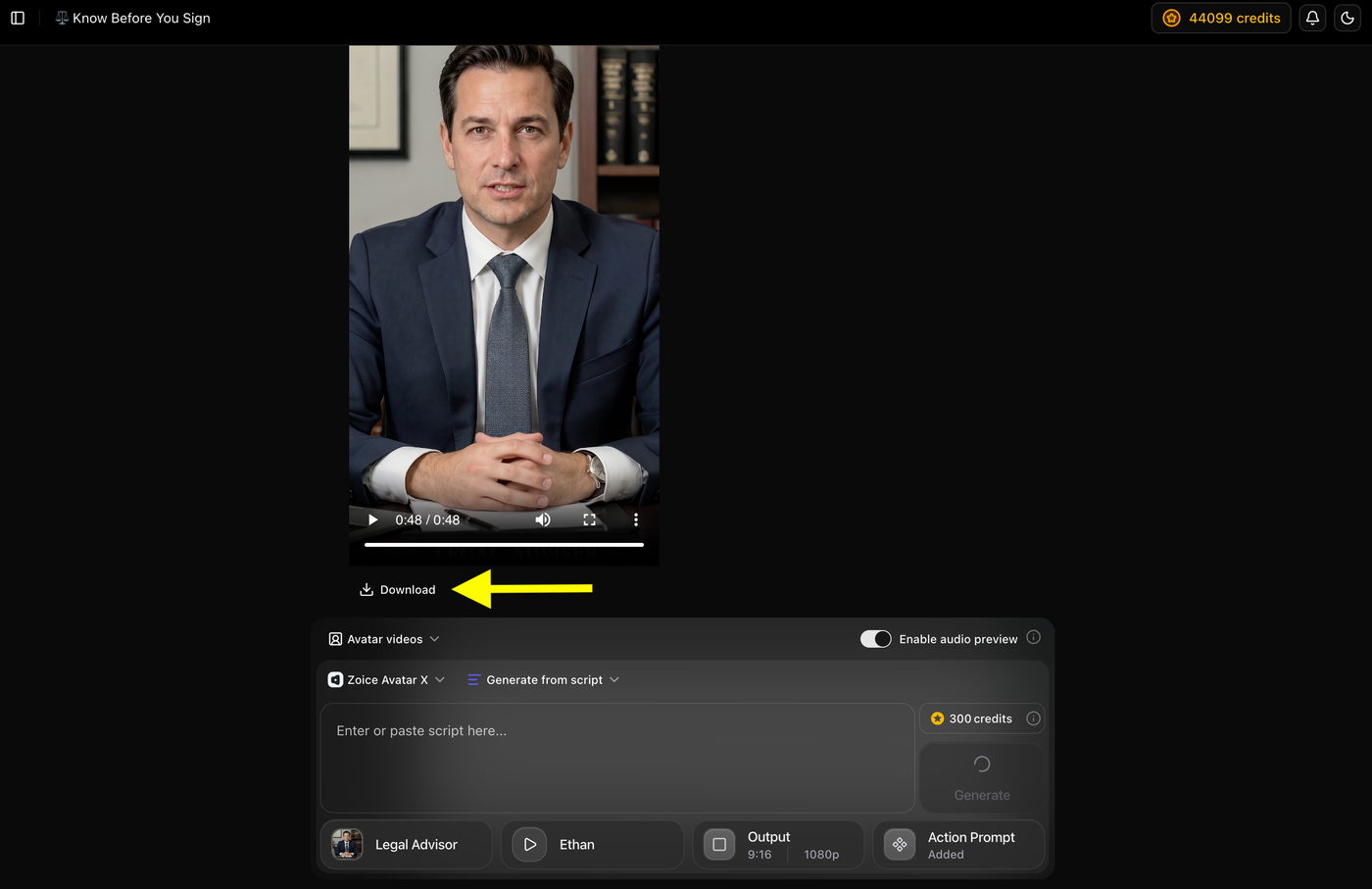
Once the generation is complete, preview your AI avatar video and download it to your device.
- Play the video to review the final output.
- Check the avatar's lip-sync, voice quality, and movements.
- Click Download to save the video.
- Your AI legal advisor video is now ready to share on social media, websites, or other platforms.
Example Script and Generated AI Legal Advisor Video
To demonstrate the final result, we created an AI legal advisor video using Zoice. We created a professional AI avatar, added a legal script, selected a natural-sounding voice, configured the output settings, and generated a realistic talking avatar video.
Script Used
Example:
"Welcome to today's legal tip. Before signing any contract, take a few moments to carefully review every term and condition. Pay close attention to payment obligations, cancellation policies, renewal terms, and dispute resolution clauses, as these details can significantly impact your rights and responsibilities. Never feel pressured to sign a document you don't fully understand. If any section appears unclear, confusing, or overly restrictive, consider consulting a qualified legal professional before making a commitment. Being informed is one of the best ways to protect yourself from costly mistakes and legal disputes. Remember, understanding your rights today can save you time, money, and unnecessary stress in the future. Stay informed, stay protected, and make confident legal decisions."
Generated AI Legal Advisor Video
Below is the final AI legal advisor video created using Zoice.
Example:
Final Output Video
Tip: Compare the original script with the generated video to see how Zoice transforms legal information into a professional AI presenter with realistic speech and natural facial expressions.
Types of AI Legal Advisor Videos You Can Create
AI legal advisor videos can be used to create various types of legal content, including:
- Consumer rights videos
- Contract law explainers
- Employment law guides
- Business compliance videos
- Legal consultation videos
- Intellectual property explainers
- Real estate law content
- Legal marketing videos
- Startup legal guides
- Corporate training videos
- Privacy policy and compliance tutorials
- Legal FAQs and educational videos
Tips for Creating Better AI Legal Advisor Videos
Use Simple Legal Language
Avoid unnecessary legal jargon whenever possible. Explain legal concepts in plain language to make your content easier to understand.
Use a Professional Presenter
Choose a realistic AI avatar with formal attire and a confident speaking style to establish credibility.
Focus on One Legal Topic Per Video
Short, focused videos are more engaging and easier for viewers to understand.
Keep Your Content Accurate
Always verify legal information before publishing, especially when discussing regulations or compliance requirements.
Include a Legal Disclaimer
Consider adding a disclaimer stating that your video is for educational purposes and should not be considered legal advice.
Optimize Videos for Different Platforms
Choose the appropriate aspect ratio depending on where you plan to publish your content.
How We Tested Zoice
We tested Zoice using various legal content formats, including consumer rights explainers, legal consultations, business law topics, and educational legal videos. Our evaluation focused on the features that matter most when creating professional legal content.
Legal Avatar Realism
We evaluated the realism of AI avatars by testing facial expressions, eye contact, and lip synchronization. Professional-looking presenters are especially important when discussing legal topics that require trust and credibility.
Voice Quality and Lip Sync
We tested both AI-generated voices and custom voice profiles to ensure the narration sounded natural, clear, and professional.
Presenter Customization
We evaluated avatar customization, voice selection, and action prompts to determine how easily users can create a legal presenter that aligns with their brand.
Video Quality and Export
We reviewed supported resolutions, aspect ratios, and overall video quality across different publishing platforms.
Ease of Use
We tested the complete workflow from avatar creation to final video generation to evaluate the platform's beginner-friendliness.
Pricing and Value
Finally, we compared Zoice's features and pricing plans to determine its overall value for creating AI legal advisor videos.
Common Mistakes to Avoid
Avoid these common mistakes when creating AI legal advisor videos:
- Using overly complex legal terminology
- Providing outdated legal information
- Publishing without fact-checking
- Choosing an unprofessional avatar or voice
- Creating overly long videos
- Forgetting to include legal disclaimers
- Using the wrong video format for social media platforms
Why Use Zoice Instead of Other AI Video Tools?
Professional AI Presenters
Zoice allows you to create realistic legal presenters that help build trust and authority with your audience.
Faster Content Creation
Transform legal scripts into professional videos within minutes without recording or editing manually.
Voice Cloning and AI Voices
Use your own voice or choose from multiple AI voices that match the tone of your legal content.
Multi-Platform Support
Export videos optimized for YouTube, LinkedIn, Instagram, TikTok, websites, and presentations.
Easy Customization
Customize avatars, voices, output settings, and presenter actions without requiring technical expertise.
FAQs
What are AI legal advisor videos?
AI legal advisor videos use AI avatars to explain legal topics through realistic speech and facial animations.
Can I create legal videos without appearing on camera?
Yes. AI avatar generators allow you to create professional legal videos without filming yourself.
Can I use my own voice in legal videos?
Yes. You can clone your voice or use AI-generated voices depending on your preference.
What types of legal content can I create?
You can create videos covering consumer rights, contracts, employment law, business compliance, and many other legal topics.
Which platforms are best for AI legal videos?
AI legal videos work well on YouTube, LinkedIn, Instagram, TikTok, business websites, and online courses.
Should I include legal disclaimers in my videos?
Yes. Including an educational disclaimer is recommended when discussing legal topics.
Conclusion
AI legal advisor videos provide a simple and professional way to explain legal concepts, educate audiences, and promote legal services without appearing on camera. With Zoice, you can create realistic AI presenters, customize voices, and generate high-quality legal videos in just a few minutes.
Whether you're a lawyer, legal consultant, educator, or business owner, AI avatar technology makes it easier than ever to create engaging legal content for YouTube, LinkedIn, Instagram, TikTok, and business websites while maintaining professionalism and consistency across your videos.