How to Create AI Healthcare Videos
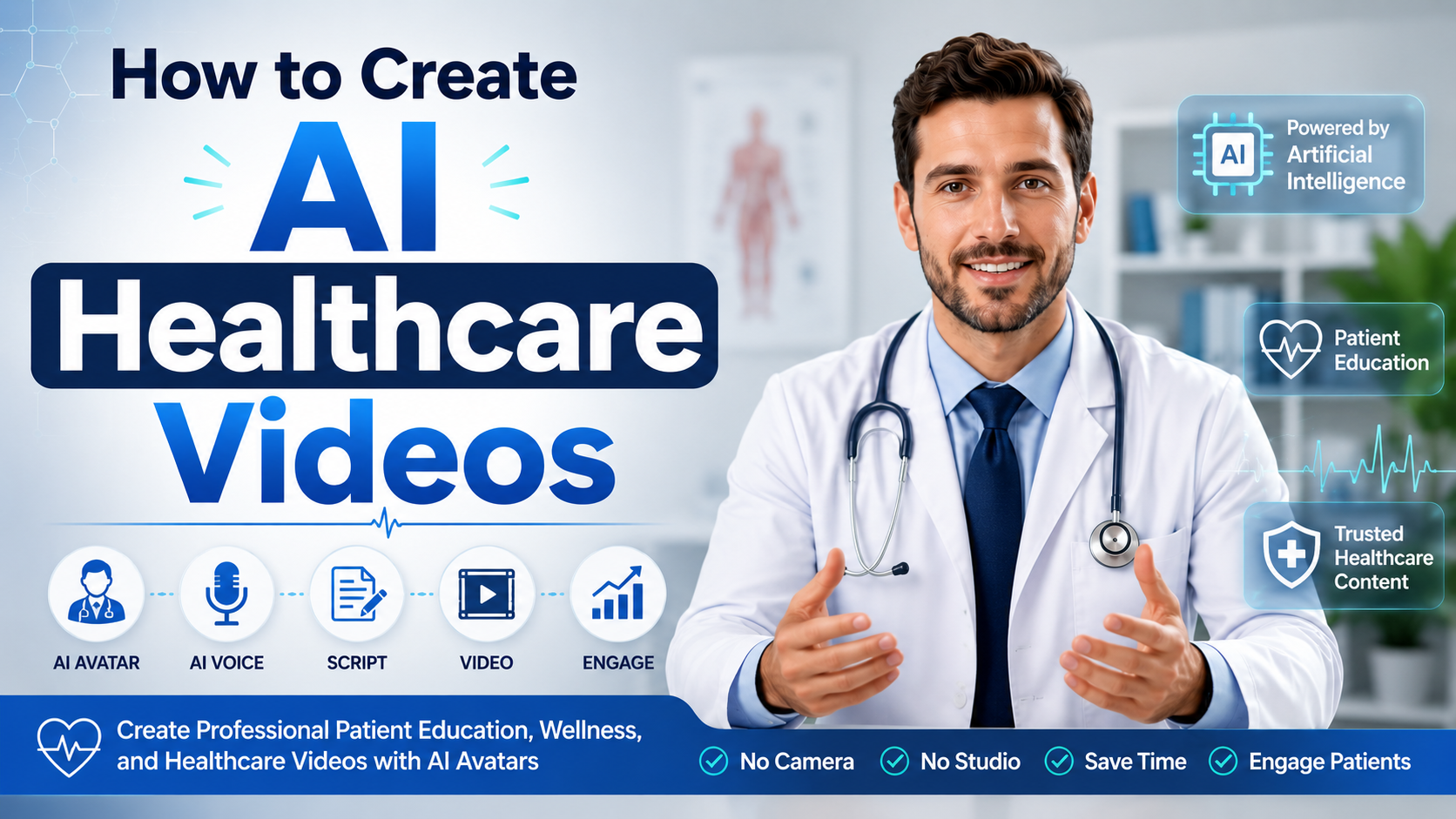
Healthcare communication is changing quickly with the help of artificial intelligence. Hospitals, doctors, wellness brands, and healthcare educators now use AI videos to explain medical information, improve patient awareness, and create educational content faster.
Traditionally, creating healthcare videos required cameras, presenters, recording studios, and editing teams. This process could take days or weeks, especially when creating multiple videos for different health topics.
AI avatar technology makes this process easier by allowing healthcare professionals to create realistic presenter videos from a simple script or audio recording. Instead of recording yourself, you can create a digital healthcare presenter that explains information clearly with natural speech, facial expressions, and human-like communication.
Whether you want to create patient education videos, wellness tips, healthcare tutorials, awareness campaigns, or training content, AI avatars help you produce professional videos without complicated production setups.
Healthcare AI videos can be used for:
- Patient education content
- Wellness and lifestyle videos
- Medical awareness campaigns
- Healthcare training videos
- Clinic introduction videos
- Treatment explanation videos
- Nutrition and fitness guidance
- Preventive care information
- Frequently asked patient questions
AI healthcare videos help make important information easier to understand, more accessible, and available to larger audiences.
What Are AI Healthcare Videos?
AI healthcare videos are educational or informational videos created using artificial intelligence tools. These videos often use AI avatars, AI voices, and automated video generation technology to explain healthcare topics in a simple and engaging way.
Instead of a real person recording every video, an AI avatar acts as a virtual healthcare presenter and delivers your prepared content.
For example, a clinic can create an AI avatar video explaining:
“How to prepare before a health checkup”
or
“5 simple habits for maintaining better wellness”
The AI avatar reads the script naturally, creating a professional healthcare video that patients can watch anytime.
AI healthcare videos are useful for:
- Doctors
- Clinics
- Hospitals
- Health educators
- Wellness creators
- Fitness professionals
- Healthcare organizations
Why Use AI Avatars for Healthcare Videos?
Healthcare information needs to be simple, clear, and easy for patients to understand. AI avatars help healthcare providers communicate consistently while saving time and resources.
Some major benefits include:
Create Videos Without Recording
Healthcare professionals do not always have time to record educational videos. AI avatars allow them to create videos without cameras, microphones, or filming.
Simply prepare the content, choose an avatar, and generate the video.
Improve Patient Understanding
Many medical topics can be difficult for patients to understand through text.
AI avatar videos can explain information in a more human and visual way, helping viewers understand instructions, wellness tips, and healthcare concepts better.
Save Time Creating Educational Content
Doctors and healthcare teams often answer the same questions repeatedly.
AI videos can be created for common topics like:
- Appointment preparation
- Lifestyle guidance
- Health awareness
- General wellness information
Patients can watch these videos whenever needed.
Create Videos in Multiple Languages
Healthcare providers often communicate with people who speak different languages.
AI avatars and voices make it easier to create educational content for different audiences.
Maintain a Consistent Healthcare Presenter
A custom AI avatar can become the digital face of your healthcare content.
This creates a familiar and consistent experience across:
- Websites
- Social media
- Patient resources
- Training videos
How to Create AI Healthcare Videos Using Zoice (AI Videos for Patient Education & Wellness)
Creating healthcare videos with an AI avatar is simple. Follow the steps below to create a professional healthcare video.
Step 1: Visit Zoice.com and Click Sign In
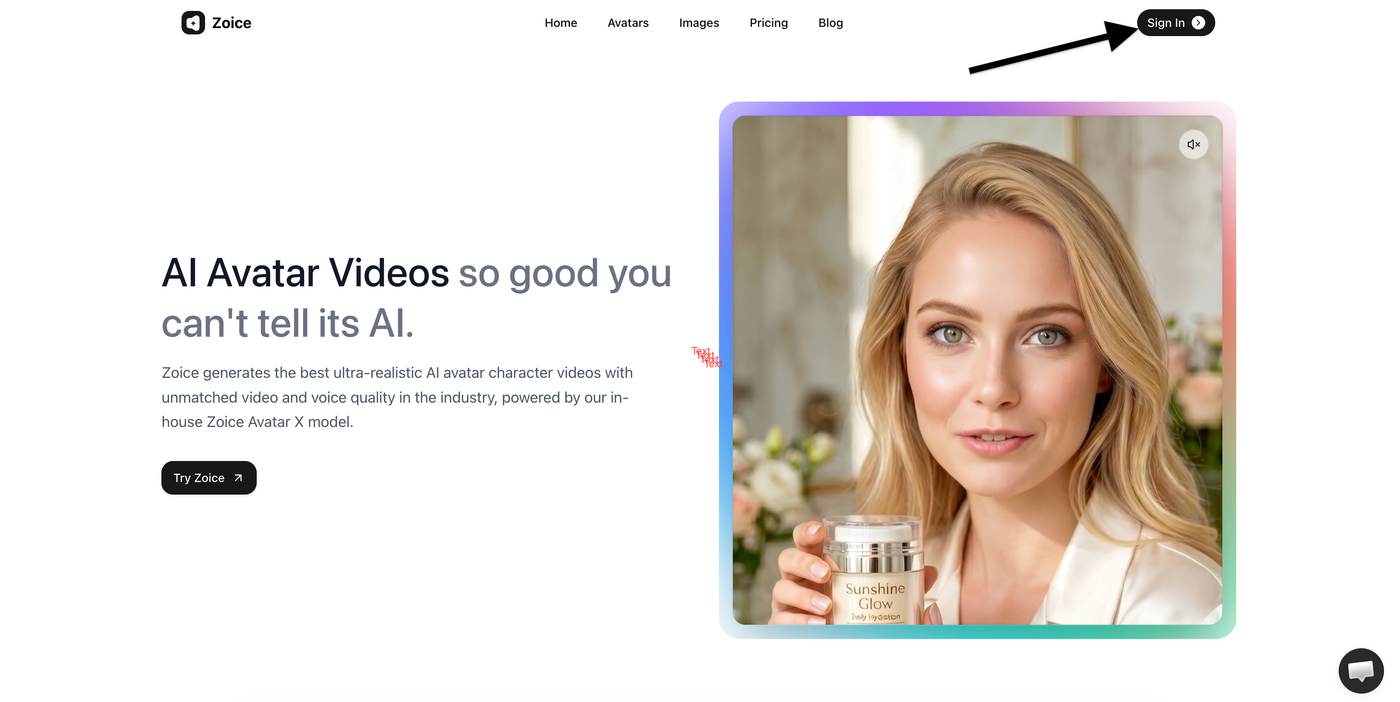
Go to Zoice.com in your browser and click the Sign In button available at the top-right corner of the homepage. This will open the login page where you can access your Zoice account.
- Visit Zoice.com
- Click Sign In
Step 2: Sign In to Your Zoice Account
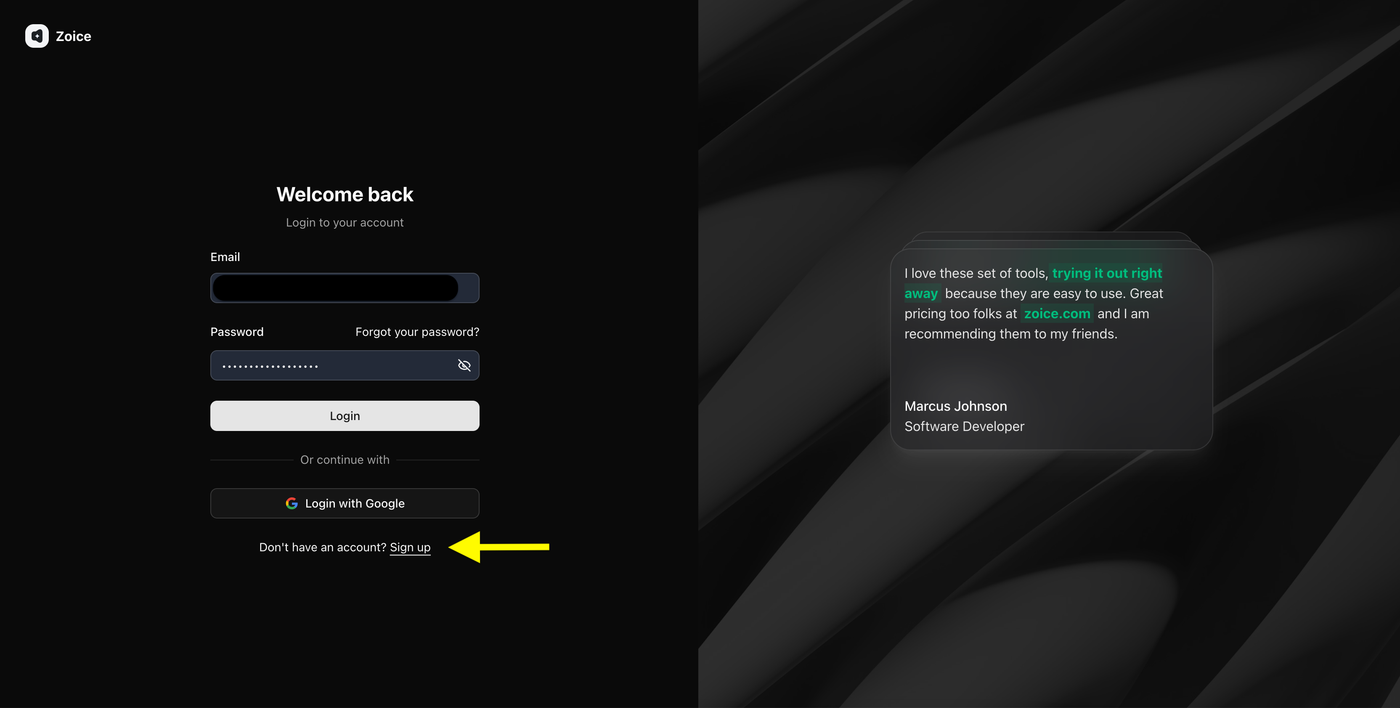
If you already have a Zoice account, enter your registered email address and password, then click Sign In.
You can also choose Sign in with Google if your account is connected with Google. After successfully signing in, you will be redirected to the Zoice dashboard.
- Enter your email address
- Enter your password
- Click Sign In
- Or continue with Google
Step 3: Create a New Zoice Account (For New Users)
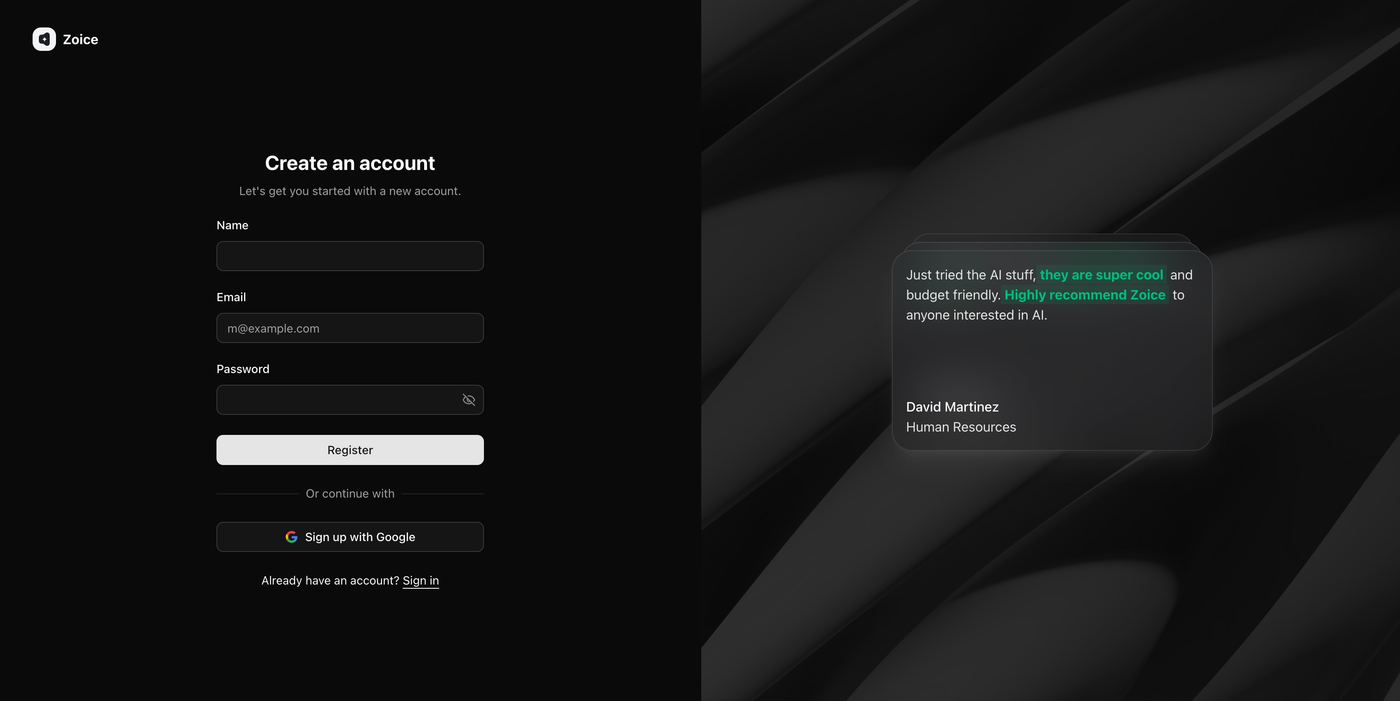
If you are using Zoice for the first time, click Sign Up to create a new account.
Enter the required details:
- Name
- Email address
- Password
You can also select Sign up with Google to quickly create your account. Once your account is created, you can access the Zoice dashboard and start creating AI avatar videos.
Step 4: Navigate to Avatar Characters
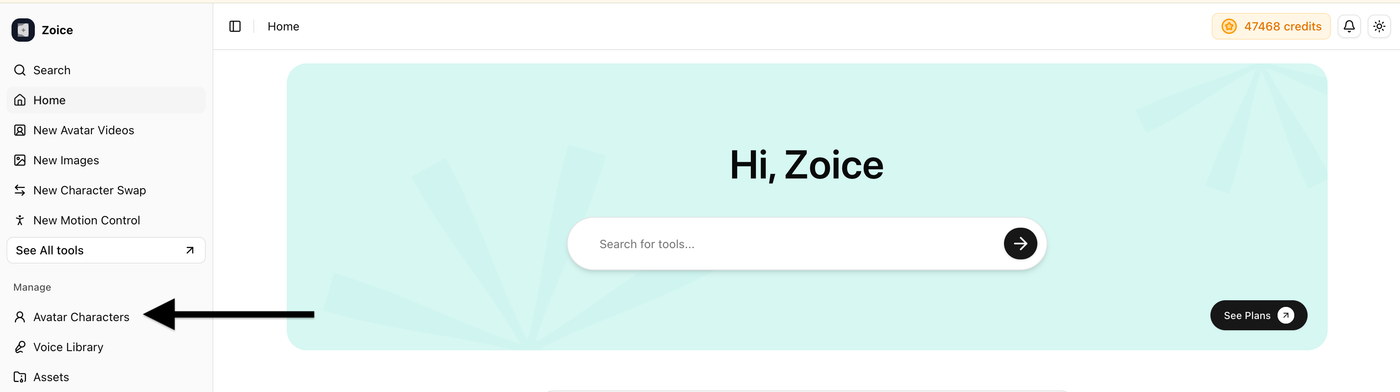
After logging in, you will reach the Zoice dashboard. From the left sidebar, click Avatar Characters under the Manage section.
This section allows you to create, customize, and manage AI avatars that you can use for healthcare videos, patient education content, wellness videos, and other AI-generated videos.
- Go to the left sidebar
- Click Avatar Characters
Step 5: Click Create New Avatar
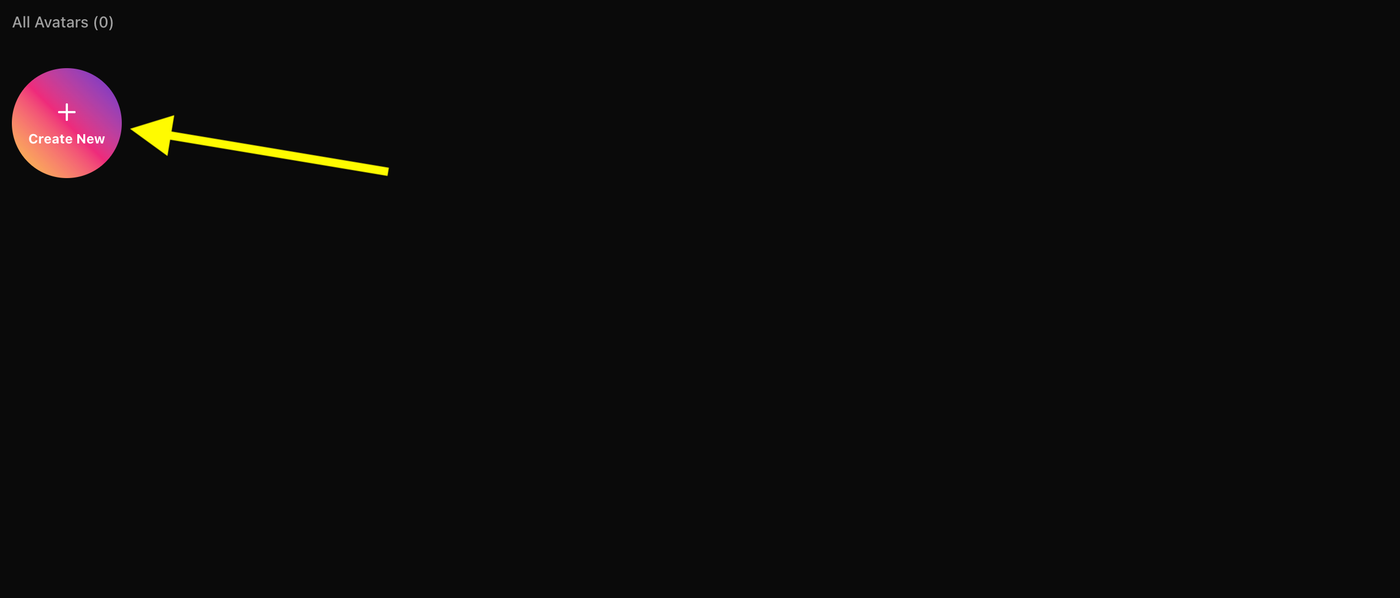
On the Avatar Characters page, click the Create New button to start creating your custom AI avatar.
This will open the avatar creation page where you can create your avatar by uploading an image or generating one using an AI prompt.
- Click Create New
- Start creating your AI avatar
Step 6A: Create Your Avatar Using an Image (Skip to step 7 if You Already Have an Image)
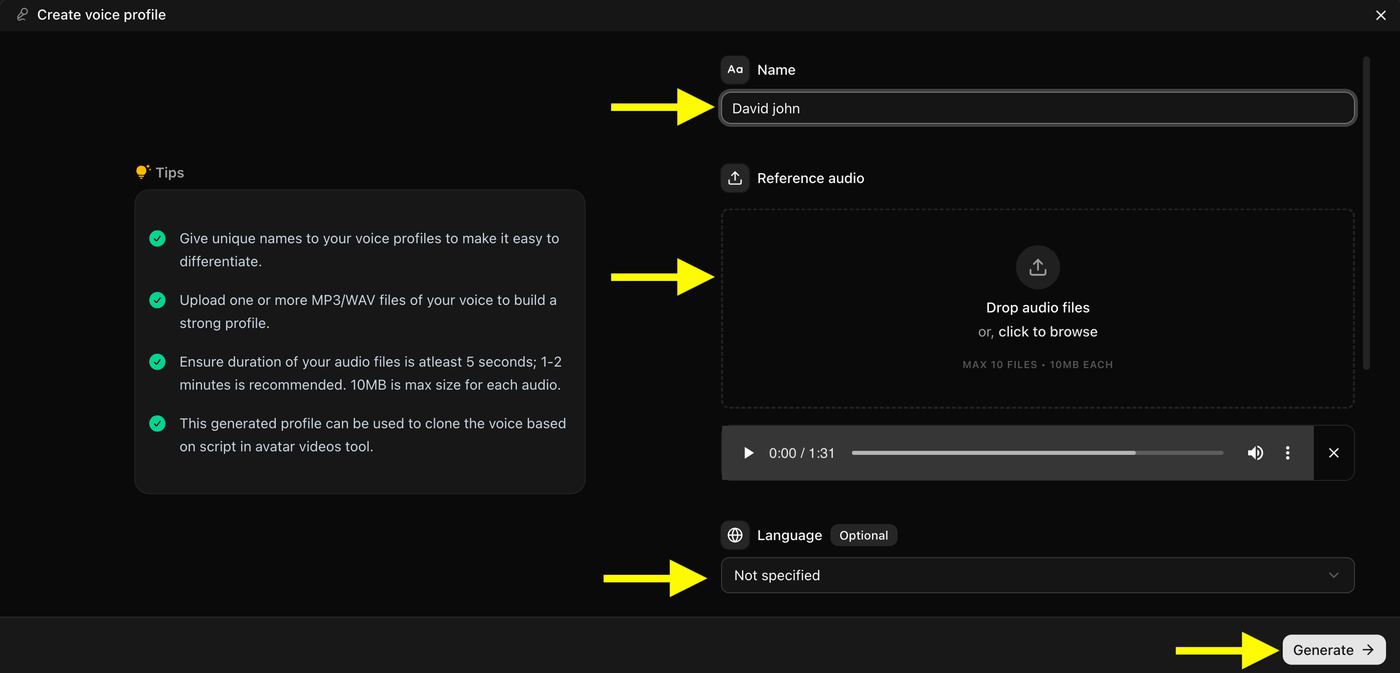
Upload a clear, high-quality image that you want to convert into an AI avatar. Add an avatar name so you can easily identify it later in your avatar library.
For better results, use an image with:
- Clear face visibility
- Good lighting
- Front-facing angle
- High image quality
Step 6B: Generate Avatar Using AI Prompt (Skip if You Already Have an Image)
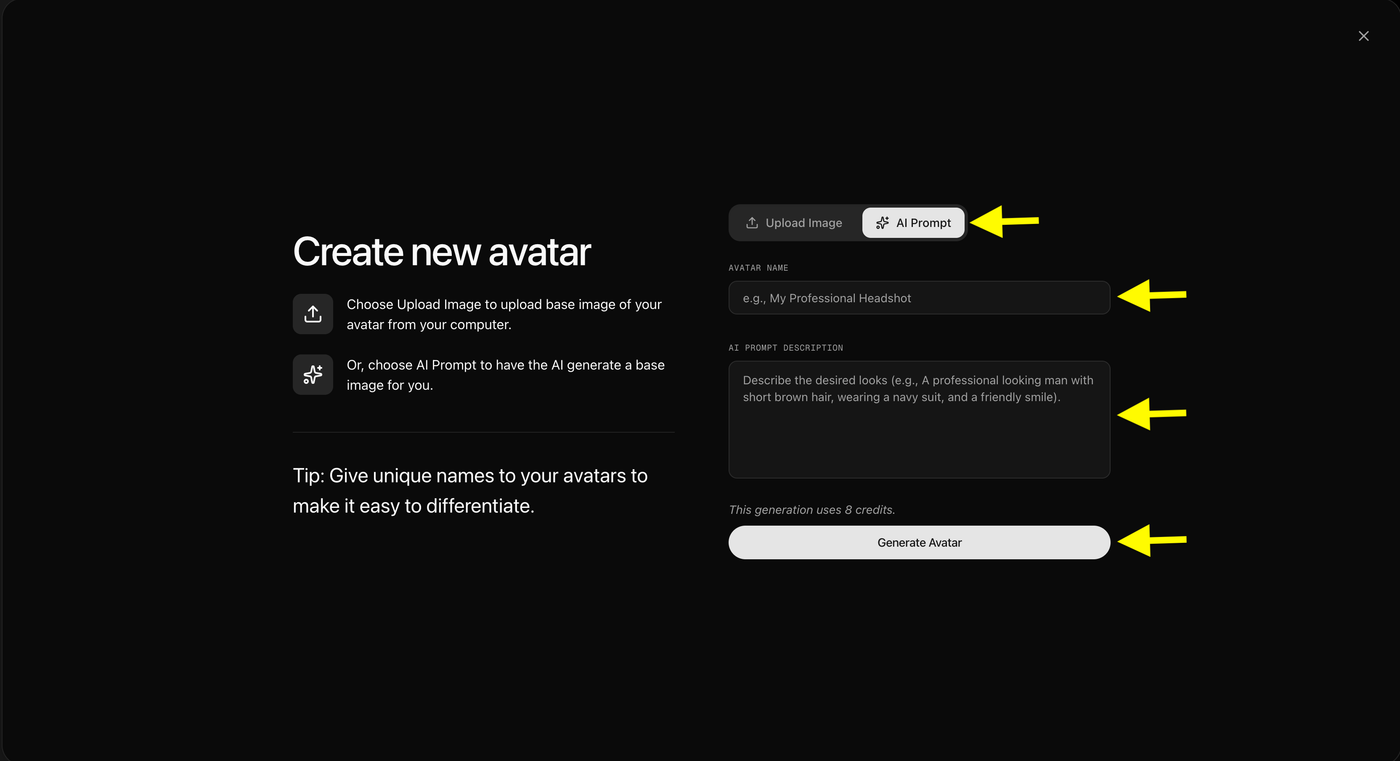
If you don’t have an image, select the AI Prompt option to create an avatar using text. Enter an Avatar Name, describe the type of avatar you want, and click Generate Avatar. Zoice will create an AI avatar image based on your description.
Steps:
- Click AI Prompt
- Enter your avatar name
- Write a detailed avatar description
- Click Generate Avatar to create your AI avatar
Tip: Add details like profession, appearance, clothing, background, and style in your prompt to get better avatar results.
Step 7: Upload Your Avatar Image and Generate Avatar
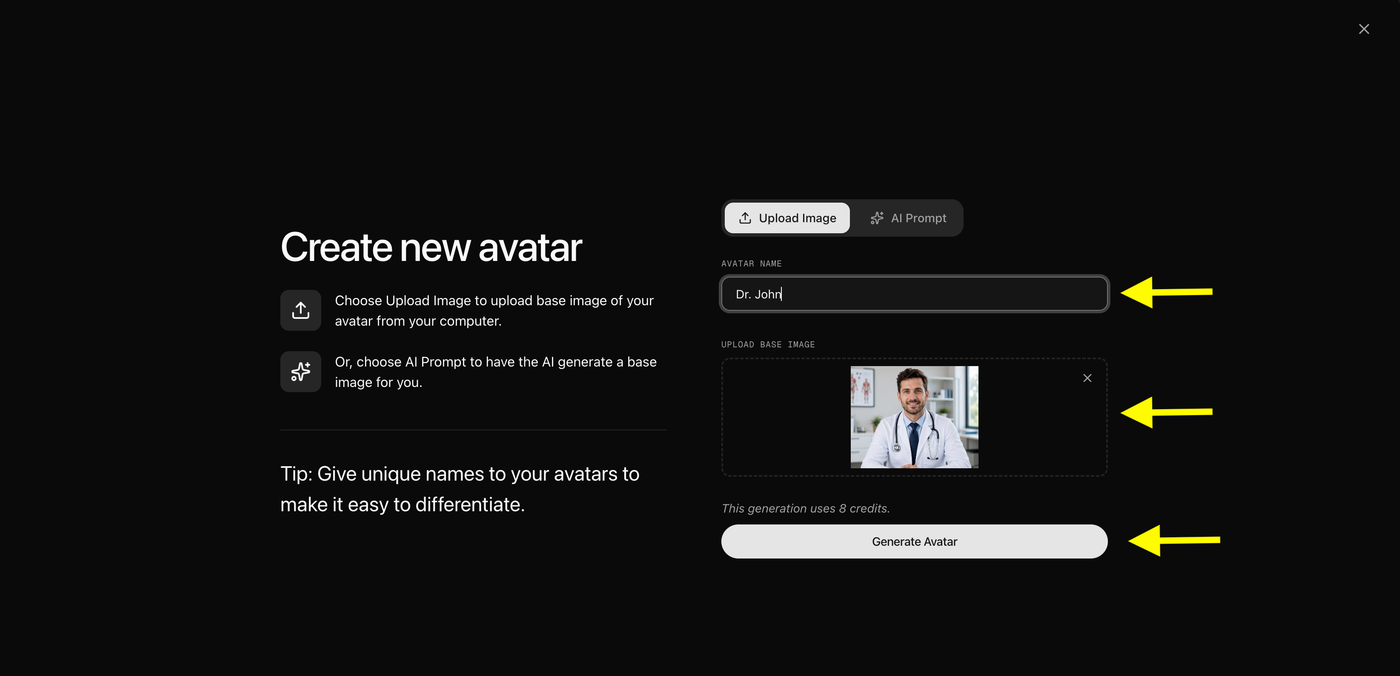
Now upload the image you want to convert into an AI healthcare avatar. Add a unique Avatar Name so you can easily find and manage your avatar later.
Once your image is uploaded and the name is added, click Generate Avatar. Zoice will process your image and create a custom AI avatar for your healthcare videos.
Steps:
- Select Upload Image
- Enter your avatar name
- Upload your avatar image
- Click Generate Avatar
Note: In this example, we are uploading a healthcare professional image to create a doctor AI avatar. You can upload any image based on the type of video you want to create.
Step 8: Select Your Created Avatar
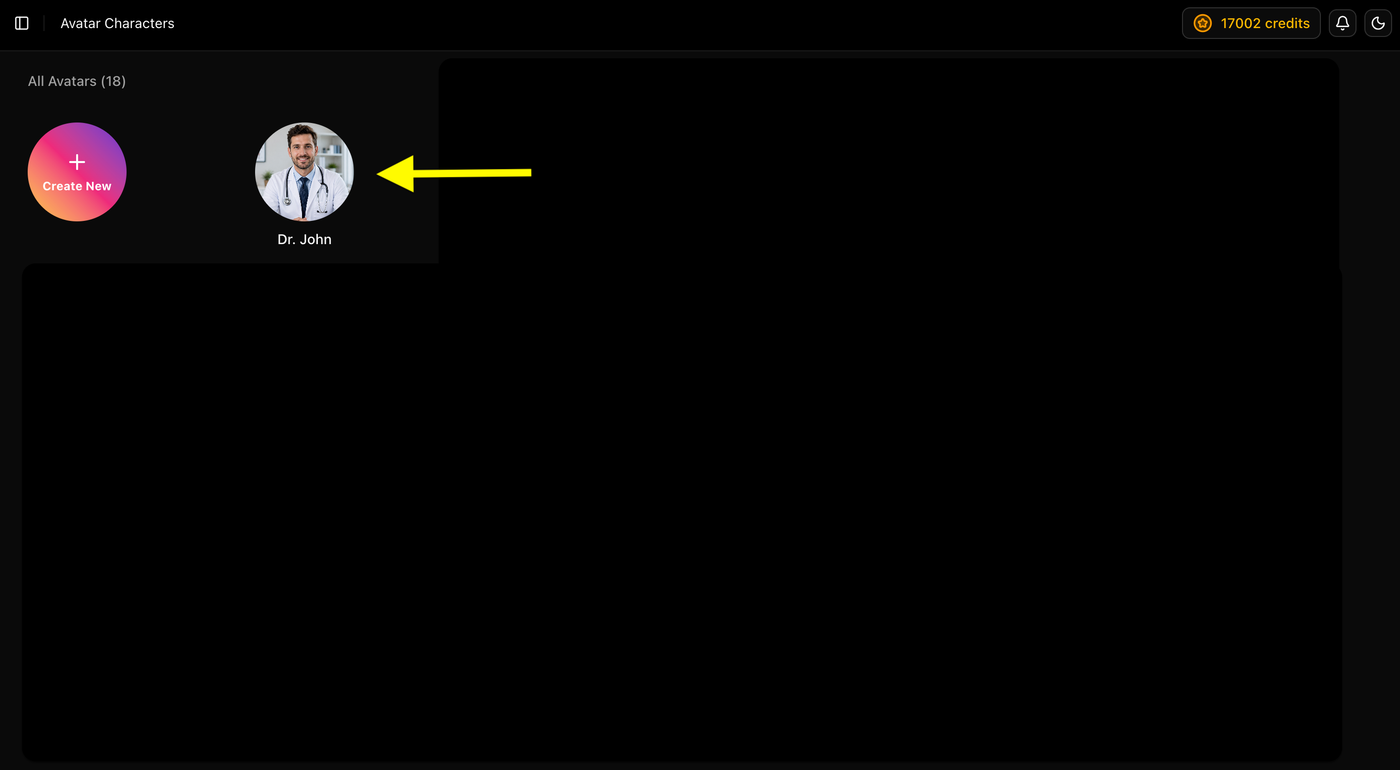
After your AI avatar is generated, go back to the Avatar Characters section. Your newly created avatar will appear in the avatar library.
Click on the avatar you created to select it and continue creating your AI healthcare video.
Steps:
- Open Avatar Characters
- Find your generated avatar
- Click on the avatar to select it
Note: In this example, we are selecting the doctor avatar created in the previous step to generate an AI healthcare video.
Step 9: Select Avatar and Click Generate Video
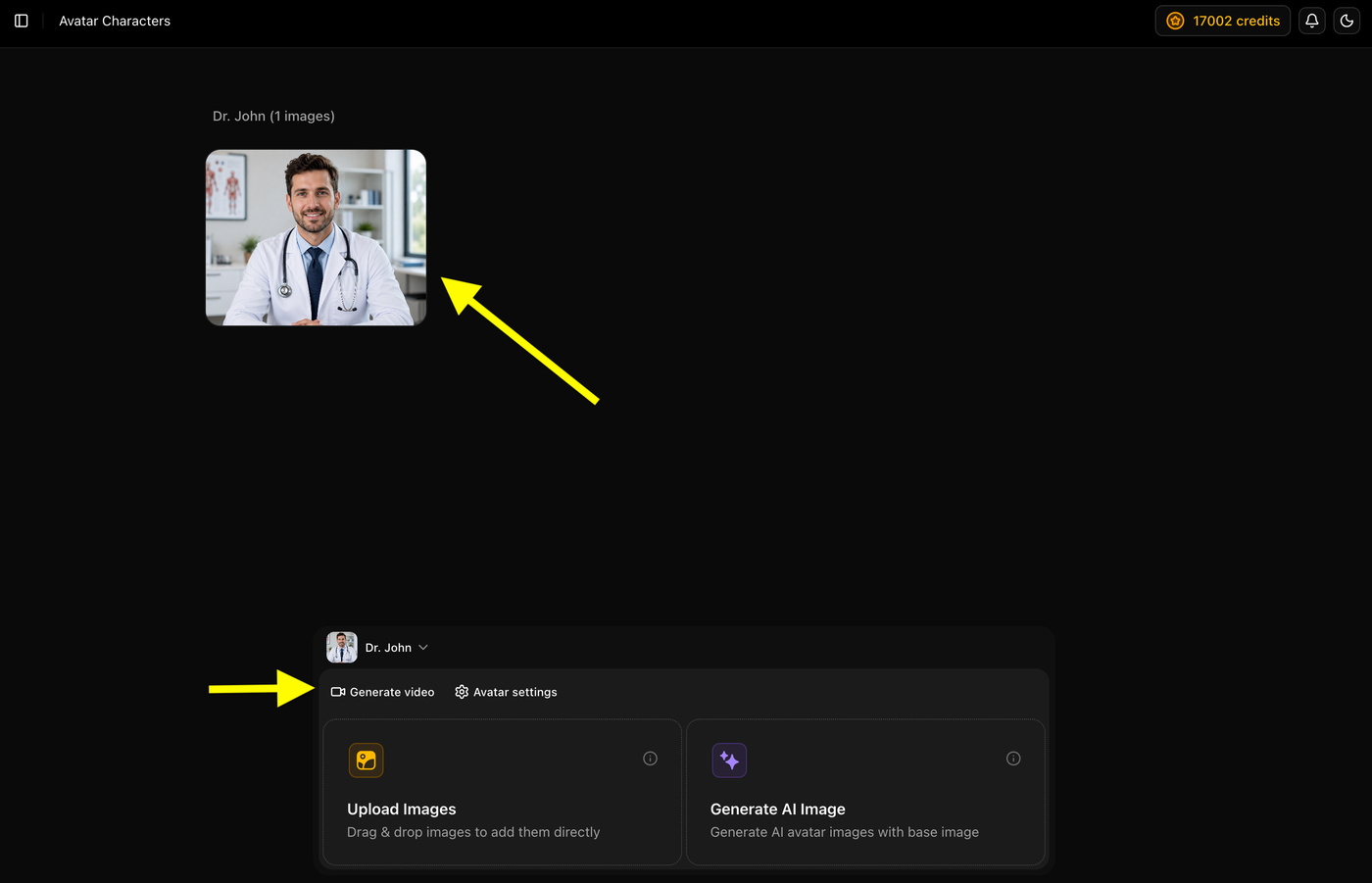
After creating your AI avatar, open the Avatar Characters section and select the avatar you want to use for your healthcare video.
Once the avatar is selected, click Generate Video to open the video creation page and start creating your AI avatar video.
Steps:
- Select your created avatar
- Click Generate Video
- Continue to the avatar video creation workspace
Note: Here, we are selecting the doctor avatar created earlier to generate an AI healthcare video.
Step 10: Add Script and Configure Video Settings
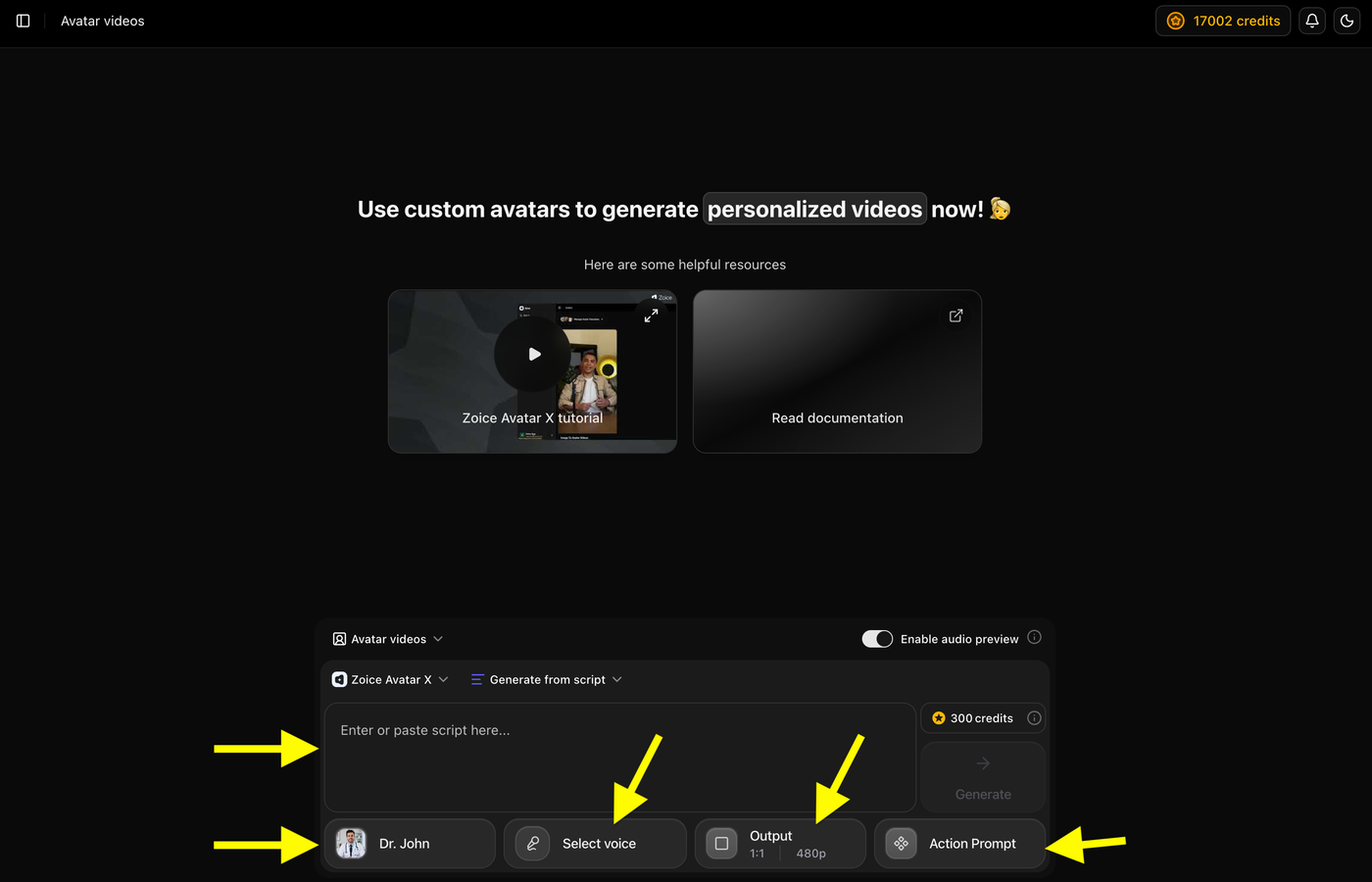
After opening the avatar video creator, enter the script that you want your AI avatar to speak. You can customize your video by selecting a voice, choosing the output format, and adding an action prompt.
Steps:
- Add your healthcare video script
- Select an AI voice for your avatar
- Choose output ratio and resolution
- Add an action prompt for avatar movements (optional)
- Click Generate to create your AI healthcare video
Tip: For YouTube videos, select a 16:9 aspect ratio for the best full-screen viewing experience.
Step 11: Add Your Script and Select Voice Model
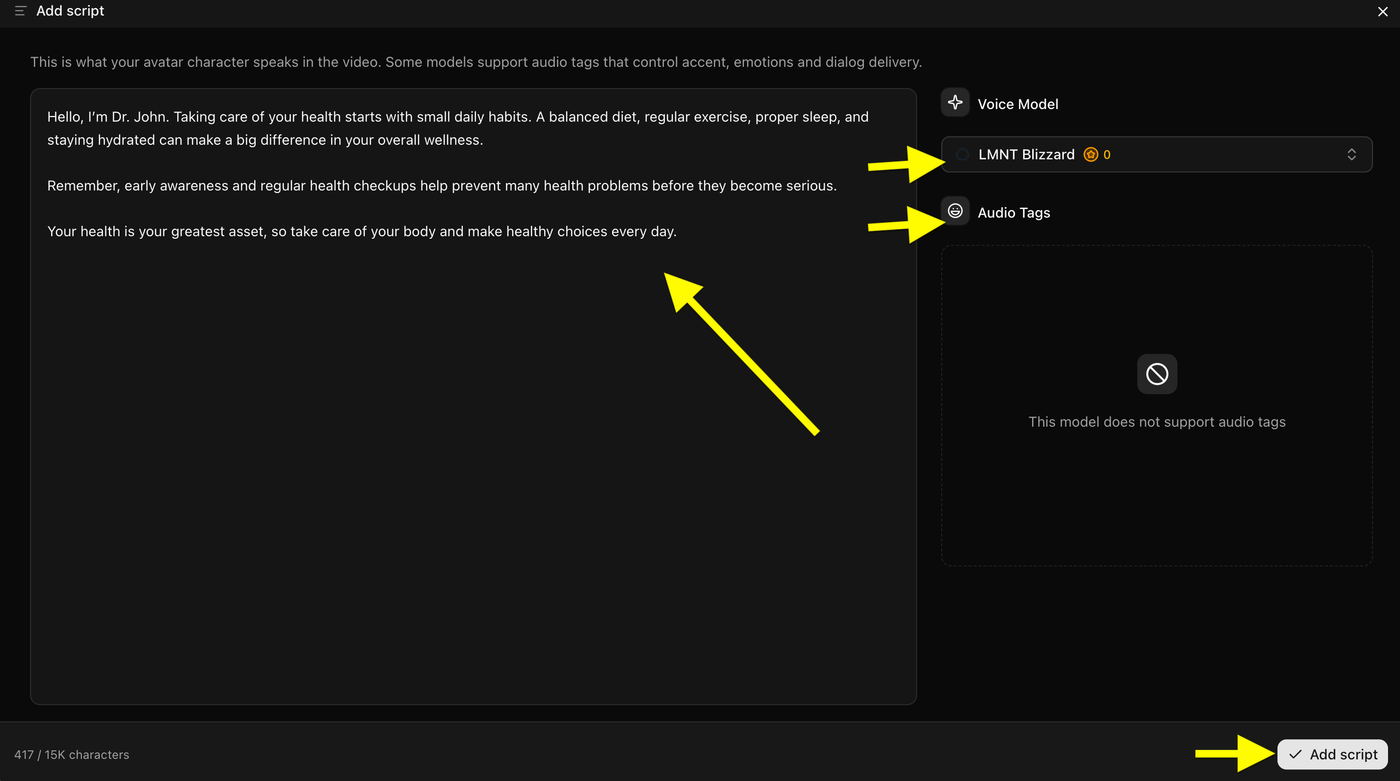
Now, add the script that your AI doctor avatar will speak in the video. After adding the script, choose a suitable Voice Model that matches your healthcare content.
Steps:
- Paste or write your healthcare video script
- Select a professional AI voice model
- Add audio tags (if supported) to adjust emotions and delivery
- Click Add Script to continue
Tip: For healthcare videos, use a calm and professional voice to make the information sound clear and trustworthy.
Step 12: Select an AI Voice
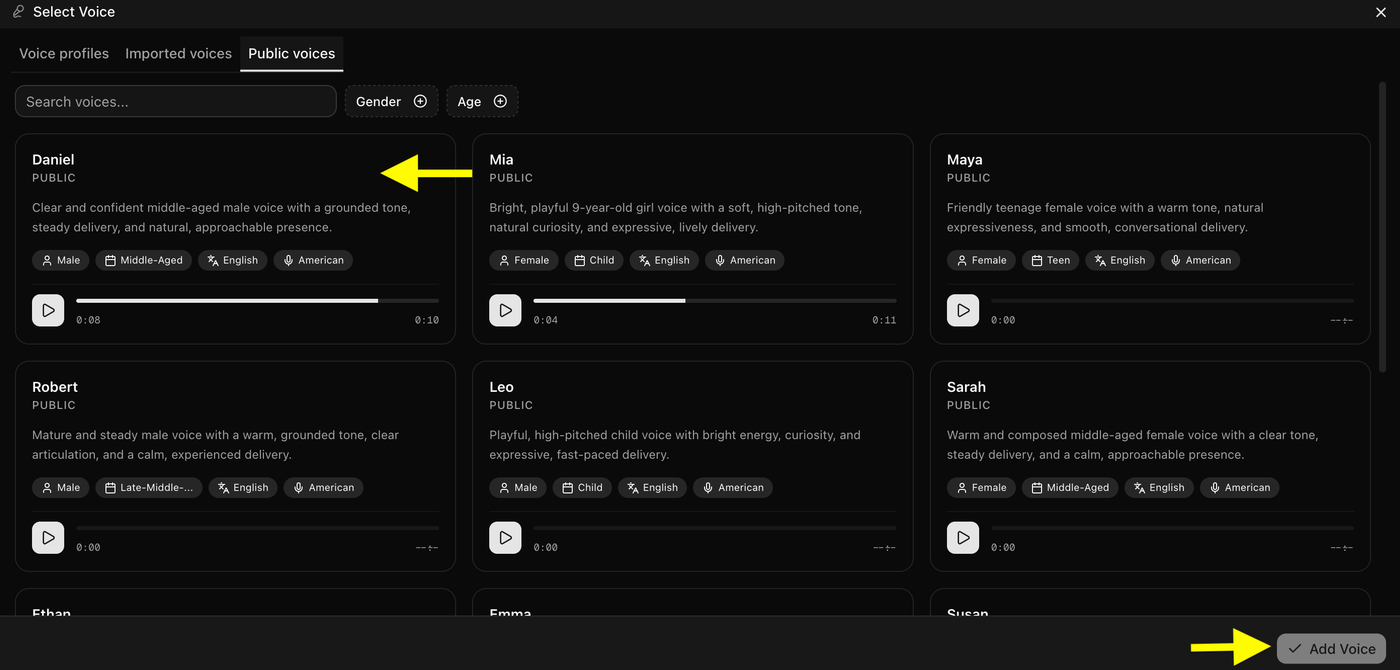
After adding your script, choose an AI voice for your healthcare avatar video. Browse the available voices, listen to the voice previews, and select the voice that matches your content style.
Steps:
- Open Select Voice
- Browse available public voices
- Preview different voice samples
- Select your preferred voice
- Click Add Voice
Tip: For healthcare videos, choose a clear, calm, and professional voice to make the information easy to understand.
Step 13: Choose Video Output Settings
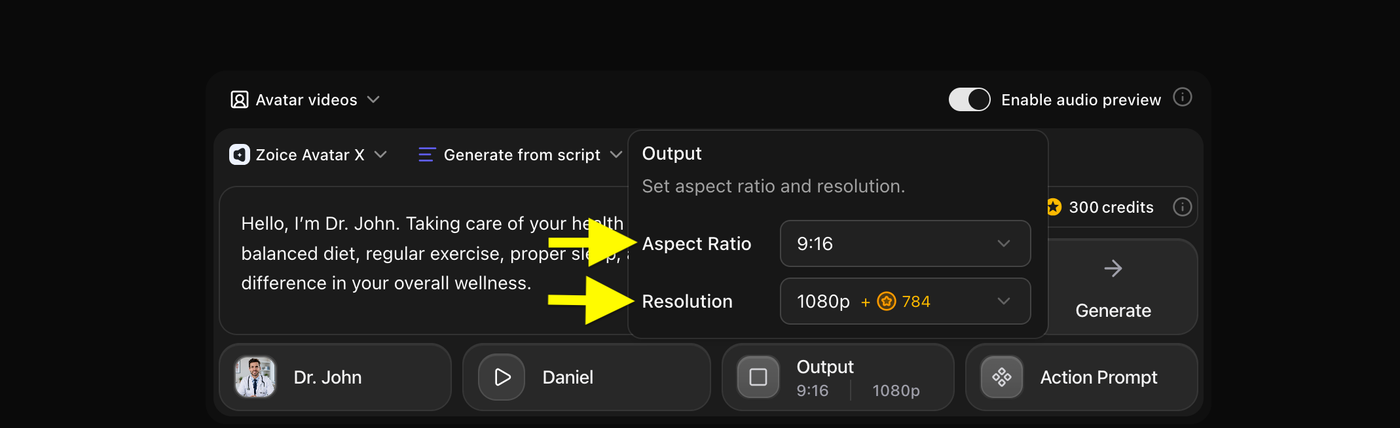
After selecting the voice, customize your video output settings. Choose the aspect ratio and resolution based on where you want to publish your healthcare video.
Steps:
- Click Output
- Select your preferred aspect ratio
- Choose video resolution quality
- Save the output settings
Tip: Use 16:9 ratio for YouTube videos and 9:16 ratio for YouTube Shorts, Instagram Reels, and TikTok videos. For better quality, select 1080p resolution.
Step 14: Add Action Prompt
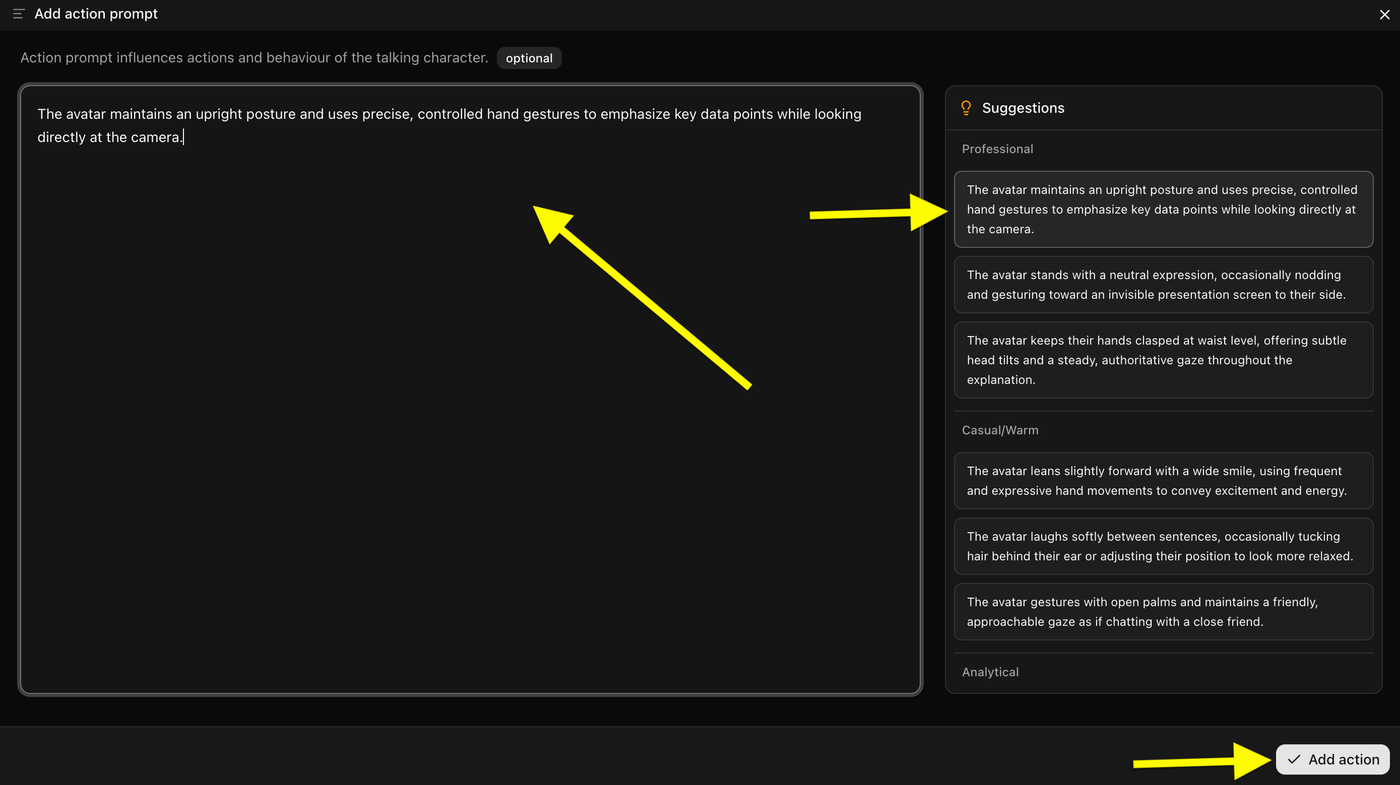
After selecting the output settings, add an Action Prompt to control how your AI avatar behaves during the video. You can write your own instructions or select a suggested action style.
Steps:
- Click Action Prompt
- Add avatar actions and behavior instructions
- Choose from suggested prompts (optional)
- Click Add Action
Tip: For healthcare videos, use professional actions like maintaining eye contact, calm expressions, and natural hand gestures to make the avatar look more realistic and trustworthy.
Step 15: Generate Your AI Healthcare Video
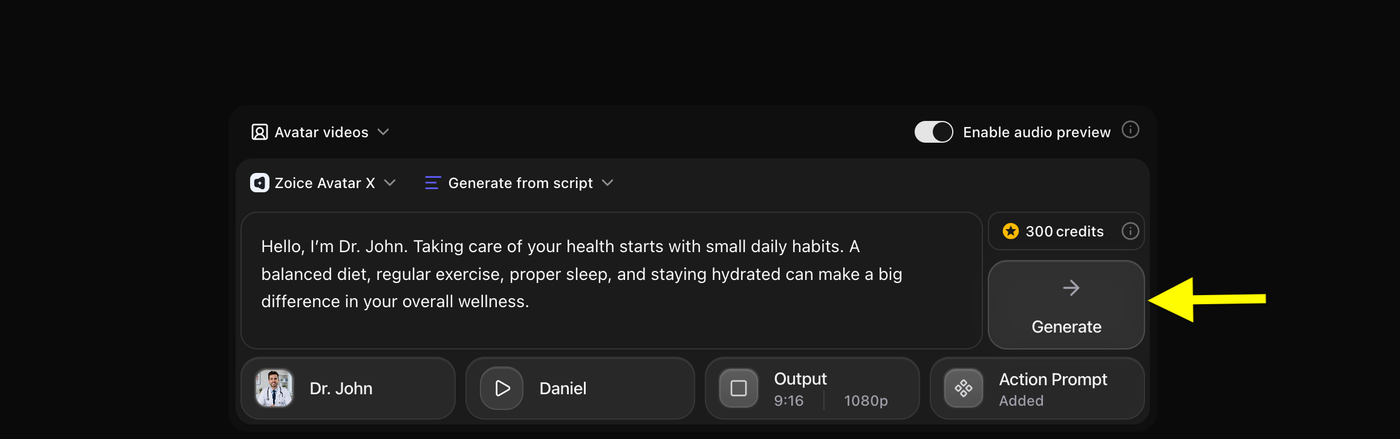
After adding the script, voice, output settings, and action prompt, review all your video settings. Once everything is ready, click Generate to start creating your AI healthcare video.
Steps:
- Check your selected avatar
- Review script and voice settings
- Confirm output and action prompt
- Click Generate
Zoice will process your settings and generate your final AI avatar video.
Step 16: Preview Audio and Click on Generate Avatar Video
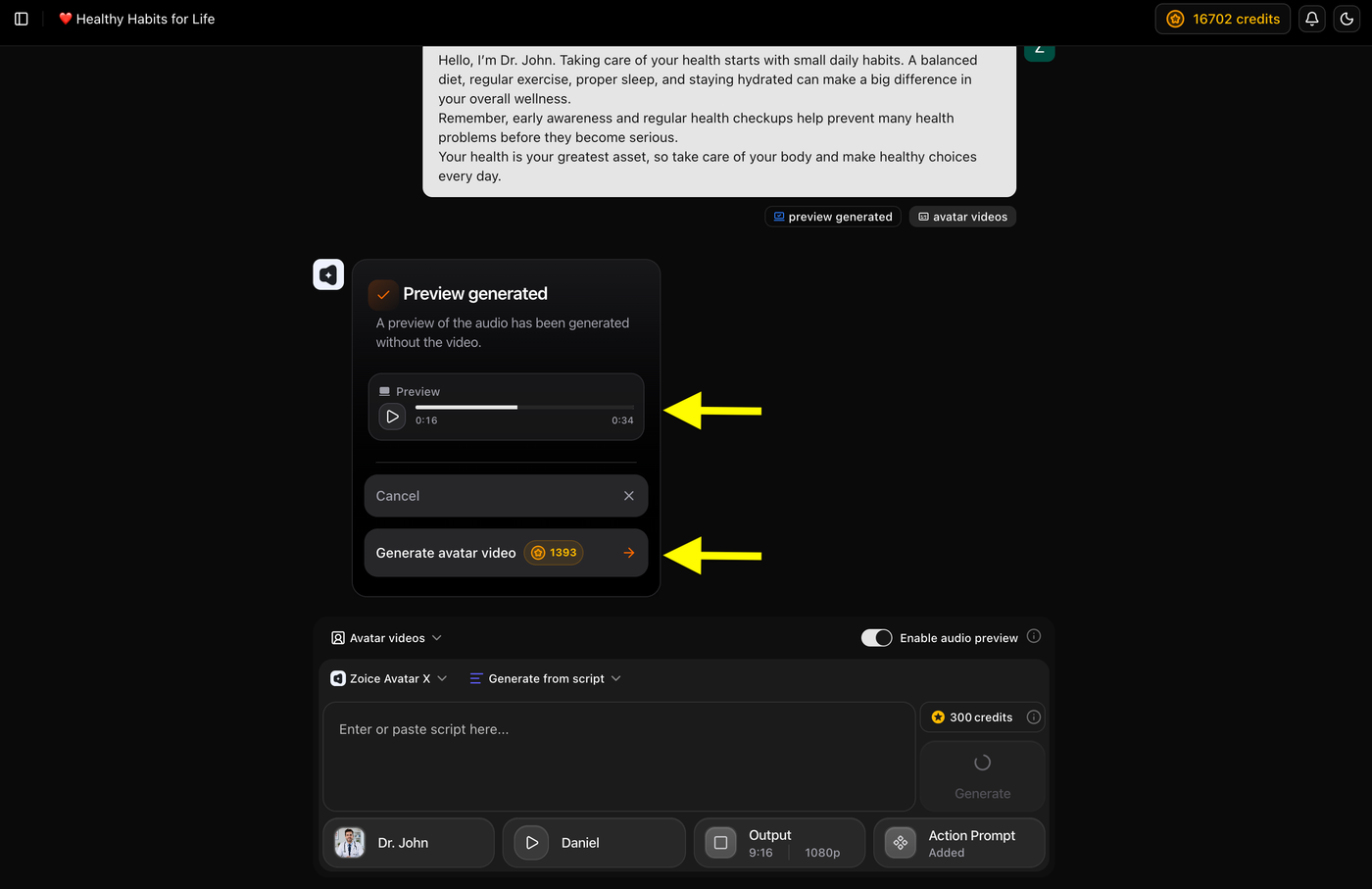
Before generating the final video, Zoice creates an audio preview so you can check how your script sounds with the selected AI voice.
Steps:
- Listen to the generated audio preview
- Check voice, pronunciation, and pacing
- Click Generate Avatar Video to create the final video
Tip: Previewing the audio helps you make changes before creating the full avatar video and saves credits.
Step 17: Preview and Download Your AI Healthcare Video
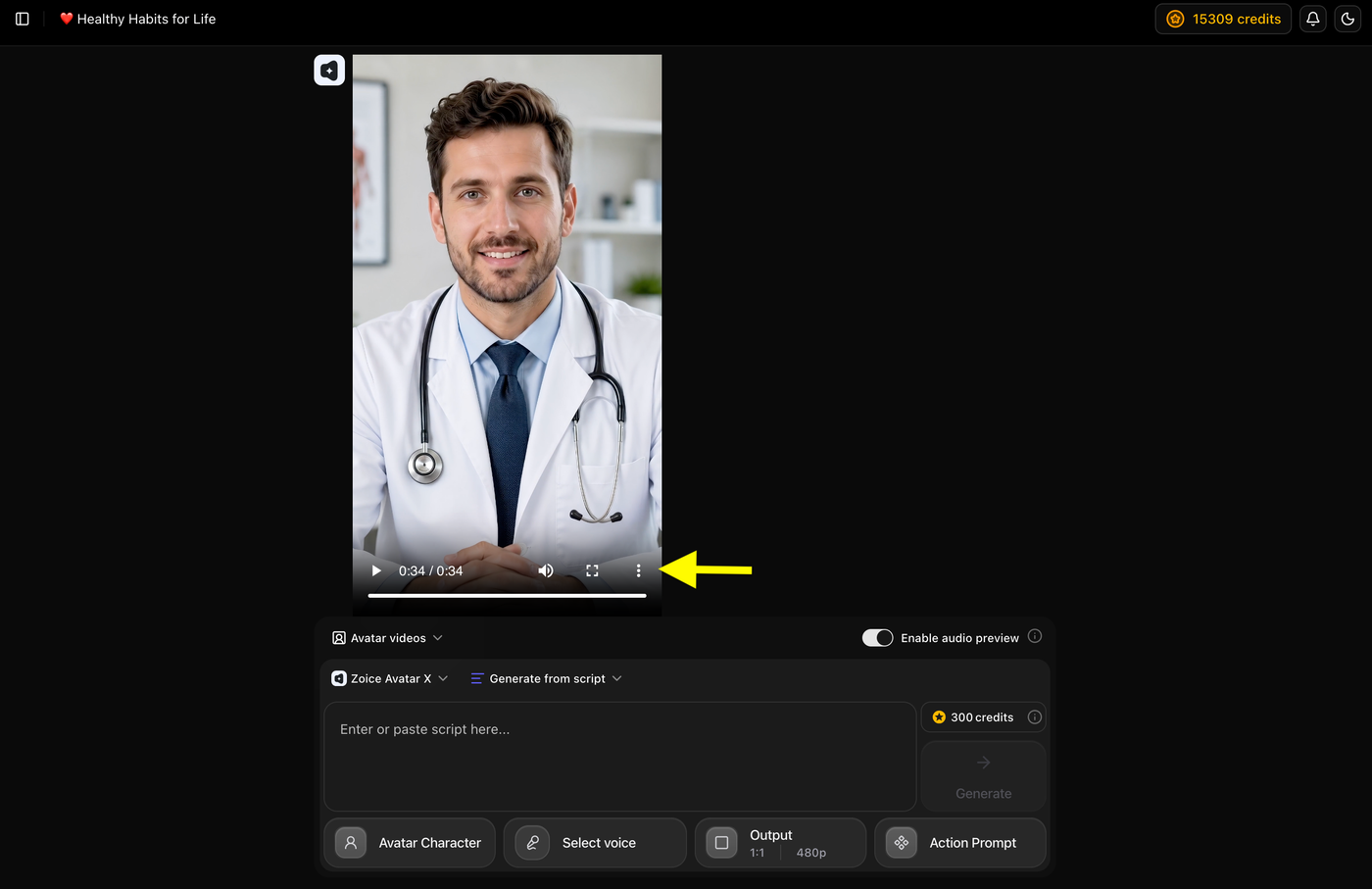
Once the AI avatar video is generated, preview the final result to check the avatar movements, voice synchronization, and overall video quality.
Steps:
- Play the generated AI healthcare video
- Review the avatar speech and expressions
- Check voice and lip synchronization
- Download the final AI avatar video
Your AI healthcare video is now ready to use for patient education, wellness tips, or healthcare awareness content.
Example Script and Generated Healthcare Video
To demonstrate the final result, below is the script used to create a healthcare AI avatar video and the final output generated using Zoice.
Script Used
Example:
"Hello, I’m Dr. John. Taking care of your health starts with small daily habits. A balanced diet, regular exercise, proper sleep, and staying hydrated can make a big difference in your overall wellness.
Remember, early awareness and regular health checkups help prevent many health problems before they become serious.
Your health is your greatest asset, so take care of your body and make healthy choices every day."
Generated AI Healthcare Video
Example:
Tip: Compare the original script with the generated video to see how AI converts healthcare information into a realistic presenter video.
Tips for Creating Better AI Healthcare Videos
Keep Medical Information Simple
Use simple and easy-to-understand language when creating healthcare videos. Avoid complex medical terms so patients can clearly understand your message.
Use a Professional Avatar
Choose an avatar that looks trustworthy and matches your healthcare topic. A doctor, healthcare expert, or wellness coach avatar works best for medical content.
Keep Videos Focused
Create each video around one specific topic. Short and focused videos help viewers understand the information better without feeling overwhelmed.
Use a Calm and Clear Voice
Select a professional voice with a calm tone and clear pronunciation. A friendly voice helps make healthcare information easier to follow.
Add Captions
Add captions to your videos so viewers can easily read important points and understand the content even without audio.
Best AI Healthcare Video Ideas
Patient Education Videos
Create videos that explain general health topics, common questions, treatments, and patient instructions in a simple way.
Wellness Tips Videos
Share content about healthy habits, nutrition, exercise, sleep, and everyday lifestyle improvements.
Clinic Introduction Videos
Create professional introduction videos for hospitals, clinics, doctors, or healthcare services using AI avatars.
Healthcare Training Videos
Use AI avatars to create training materials for healthcare teams, employees, and medical education.
Health Awareness Campaigns
Create informative videos about prevention, safety tips, and important healthcare awareness topics.
FAQs About Creating AI Healthcare Videos
Can AI avatars be used for healthcare education?
Yes. AI avatars can help create educational healthcare videos, wellness content, and patient communication materials.
Do I need recording equipment?
No. You can create healthcare videos using only an AI avatar, script, and voice.
Can AI healthcare videos replace doctors?
No. AI healthcare videos are designed for communication and education. They should not replace professional medical advice.
Can I create healthcare videos in different languages?
Yes. AI video platforms can help create multilingual healthcare content.
Are AI avatars useful for wellness creators?
Yes. Wellness creators can use AI avatars for fitness tips, lifestyle videos, and educational content.
Conclusion
AI avatars are making healthcare video creation faster, simpler, and more accessible. Doctors, clinics, wellness creators, and healthcare organizations can create professional videos without cameras, studios, or complicated editing.
With Zoice, you can create a healthcare AI avatar, add your educational script, select a realistic voice, customize your video, and generate high-quality patient education content.
AI healthcare videos help make important information easier to share while saving time and improving communication with audiences.