How to Create AI Avatar for Tiktok and Instagram
Creating engaging content on TikTok and Instagram requires consistency, creativity, and a strong personal brand. However, not everyone wants to appear on camera every day, record multiple takes, or spend hours filming videos. This is where AI avatars are changing the way creators produce social media content.
With an AI avatar, you can create a realistic digital version of yourself or a completely new virtual character that can speak, present, promote products, share tutorials, and create videos without requiring a camera setup.
Whether you want to create faceless videos, build a virtual influencer, make educational content, or scale short-form videos, AI avatar generators make the process faster and easier. In this article, you will learn how to create an AI avatar for TikTok and Instagram, customize it, add your voice, generate videos, and optimize them for social media platforms.
What Is an AI Avatar?
An AI avatar is a digital character created using artificial intelligence that can look, speak, and behave like a real person. These avatars use AI technologies such as image generation, facial animation, voice cloning, and lip-sync technology to create realistic videos.
Instead of recording yourself every time, you can create your AI avatar once and use it repeatedly to generate unlimited videos.
AI avatars can be based on:
- Your own photo
- A custom AI-generated character
- A virtual influencer
- A brand spokesperson
- A fictional digital personality
Modern AI avatar generators can automatically sync facial expressions, mouth movements, and voice with your script, creating professional videos within minutes.
Why Use AI Avatars for TikTok and Instagram?
Short-form platforms like TikTok, Instagram Reels, and YouTube Shorts reward creators who publish consistently. However, creating fresh videos daily can be challenging.
AI avatars solve many common content creation problems by helping creators produce videos faster.
Benefits of Using AI Avatars:
- Create videos without showing your faceBuild a faceless personal brand while still having a human-like presenter.
- Save recording timeNo need to set up cameras, lighting, microphones, or record multiple takes.
- Maintain consistent brandingUse the same avatar personality across all your social media channels.
- Create content in multiple languagesReach international audiences using AI voices and multilingual scripts.
- Scale video productionTurn one idea into multiple videos quickly for TikTok and Instagram.
- Experiment with different charactersCreate influencers, educators, coaches, or entertainment personalities.
How to Create AI Avatar for TikTok and Instagram (Step-by-Step)
Creating your own AI avatar is simple with platforms like Zoice. You only need an image, voice, and script to generate realistic avatar videos.
Follow these steps to create your first AI avatar video.
Step 1: Visit Zoice
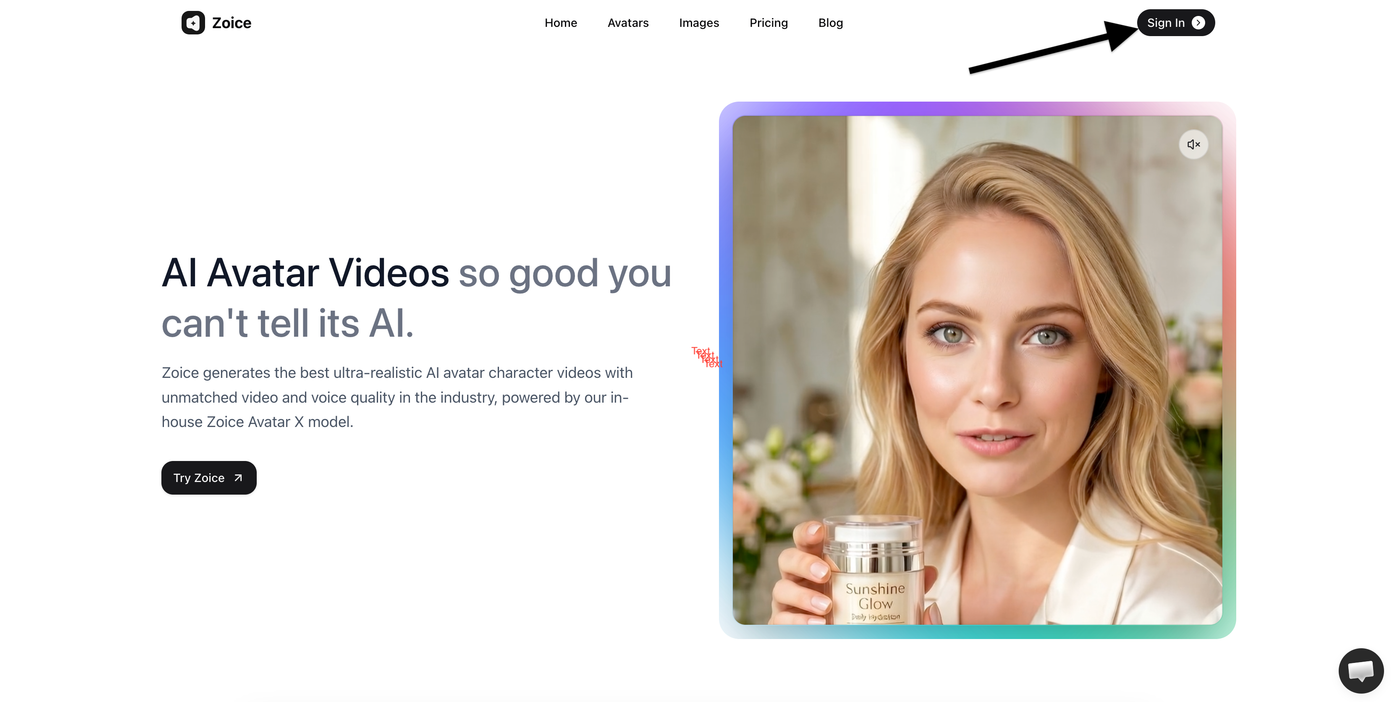
Open your preferred browser and visit Zoice.
On the homepage:
- Go to Zoice.com
- Click Sign In
This will take you to the login page where you can access your account or create a new one.
Step 2: Sign In to Your Account
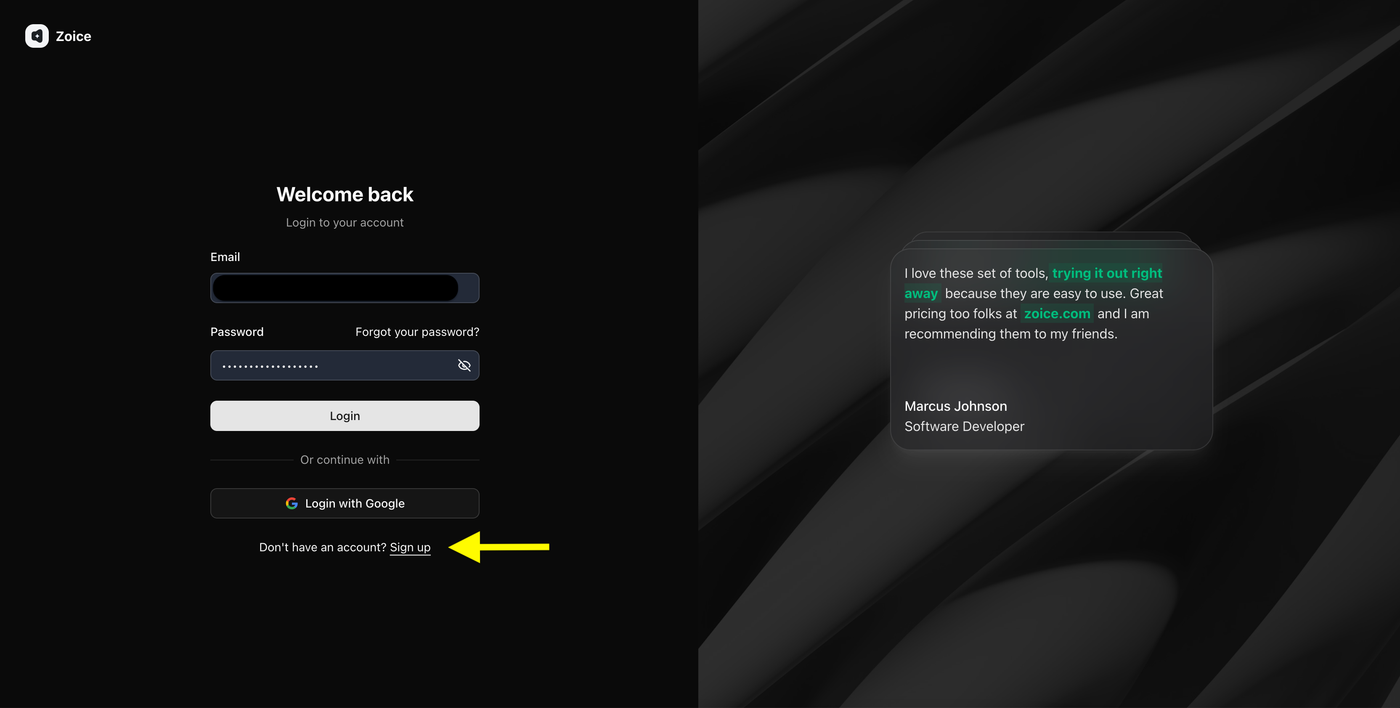
Enter your login credentials to access your Zoice dashboard.
Add your:
- Email address
- Password
Then click Login.
If you are a new user, click Sign Up to create your Zoice account.
Step 3: Create a Zoice Account (New Users)
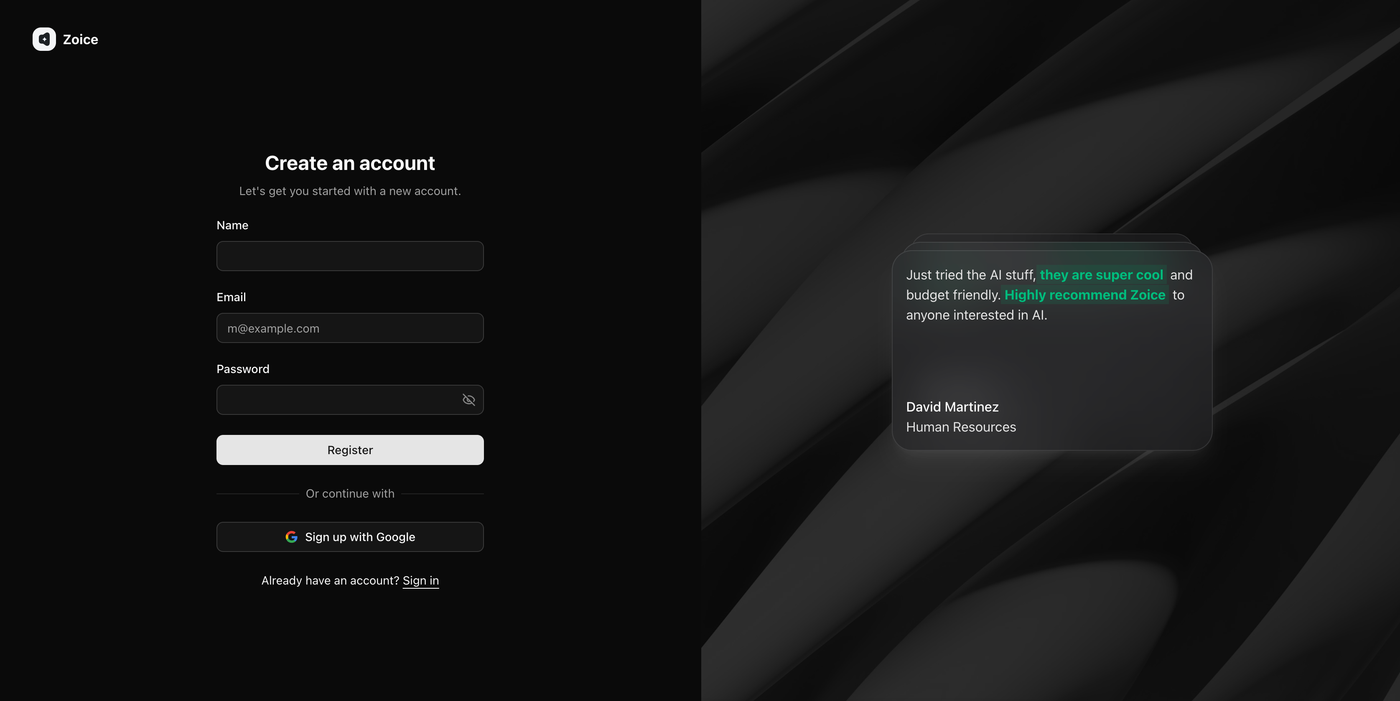
If you are using Zoice for the first time, create a new account by filling in your details.
Enter:
- Name
- Email address
- Password
Then click Register.
You can also choose Sign up with Google for faster account creation.
After registration, you will be redirected to your Zoice dashboard.
Step 4: Open Avatar Characters
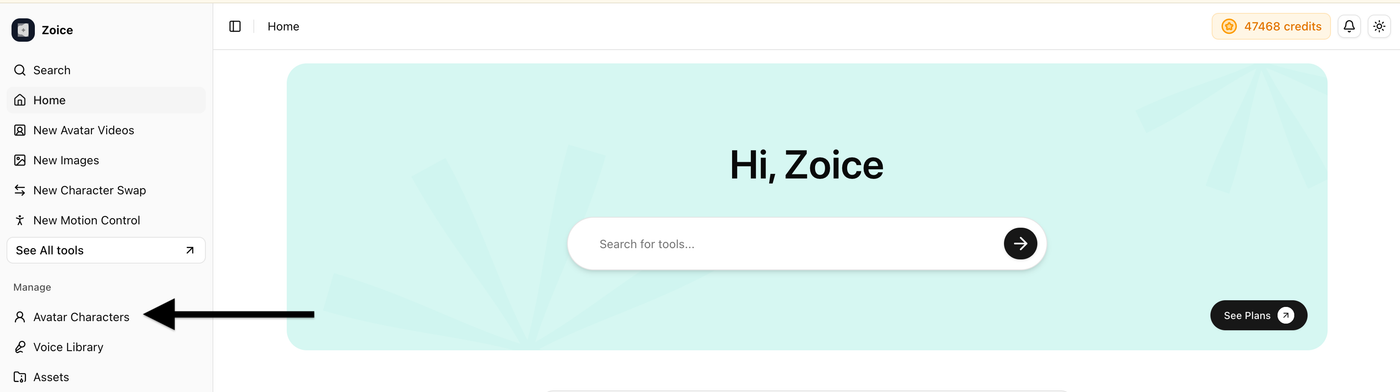
After logging in, navigate to the left sidebar of your dashboard.
Click Avatar Characters.
This section allows you to create, customize, and manage your AI avatars for TikTok videos, Instagram Reels, YouTube Shorts, and other content.
Step 5: Create a New Avatar
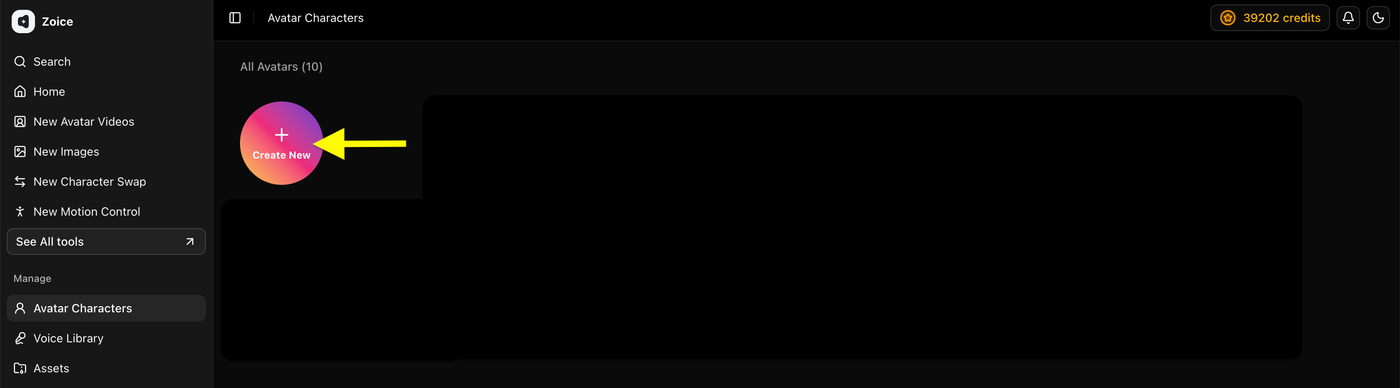
Inside the Avatar Characters section, start creating your custom AI avatar.
Click:
- Create New
This will open the avatar creation page where you can upload your own image or create an avatar using AI.
Step 6A: Create Your Avatar Using an Image (Skip to Step 7 After Uploading Image)
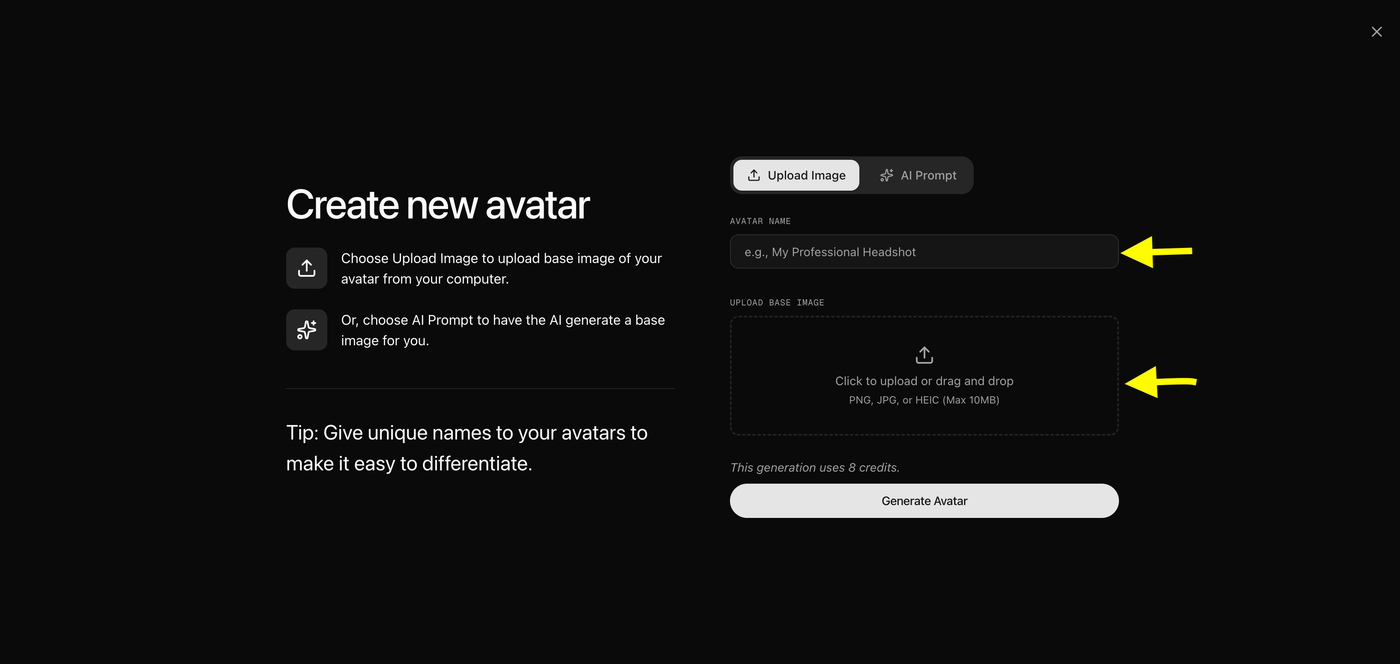
If you already have an image, you can turn it into a realistic AI avatar.
Upload a clear front-facing image that you want to convert into an AI avatar.
Add:
- Avatar name
- Front-facing image
For better avatar quality, use an image with:
- Clear face visibility
- Good lighting
- Natural expression
- High resolution
A high-quality image helps generate more realistic facial expressions and movements.
Step 6B: Generate Avatar Using AI Prompt (Skip This Step If You Uploaded an Image)
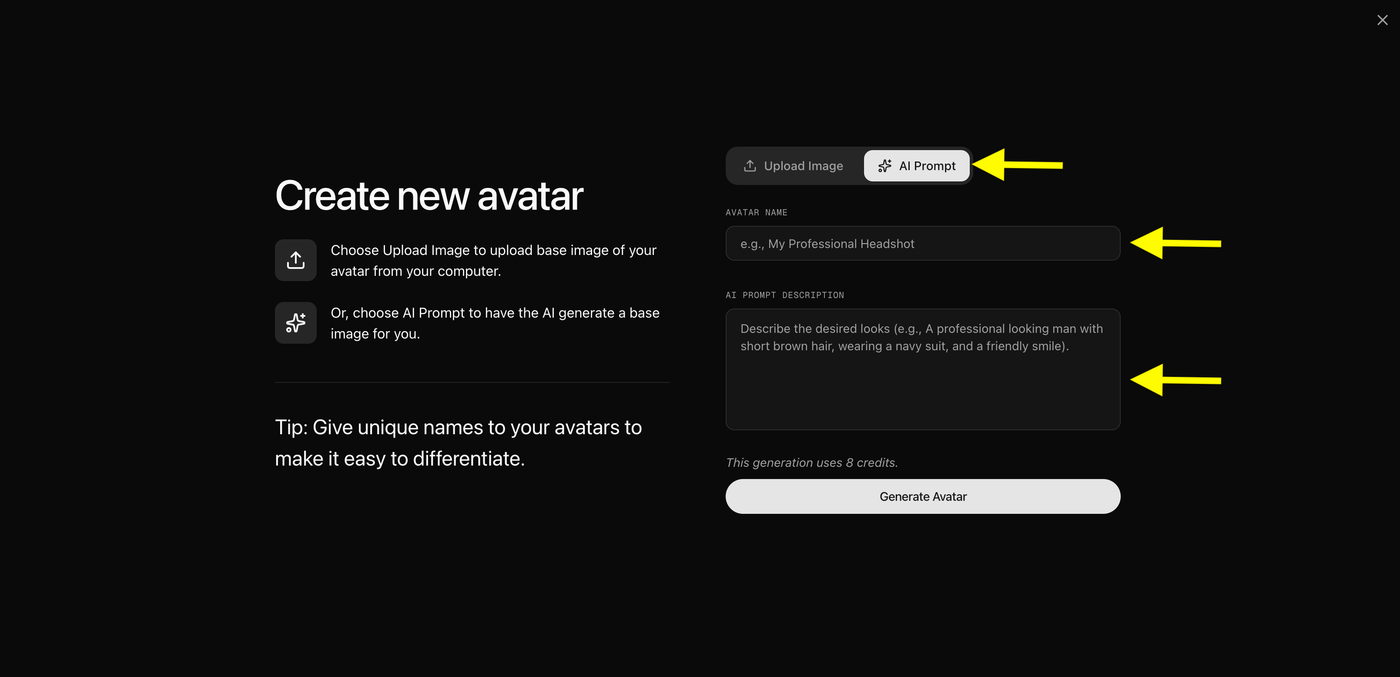
If you do not have an existing image, you can create one using Zoice’s AI Prompt feature.
Instead of uploading an image, click the AI Prompt option.
Enter your avatar details and describe how you want your character to look.
You can describe:
- Appearance
- Clothing style
- Personality
- Profession
- Background style
For example:
"Create a realistic male technology influencer wearing professional clothing with a modern studio background."
After adding details:
- Click AI Prompt
- Enter avatar name
- Describe your avatar
- Click Generate Avatar
Zoice will create a custom AI avatar based on your description.
If you already uploaded your own image, you can skip this step.
Step 7: Generate Your Avatar
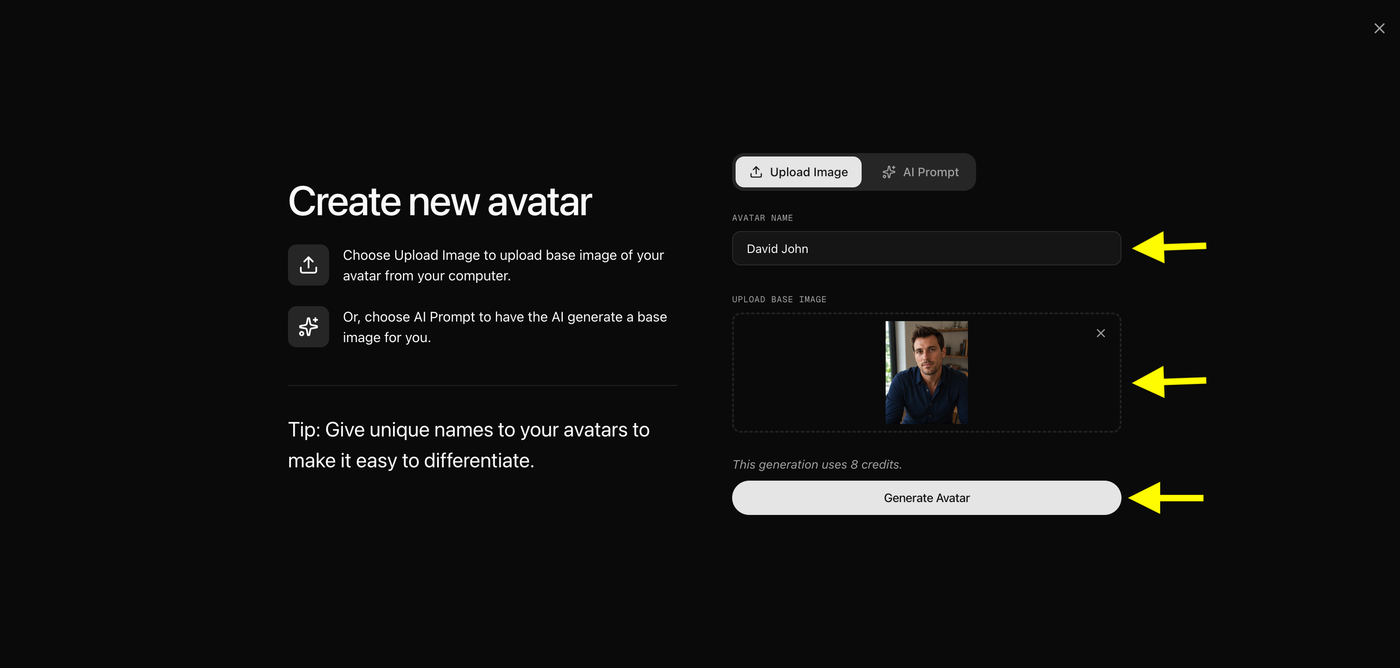
After uploading your image or creating one with an AI prompt, generate your avatar. In this i have uploaded the image.
Check your details:
- Uploaded image or AI-generated image
- Avatar name
Then click Generate Avatar.
Zoice will process your image and create your custom AI avatar.
Step 8: Select Your Generated Avatar
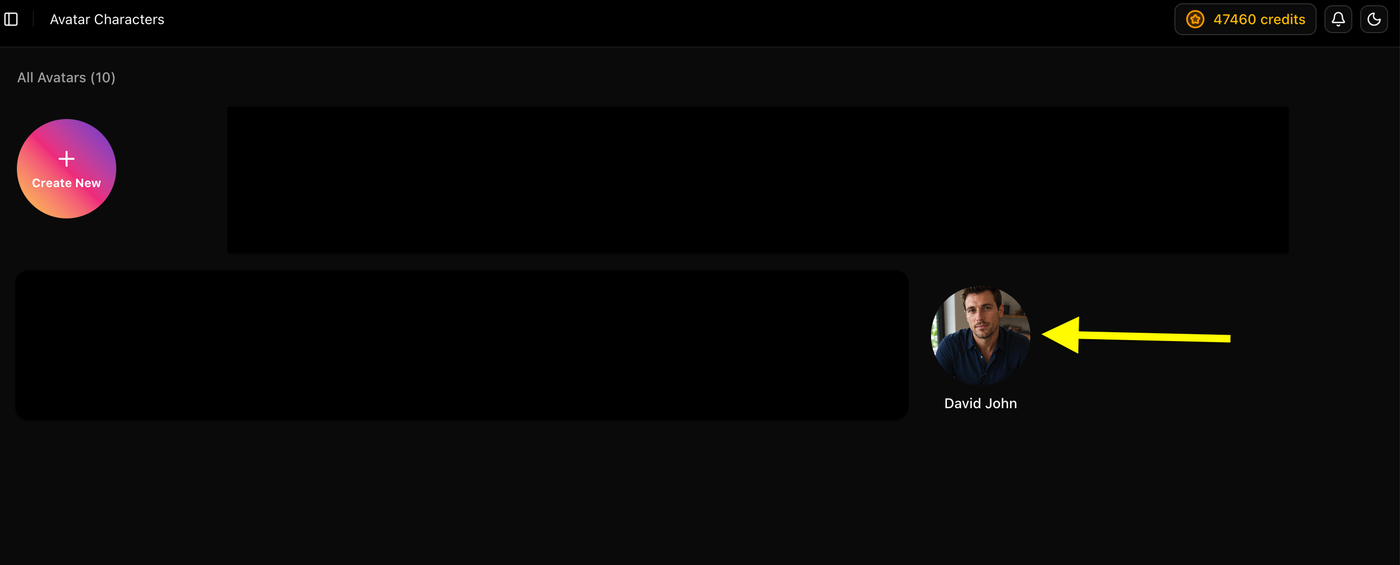
After the avatar generation process is completed, your new avatar will appear in your avatar library.
To continue:
- Click your generated avatar
- Open the avatar details page
Here, you can preview your avatar and start creating videos.
Step 9: Generate a Video
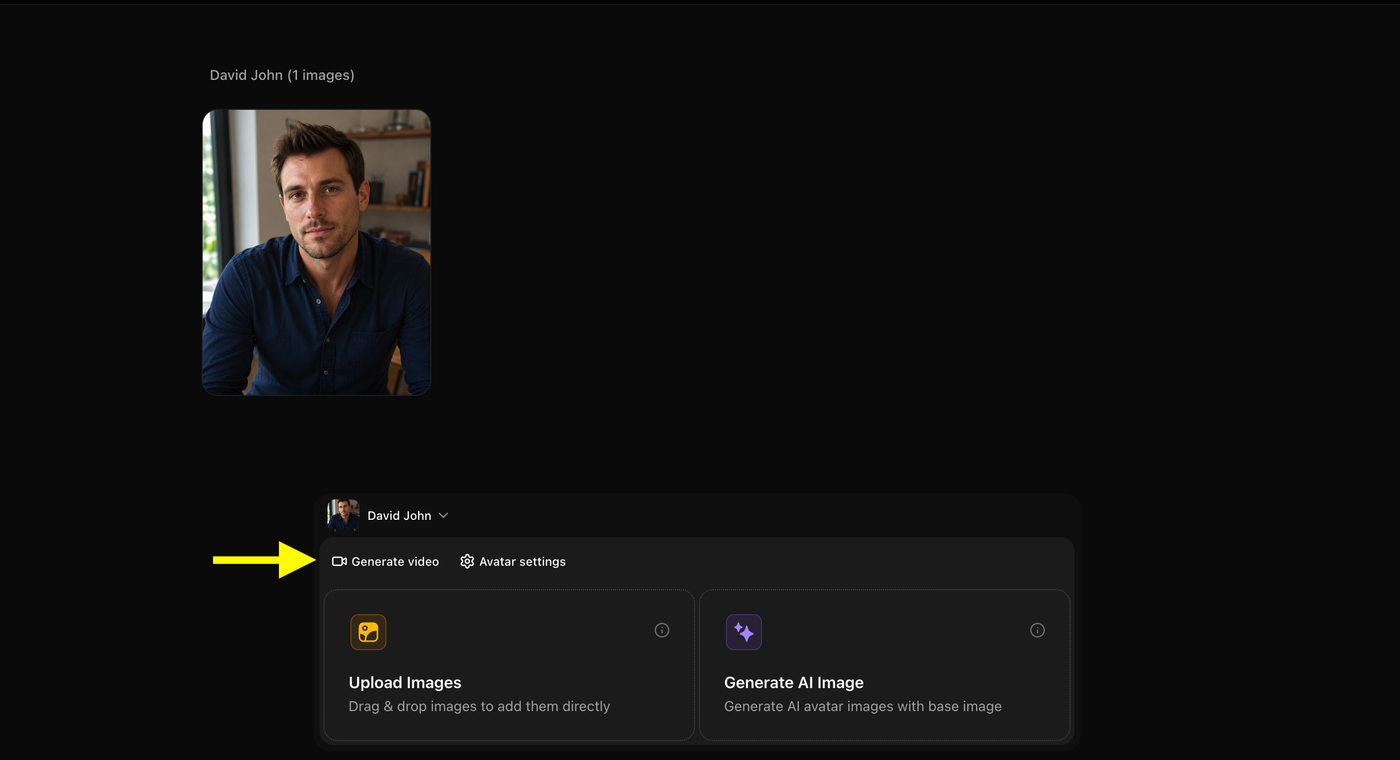
After selecting your avatar, click:
- Generate Video
This opens the Zoice video editor with your selected AI avatar already added.
Now you can customize your avatar video by adding a script, voice, actions, and output settings.
Step 10: Enter Your Video Script
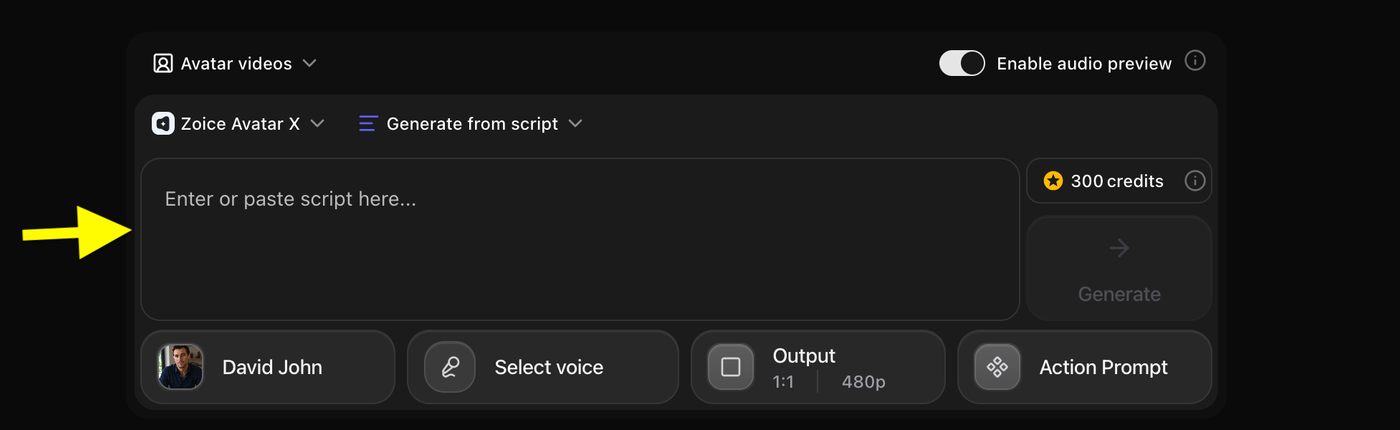
Click the Enter or Paste Script Here field.
Add the text that you want your AI avatar to speak.
Steps:
- Click Enter or Paste Script Here
Tip: Use a short, clear, and conversational script for TikTok and Instagram videos. Natural scripts make avatar videos more engaging.
Step 11: Add Script and Select Voice Model
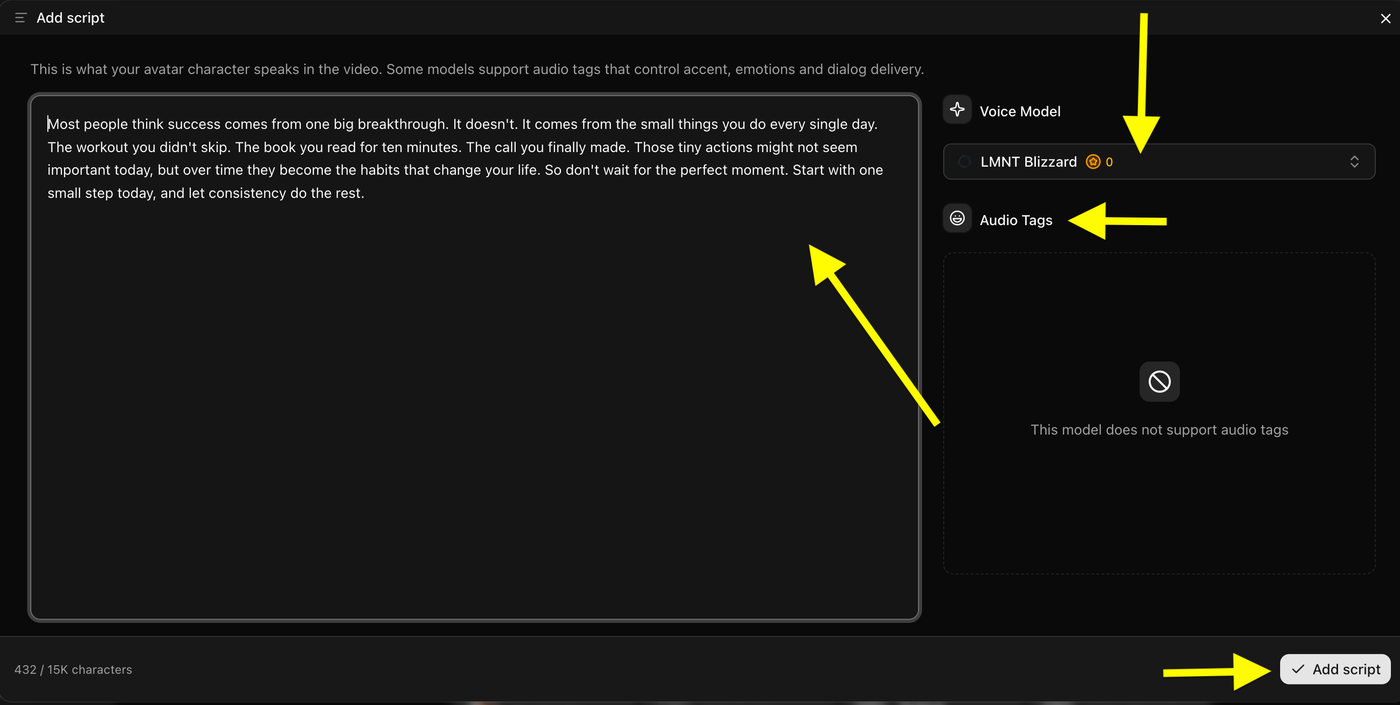
After entering your script, customize how your avatar will speak.
Add your script and select a suitable Voice Model.
Steps:
- Enter or paste your video script
- Select a Voice Model
- Add Audio Tags (if supported)
- Click Add Script
Some voice models support Audio Tags that help control emotions, accent, and speaking style.
Tip: Choose a professional voice for tutorials, business videos, and educational content. Use an expressive voice for entertainment and social media videos.
Step 12: Click Select Voice
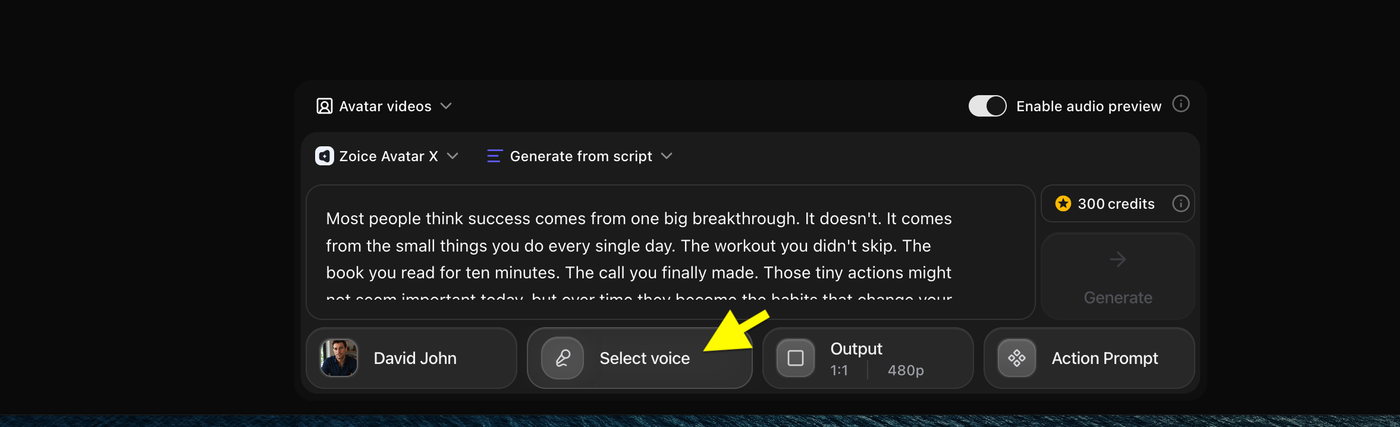
After adding your script, choose the voice for your AI avatar.
Click:
- Select Voice
This opens the voice library where you can browse different voice options.
Step 13: Open the Voice Library
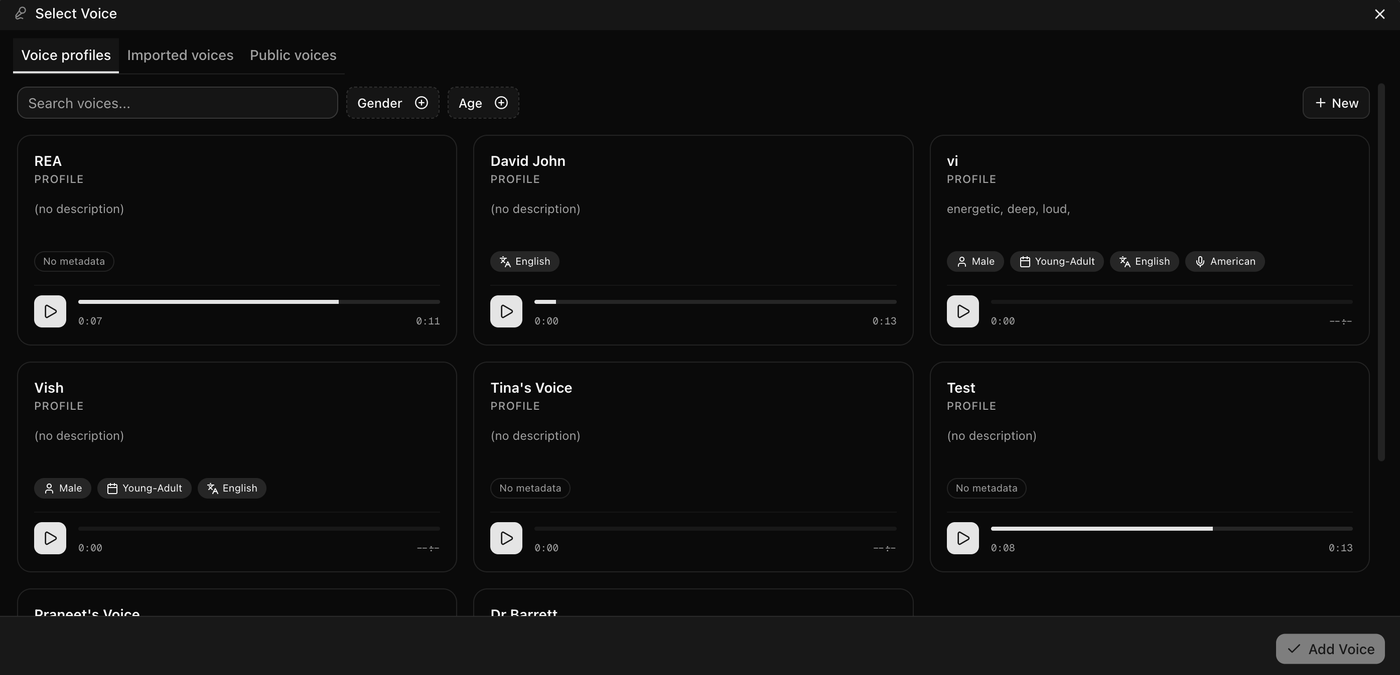
After opening the voice selection panel, choose the voice you want your AI avatar to use in the video.
Zoice provides different voice options, including Voice Profiles, Imported Voices, and Public Voices. You can browse and preview different voices to find the one that matches your avatar and content style.
If you want to use your own voice for the AI avatar, click + New to create and import your custom voice.
- Open the voice selection panel
- Browse available voice options
- Preview the voice
- Select your preferred voice
Tip: For TikTok and Instagram videos, choose a voice that matches your content style. Using your own voice can help create a more personalized AI avatar experience.
Step 14: Create Your Own Voice (Optional) (Skip to step 18 if you want to use public voice)
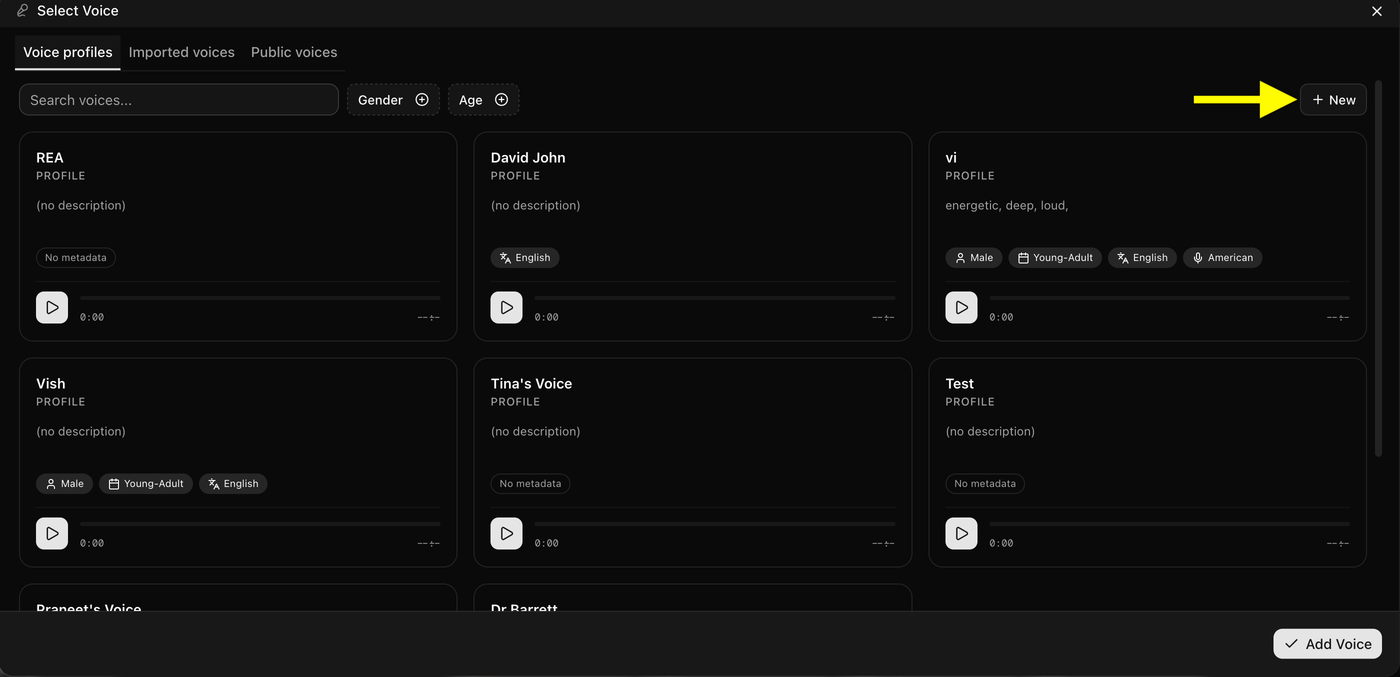
If you want to use your own voice instead of the available voices, click the + New button to create a custom voice profile.
- Click + New
- Create your own voice profile
This allows you to add a personalized voice for your AI avatar video.
Step 15: Create Your Voice Profile
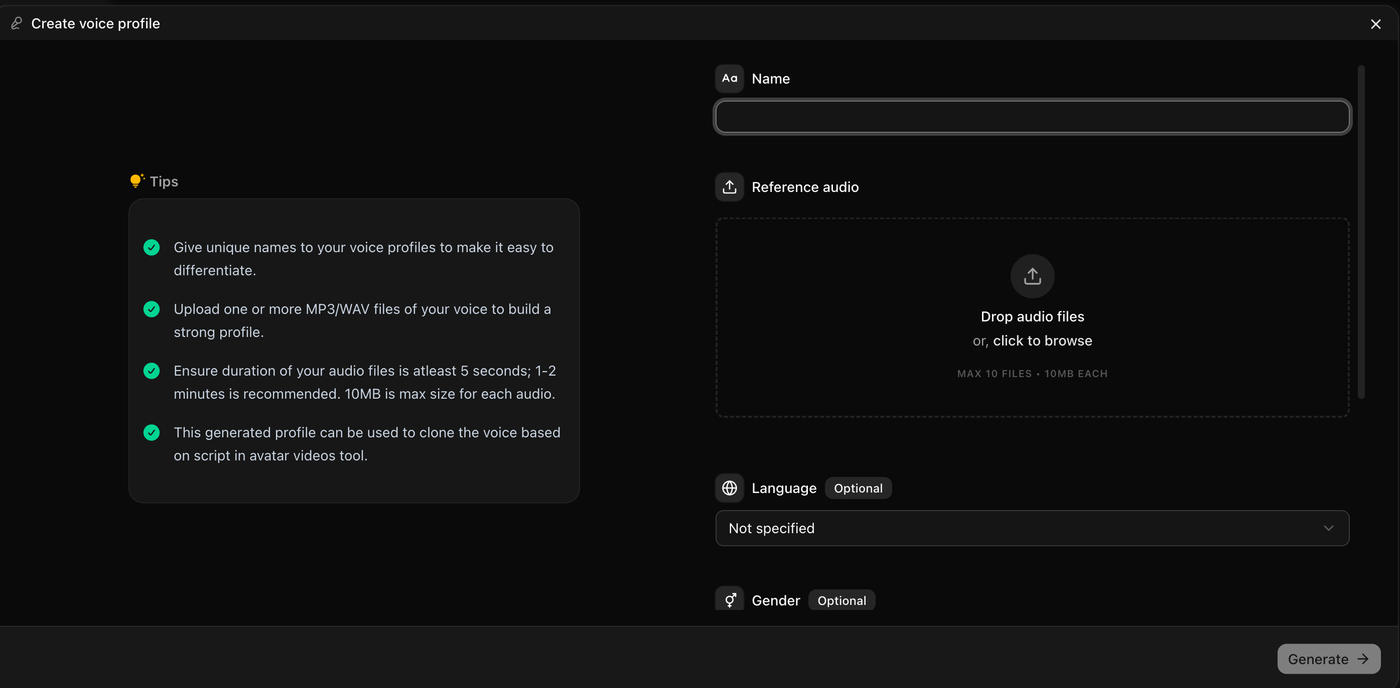
After clicking + New, create your custom voice profile by adding your voice details.
Enter the required information and upload your voice sample to generate a personalized voice for your AI avatar.
- Enter your voice profile name
- Upload your reference audio file
- Click Generate
Tip: Upload a clear voice recording without background noise for better voice quality and more natural AI avatar videos.
Step 16: Upload Voice Sample and Generate Voice
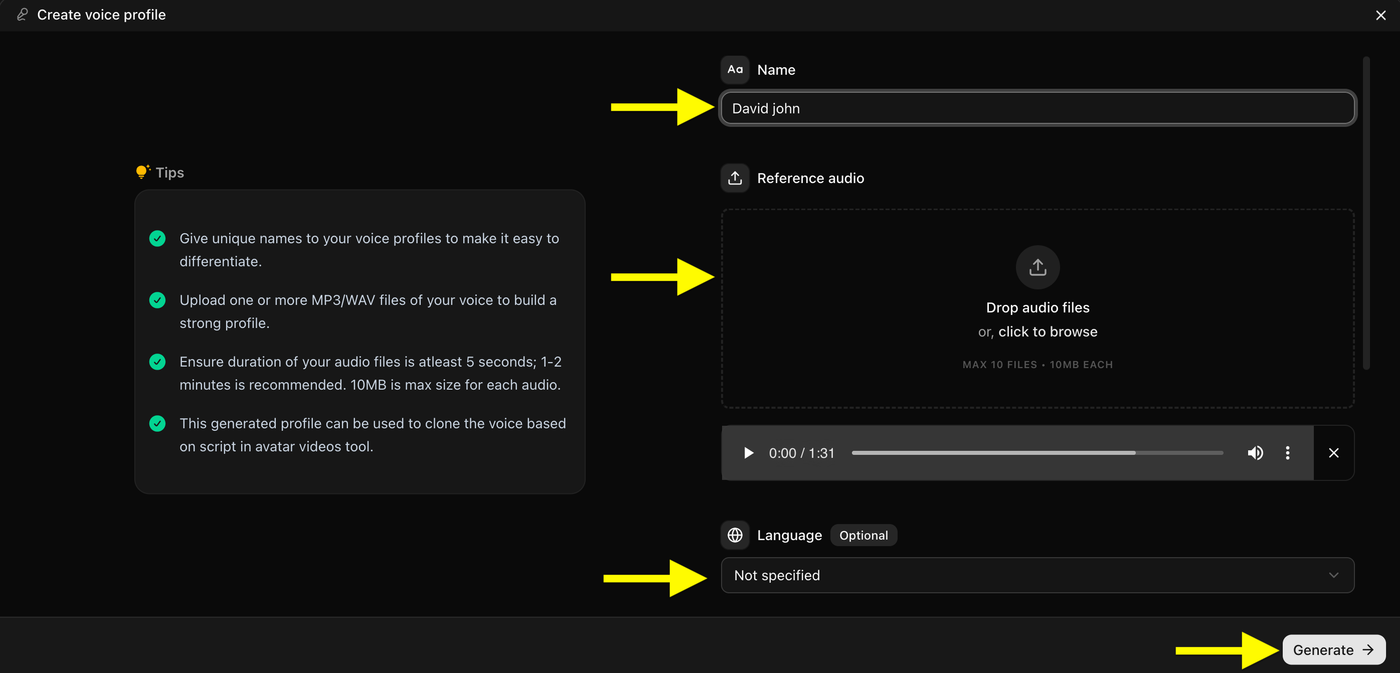
After opening the voice profile creator, add your voice details and upload your reference audio file.
Fill in the required information:
- Enter your voice profile name
- Upload your reference audio file
- Select your language (optional)
- Click Generate
Zoice will process your uploaded audio and create a custom voice profile that you can use for your AI avatar videos.
Tip: Use a clear audio sample with minimum background noise to create a more realistic and natural-sounding AI voice.
Step 17: Select Your Created Voice and Add Voice
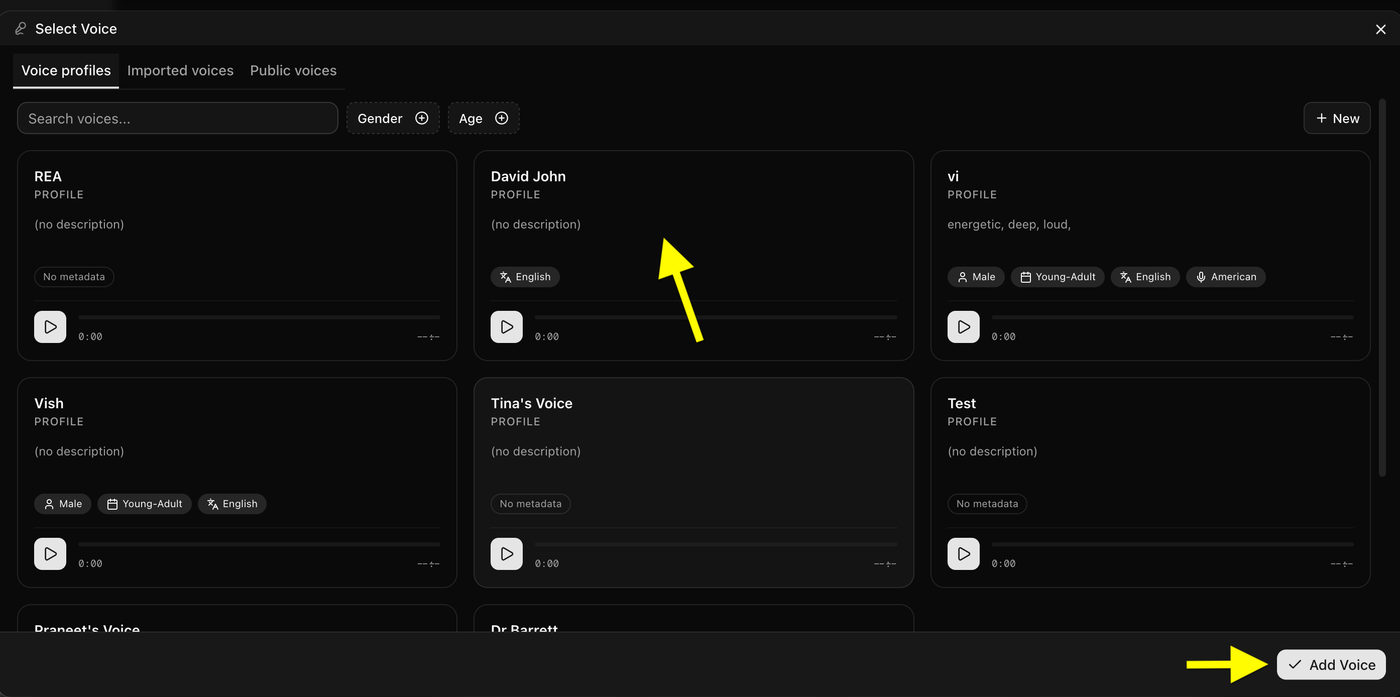
After your custom voice profile is created, return to the voice selection page and choose your generated voice.
Select the voice profile you want to use for your AI avatar video.
- Choose your created voice profile
- Preview the voice (optional)
- Click Add Voice
Your selected voice will now be applied to your AI avatar video.
Step 18: Select a Public Voice and Add Voice (Follow Steps 14–17 to Use Your Own Voice)
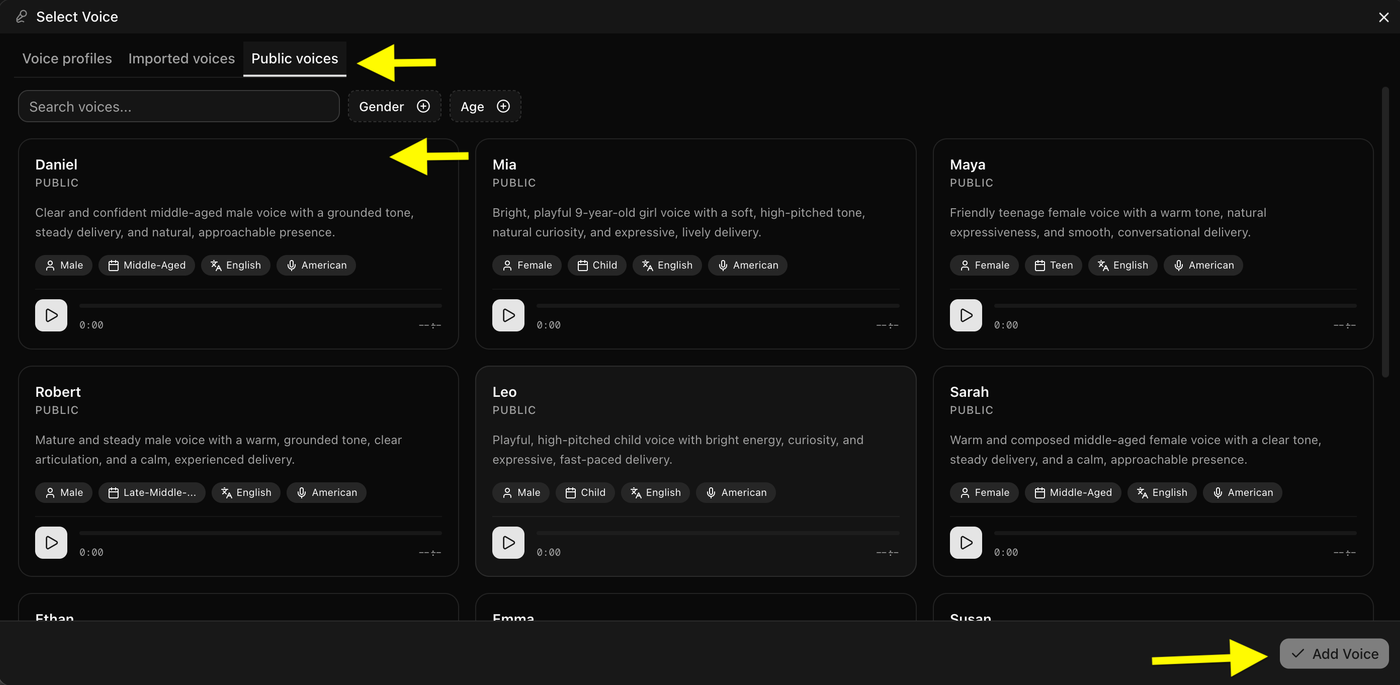
If you want to use a ready-made AI voice, open the Public Voices section and select a voice from the available options.
Choose a voice that matches your AI avatar video style.
- Click Public Voices
- Select your preferred voice
- Preview the voice (optional)
- Click Add Voice
The selected public voice will be added to your AI avatar video.
Note: If you want to create and use your own custom voice, follow Step 14 to Step 17 to create a voice profile and add your personal voice.
Step 19: Configure Aspect Ratio and Resolution
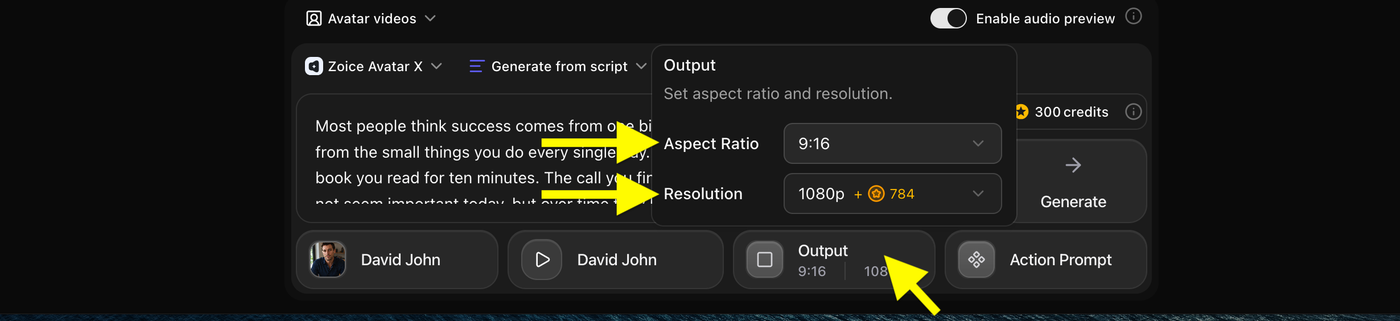
After adding your script and selecting your custom voice, configure the output settings for your AI avatar video.
Click the Output option to adjust your video format and quality before generating the final video.
- Click Output
- Select your preferred Aspect Ratio (9:16, 16:9, 1:1, etc.)
- Choose the required Resolution
- Confirm your video settings
For TikTok and Instagram Reels, select the 9:16 aspect ratio with 1080p resolution for the best vertical full-screen viewing experience.
Tip: Choose the aspect ratio based on where you want to upload your AI avatar video. Use 9:16 for TikTok, Instagram Reels, and YouTube Shorts, and 16:9 for standard YouTube videos.
Note: In this example, we are using the custom voice profile created in the previous steps. You can also choose a Public Voice if you do not want to use your own voice.
Step 20: Add Action Prompt
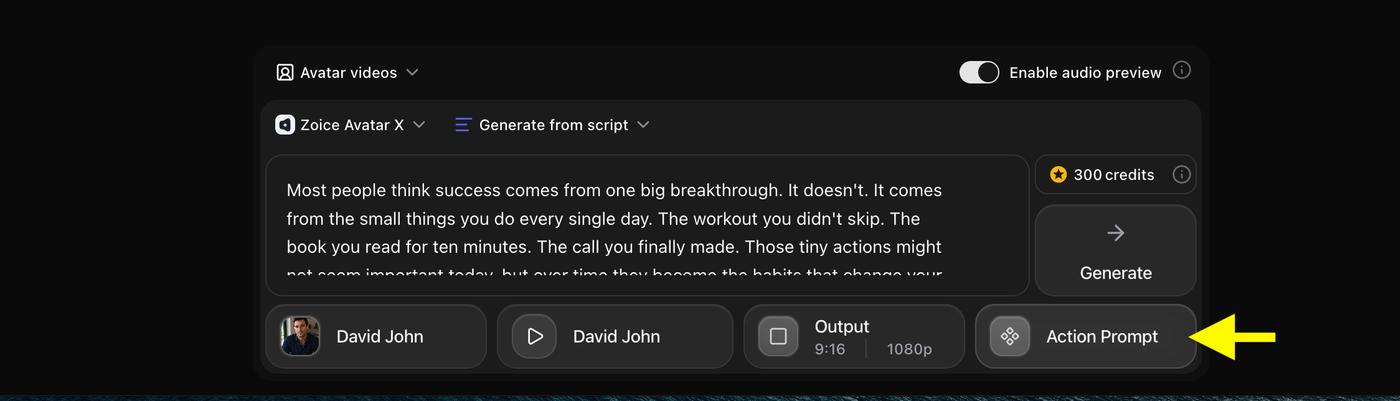
After configuring your video output settings, click Action Prompt to customize your avatar's movements and expressions.
Action prompts help make your AI avatar video look more realistic by controlling how your avatar behaves while speaking.
- Click Action Prompt
Step 21: Select or Write an Action Prompt
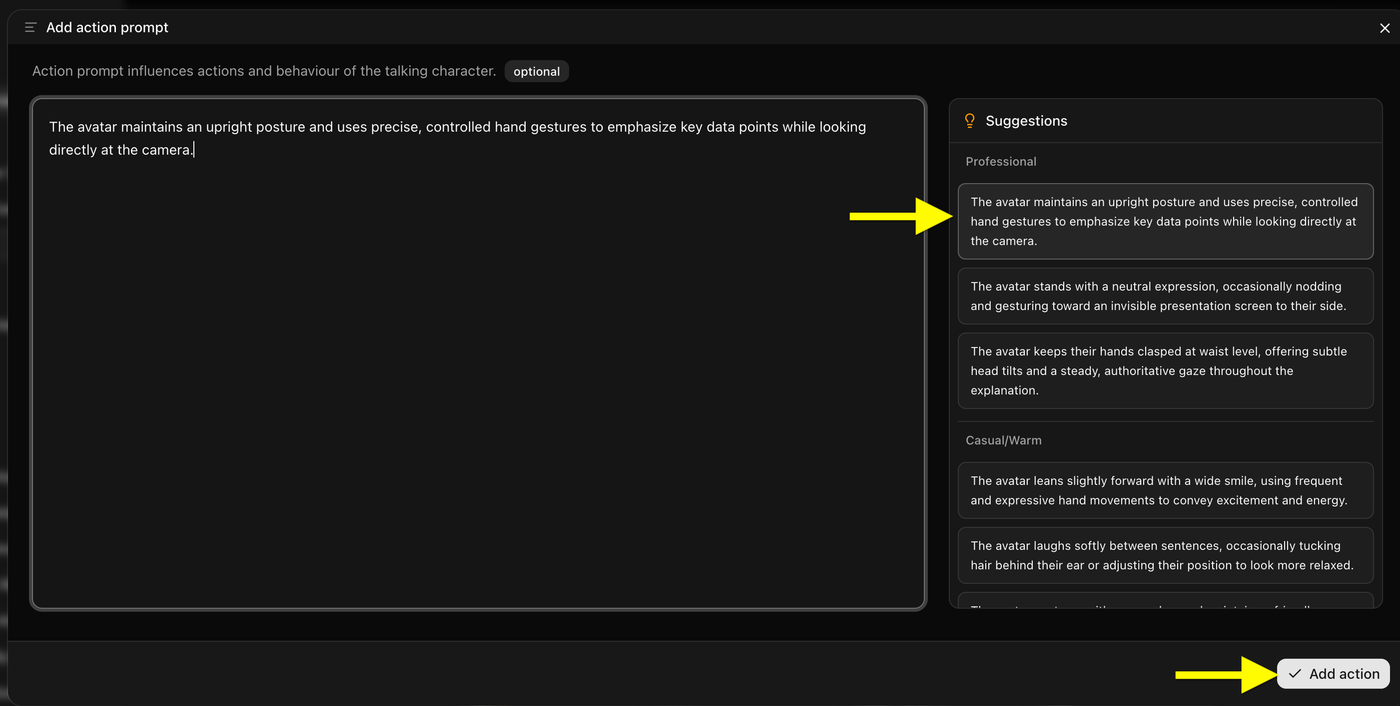
After opening the Action Prompt section, add instructions to control your avatar's actions and behavior in the video.
You can choose a suggested action prompt or write your own custom instructions based on how you want your avatar to appear.
- Select a suggested action prompt
- Or write your own action instructions
- Click Add Action
The action prompt will be applied to your AI avatar and help create more natural movements, expressions, and gestures.
Tip: Use simple and realistic instructions, such as maintaining eye contact, smiling naturally, or using hand gestures to make your TikTok and Instagram videos more engaging.
Step 22: Click Generate
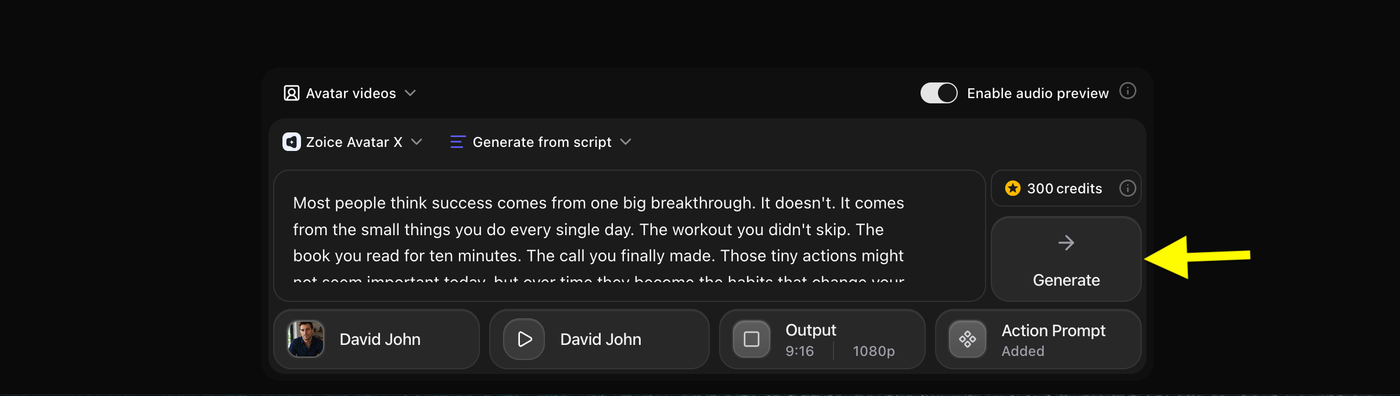
After adding your action prompt, review all your AI avatar video settings before creating the final video.
Make sure everything is selected correctly:
- Avatar character
- Script
- Voice
- Aspect ratio and resolution
- Action prompt
Once everything is ready, click Generate to start creating your AI avatar video.
Zoice will begin processing your avatar video using your selected settings.
Step 23: Preview Audio and Generate Avatar Video
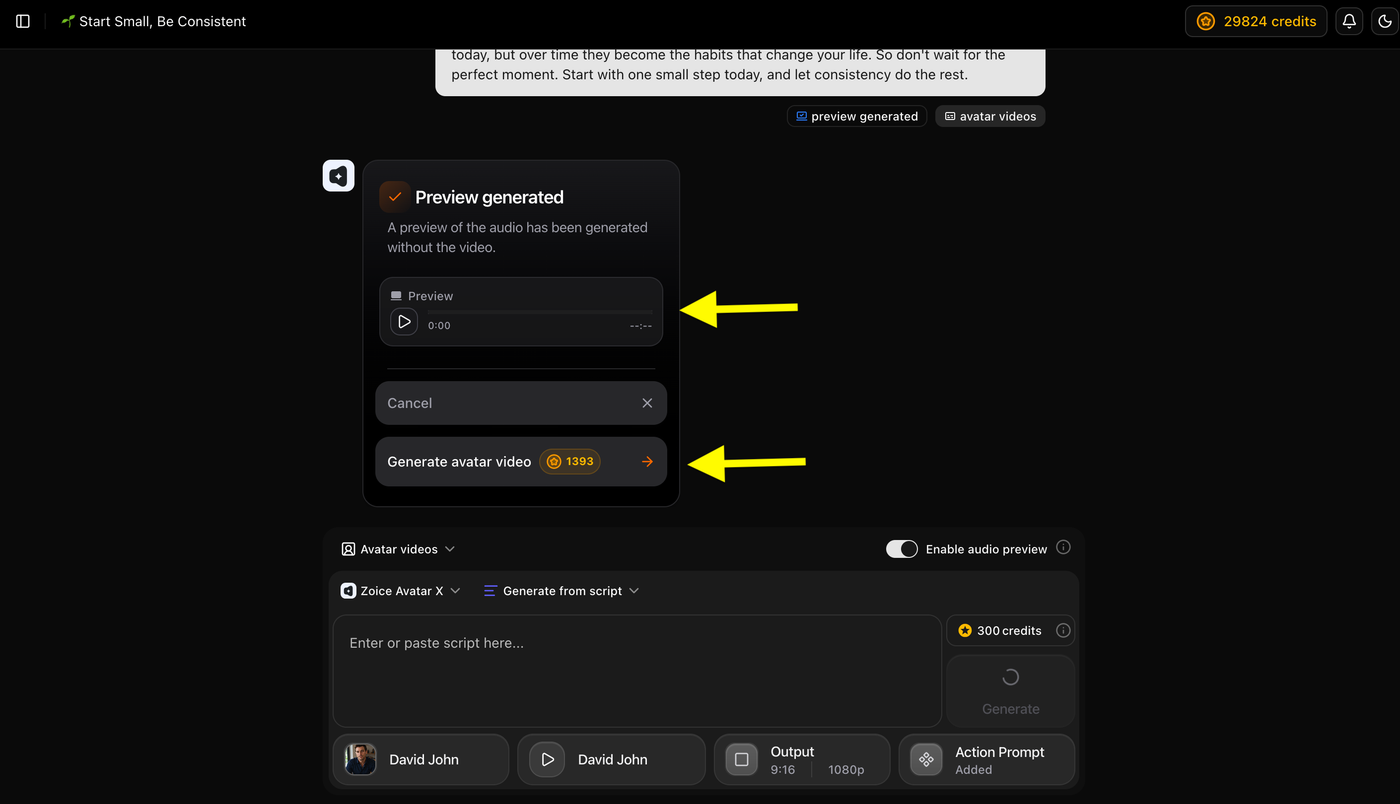
After clicking Generate, Zoice will create an audio preview before generating the final avatar video.
Listen to the generated audio preview to make sure your script, voice, and pronunciation sound correct.
- Preview the generated audio
- Check the voice and script delivery
- Click Generate Avatar Video
Zoice will then start creating your final AI avatar video using your selected avatar, custom voice, output settings, and action prompt.
Tip: Always preview the audio before generating the avatar video. This helps you fix any mistakes and avoid unnecessary credit usage.
Step 24: Preview and Download Your AI Avatar Video
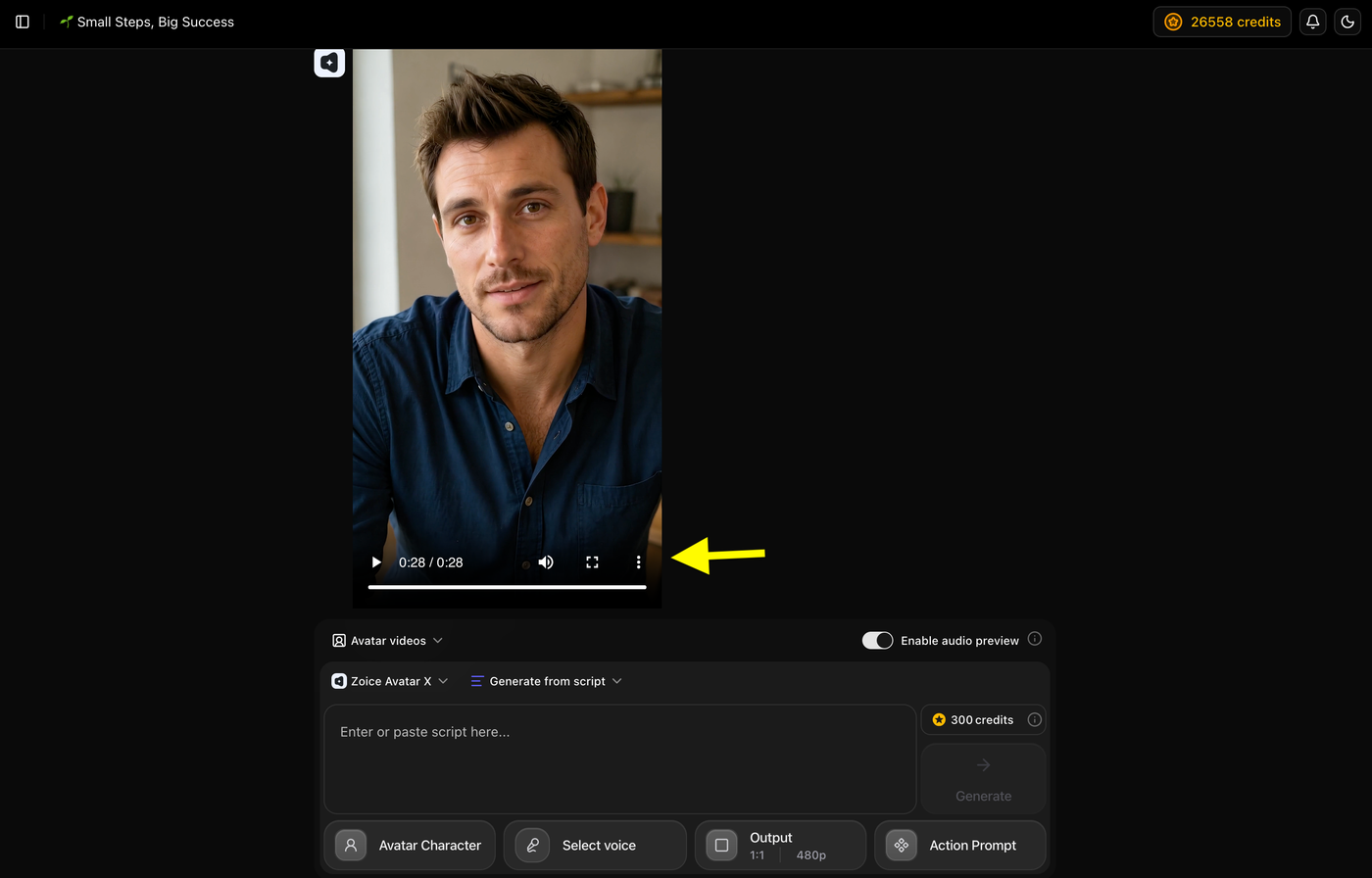
Once the video generation is complete, preview your final AI avatar video to check the result.
Review your video quality, avatar movements, voice synchronization, and overall output.
- Preview your generated AI avatar video
- Check the final result
- Click the download option
- Save your video
Your AI avatar video is now ready to upload on TikTok, Instagram Reels, YouTube Shorts, and other social media platforms.
Example Script and Generated AI Avatar Video for TikTok and Instagram
To show the final result, we created an AI avatar video using Zoice. We added a short social media script, selected our custom voice, configured the video settings, and generated a realistic talking avatar video optimized for TikTok and Instagram.
Script Used
Below is the example script used to create this AI avatar video:
Example:
"Most people think success comes from one big breakthrough. It doesn't. It comes from the small things you do every single day.
The workout you didn't skip. The book you read for ten minutes. The call you finally made. Those tiny actions might not seem important today, but over time they become the habits that change your life.
So don't wait for the perfect moment. Start with one small step today, and let consistency do the rest."
Generated AI Avatar Video
Below is the final AI avatar video created by Zoice using the above script, custom AI avatar, and selected voice.
Example:
Tip: Compare the original script with the generated video to see how Zoice converts text into natural speech with realistic facial movements, expressions, and avatar actions.
Best AI Avatar Ideas for TikTok and Instagram
AI avatars can be used for many different content styles. Here are some popular ideas:
1. Virtual Influencer Videos
Create a digital personality that shares lifestyle content, opinions, reviews, or entertainment videos.
Virtual influencers allow creators to build unique brands without appearing personally on camera.
2. Educational Content
Use an AI avatar as a teacher or presenter.
You can create videos about:
- Technology
- Finance
- Fitness
- History
- Languages
- Tutorials
Educational videos work well because audiences focus on the information being shared.
3. Product Review Videos
AI avatars can act as digital product reviewers.
Brands and affiliate marketers can use avatars to explain product benefits, compare items, and create promotional content.
4. News and Trend Updates
Create an AI news presenter that talks about:
- Trending topics
- Industry updates
- Entertainment news
- Sports updates
This format works well for creators who want to publish frequent videos.
5. Personal Brand Content
Create your AI twin using ai twin generator and use it as your online representative.
Your avatar can:
- Share tips
- Answer questions
- Create business content
- Communicate with followers
This helps maintain your online presence without recording yourself daily.
Tips to Make AI Avatar Videos Perform Better on TikTok and Instagram
Creating an AI avatar is just the beginning. Follow these simple tips to improve engagement:
Start With a Strong Hook
Capture attention in the first few seconds with an interesting opening line.
Examples:
- “Most people don’t know this AI trick…”
- “Here are 3 things you should stop doing…”
Keep Videos Short
Short and focused videos usually perform better. Keep your TikTok and Instagram avatar videos around 15–60 seconds for better engagement.
Add Captions
Many users watch videos without sound. Adding captions helps viewers understand your content quickly.
Use Vertical Format
Create videos in the recommended mobile format:
- Aspect Ratio: 9:16
- Resolution: 1080 × 1920 pixels
Keep Your Avatar Consistent
Use the same avatar style, voice, and personality regularly to build recognition and create a stronger digital identity.
Why Use Zoice Over Other AI Avatar Tools?
There are many AI avatar generators available, but Zoice provides a complete solution for creating TikTok and Instagram avatar videos. Instead of using multiple tools for avatars, voices, and video creation, Zoice combines everything in one platform.
Here’s why creators choose Zoice:
- Custom AI Avatars: Create realistic avatars using your own image or generate a new character with AI prompts.
- Voice Cloning Support: Create your own custom voice profile and use it with your avatar videos.
- Public Voice Library: Choose from ready-made AI voices for quick video creation.
- Action Prompts: Control avatar expressions, gestures, and movements for more natural-looking videos.
- Social Media Formats: Generate videos in 9:16 for TikTok, Instagram Reels, and YouTube Shorts.
- Audio Preview: Check your voice output before generating the final video to avoid mistakes.
- Simple Workflow: Create complete avatar videos from script to final output without switching between different tools.
Zoice is designed for creators, influencers, and businesses who want to produce high-quality AI avatar videos faster while keeping their content consistent across social media platforms.
Best AI Avatar Video Ideas for TikTok and Instagram
AI avatars can be used to create different types of short-form videos without recording yourself every time. Whether you are building a personal brand, growing a faceless account, or creating business content, AI avatars can help you produce videos faster.
Here are some popular AI avatar video ideas:
- Virtual Influencer Videos: Create a digital personality that shares lifestyle content, opinions, stories, or entertaining videos on TikTok and Instagram.
- Product Reviews and UGC Videos: Use AI avatars to create product demos, reviews, promotional videos, and user-generated-style content for brands.
- Educational Videos: Create tutorials, explainers, tips, and informational videos using an AI avatar as your digital presenter.
- Motivational Content: Make inspirational videos, daily advice, quotes, and self-improvement content with a consistent avatar personality.
- News and Trend Updates: Use AI avatars to share trending topics, industry updates, entertainment news, or quick information-based videos.
- Brand Promotion Videos: Businesses can use AI avatars as virtual spokespersons to introduce products, services, and announcements.
Best Practices Before Creating Your AI Avatar
To create realistic and engaging AI avatar videos, you need to prepare your image, script, and voice properly before generating the final video.
Follow these best practices:
- Use a High-Quality Image: Upload a clear, front-facing image with good lighting and natural facial expressions for better avatar results.
- Avoid Blurry Photos or Filters: Low-quality images, heavy filters, or unclear faces can affect avatar quality and realism.
- Write a Natural Script: Keep your script conversational and easy to understand so your avatar sounds more realistic.
- Choose the Right Voice: Select a voice that matches your avatar personality, audience, and content type.
- Use Natural Actions: Add simple gestures and expressions to make your AI avatar videos feel more engaging.
Common Mistakes to Avoid When Creating AI Avatar Videos
Small mistakes can reduce the quality of your AI avatar videos.
Avoid these common issues to get better results:
- Using Low-Quality Images: Poor-quality images can make avatars look less realistic and affect facial movements.
- Creating Long Scripts: Very long scripts can reduce viewer engagement, especially on TikTok and Instagram. Keep videos short and focused.
- Choosing the Wrong Voice Style: A voice that does not match your avatar or content can make videos feel unnatural.
- Ignoring Video Aspect Ratio: Always choose the correct format. Use 9:16 for TikTok, Instagram Reels, and YouTube Shorts.
- Skipping Audio Preview: Always check your generated audio before creating the final video to fix mistakes and save credits.
FAQs About Creating AI Avatars for TikTok and Instagram
1. Can I create TikTok videos with an AI avatar?
Yes, you can create TikTok videos using an AI avatar. You can generate a digital avatar, add your script, select a voice, and create realistic talking avatar videos without recording yourself.
2. Can I create an AI avatar without using my own photo?
Yes, you can create an AI avatar without uploading your own image. Zoice allows you to generate custom avatars using AI prompts by describing the appearance, style, and personality you want.
3. Can I use my own voice with an AI avatar?
Yes, you can create a custom voice profile by uploading your voice sample and use it with your AI avatar videos. You can also choose from available public AI voices.
4. What is the best video format for TikTok and Instagram AI avatar videos?
The best format for TikTok and Instagram Reels is a vertical 9:16 aspect ratio with 1080 × 1920 resolution for a full-screen mobile experience.
5. Can businesses use AI avatars for Instagram and TikTok marketing?
Yes, businesses can use AI avatars to create product videos, promotional content, tutorials, announcements, and social media marketing videos.
Conclusion
Creating AI avatars for TikTok and Instagram is a simple way to produce engaging videos without recording yourself every time. With AI avatar technology, creators can generate consistent content, build virtual personalities, and create videos faster.
Using Zoice, you can create a custom AI avatar from an image or AI prompt, add your own voice or select an AI voice, customize actions, and generate videos optimized for social media platforms.
Whether you want to grow a faceless account, create a virtual influencer, or make professional content for your brand, AI avatars provide a faster and easier way to create high-quality videos for TikTok and Instagram.