CapCut Alternative Tested, Compared & Ranked
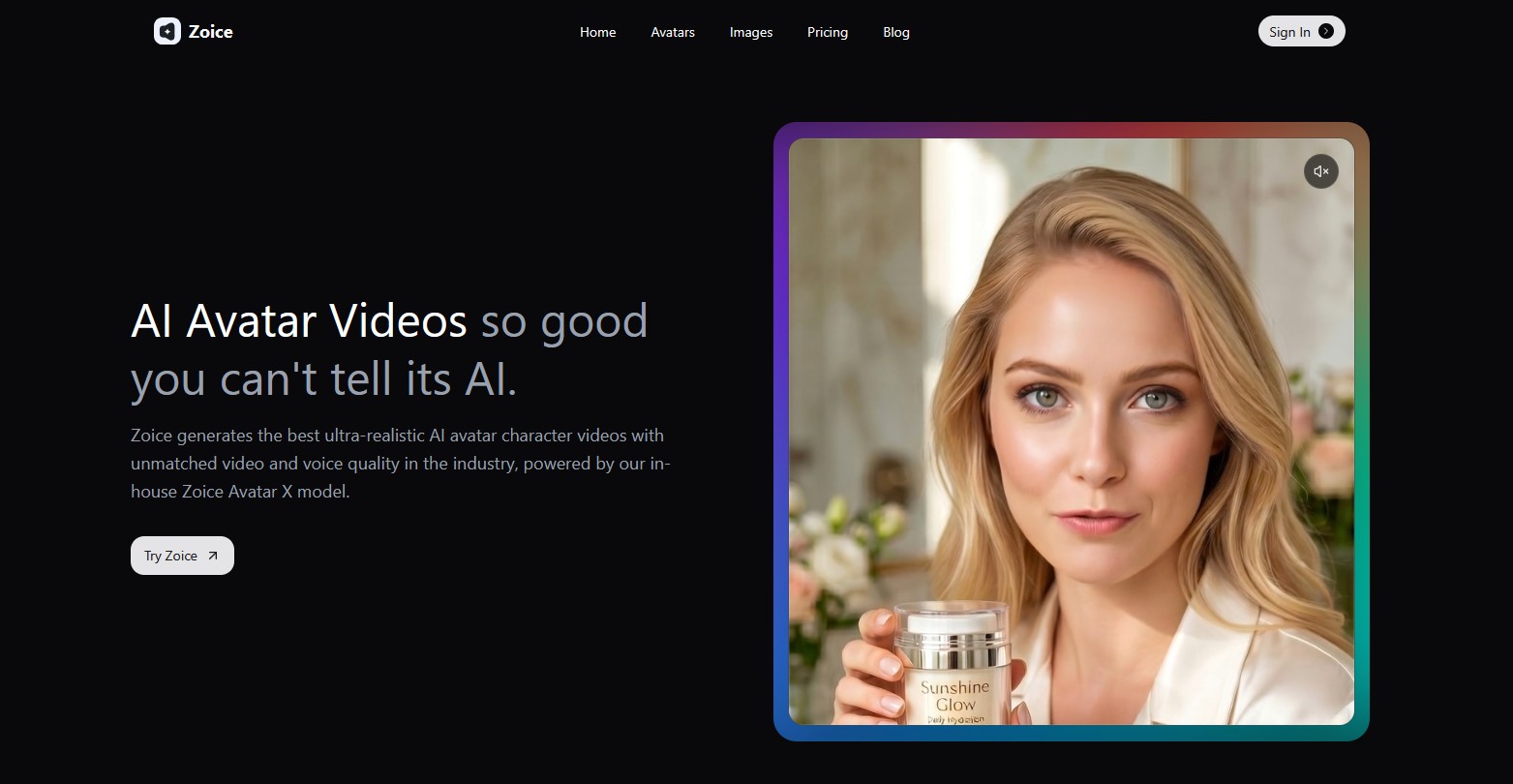
CapCut Alternative is a common search for creators who like a free, easy editor but want something different, such as a tool that makes a presenter video from a script instead of asking them to cut footage. CapCut is popular for short videos, templates, and quick AI helpers, yet it is first of all an editor.
Many people compare other tools because they want an on screen presenter without filming, a different pricing structure, or more control over voice. Others want a tool that works the same on every device and region, since CapCut says plan details can vary by region and platform.
In this guide we compare the best CapCut alternatives by presenter options, voice, editing control, AI generation tools, pricing, and team features. Whether you are making social clips, product videos, or lessons, this will help you pick the right tool.
Quick Comparison of the Best CapCut Alternative Tools
| Features & Capabilities | Zoice | Descript | InVideo | HeyGen | Synthesia | Runway |
|---|---|---|---|---|---|---|
| Quick Comparison | ||||||
| Best For | AI Avatar Videos | Editing Video and Audio Like a Document | AI Video Creation With Editing | Avatar Presenter Videos | Training and Business Videos | Generative Video From Prompts |
| AI Presenter Avatars | Yes | Limited | Yes | Yes | Yes | Limited |
| Script to Video | Yes | Yes | Yes | Yes | Yes | Not listed |
| Text to Speech | Yes | Yes | Yes | Yes | Yes | Yes |
| AI Images | Yes | Yes | Yes | Yes | Yes | Yes |
| Team Collaboration | Enterprise plan | Yes | Yes | Yes | Yes | Enterprise plan |
| Free Plan | Available | Available | Not listed | Available | Available | Available |
| Starting Price | $7.99/month | $16/month | $10/seat/month | $29/month | $19/month | $12/month |
Best CapCut Alternative
CapCut is a free, widely used video and photo editor with an online version, AI video and image generators, text to speech, subtitles, and a large template library. It suits short form creators who edit clips every day.
Depending on your workflow, you may want a tool that generates a presenter from a script, edits recordings by editing text, or offers deeper team features. Some creators also want pricing that is easier to read before signing in.
In this section we compare the best CapCut alternatives so you can match a tool to the kind of video you make.
1. Zoice
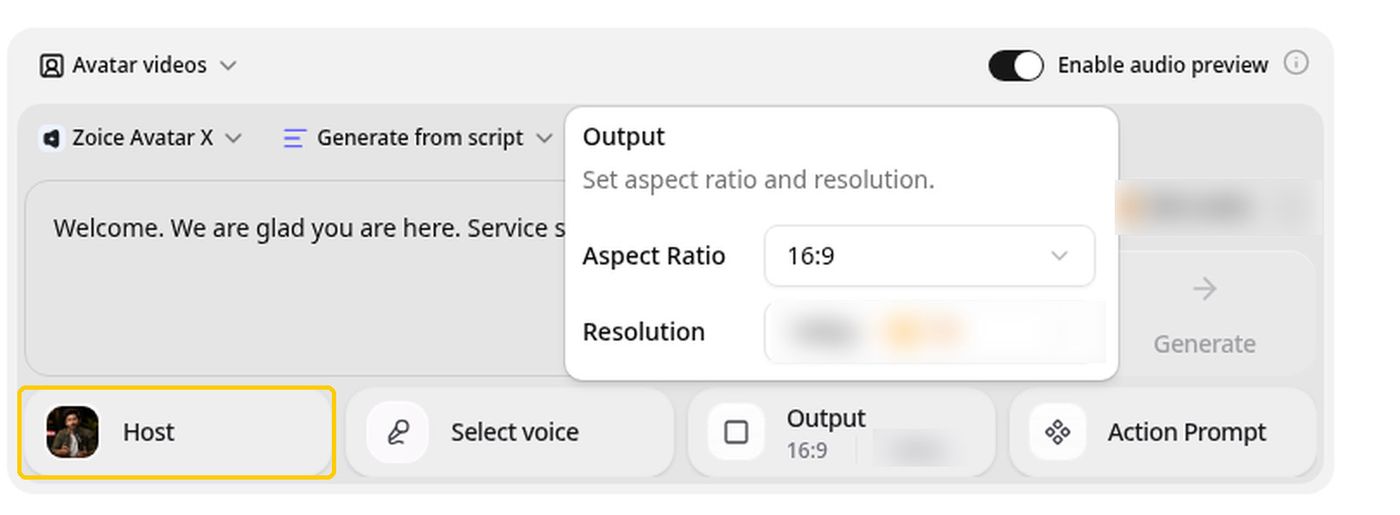
Zoice is an AI creation platform for avatar videos, AI images, AI videos, and voice. You choose or build a Host, add a script or your own audio, and Zoice generates a talking avatar video with its Zoice Avatar X model, which is a different route from editing clips on a timeline.
If your reason for looking beyond a classic editor is that you would rather not film or cut footage, Zoice offers a different path. You choose a Host, write a script or upload audio, and generate the video, so there is no timeline to learn. If you do want to trim and arrange clips by hand, an editor will still serve you better.
It suits creators who want to skip filming and go from a script to a finished presenter video, then pick the aspect ratio in the Output setting.
Key Features
- AI avatar videos from a script
- Custom avatar characters
- Public character library
- Record or upload your own audio
- Voice profiles for cloned speech
- Action prompts for the Host
- AI images and AI videos
- AI chat and transcriptions
Best For:
- Creators who want a presenter video without filming.
- Marketers making short product videos for social feeds.
- Educators turning lesson notes into a presenter video.
- Founders who want a consistent Host across many videos.
- Small businesses that need quick announcements and explainers.
- Agencies producing presenter videos for several clients.
Zoice Pros
- Avatar Videos From a Script or Audio
You type a script or bring your own audio, pick a Host, and generate a talking avatar video without filming anything.
- Build Your Own Host
Create a digital avatar profile from a text description or an image, or pick from a public library of hundreds of characters.
- Voice Your Way
Record or upload audio directly, or train a voice profile so Zoice can speak your script in a cloned voice.
- Action Prompts
An optional action prompt lets you tell the Host what to do on screen, such as holding up a product while speaking.
- Hear Before You Commit
Audio preview lets you listen to the voice first and only then decide whether to generate the video.
- More Than Avatars
The same account covers AI images, AI videos with text, image and frame inputs, AI chat, and AI transcriptions.
Zoice Cons
- Needs You Online:
Every Zoice session needs you to be online, so plan for a stable connection before you start.
- Smaller Public Avatar Library:
Zoice has fewer public avatars to browse than the biggest avatar platforms. That matters most if you want a very wide choice of ready made faces.
Zoice Pricing
Zoice offers a free plan and paid plans for creators, marketers, and agencies. Every paid plan includes AI Voice, AI Chat, AI Transcriptions, AI Images, AI Videos, and AI Avatar Videos, and the higher plans add more voice profiles. Annual billing is available with a 20% discount.
| Plan | Price | What's Included |
|---|---|---|
| Free | $0/month | Daily allowance, AI Chat, AI Transcriptions, AI Voice, AI Images |
| Starter | $7.99/month | AI Voice, AI Videos, AI Avatar Videos, 1 Voice Profile |
| Basic | $29.99/month | Everything in Starter with 3 Voice Profiles |
| Creator | $49.99/month | Everything in Starter with 5 Voice Profiles |
| Agency | $89.99/month | Everything in Starter with 10 Voice Profiles |
| Enterprise | Custom Pricing | Custom features, multi staff access, dedicated support |
The Starter plan is a low cost way to try avatar videos, while the Basic, Creator, and Agency plans add more voice profiles for growing teams. The Enterprise plan adds custom features, multi staff access, and dedicated support.
When to Use Zoice?
Zoice is a great choice if you want to turn a script into a presenter video without filming and without learning an editor. If your work is mostly cutting existing clips with transitions and effects, a timeline editor will fit better.
2. Descript

Descript suits people who spend most of their time on talking footage. It transcribes a recording and lets you cut the video by changing the words on the page.
Underlord, Studio Sound, filler word removal, eye contact correction, green screen, clip creation, and AI Speech with voice clones are the main AI tools. Higher plans add translation, dubbing, and avatars made from a photo or text.
It suits interviews, podcasts, tutorials, and screen captures far better than a stack of short social clips. Think of it as a document style editor with AI added, not a template based short video maker.
Key Features
- Text based video editing
- Underlord AI co editor
- Studio Sound
- Filler word removal
- Eye contact correction
- AI Speech and voice clones
- Screen and remote recording
- Translation and dubbing
Best For:
- Podcasters editing episodes by editing the transcript.
- YouTubers cleaning up long recordings and pulling short clips.
- Course creators editing lessons and tutorials.
- Marketing teams repurposing webinars and interviews.
- Remote teams recording interviews with guests.
- Creators who record themselves and want filler words and silences removed.
- Businesses that want shared brand templates across editors.
- Anyone who finds a timeline harder than a document.
Descript Pros
- Edit by Editing Text
Cutting a sentence from the transcript cuts it from the video.
- Strong Cleanup Tools
Studio Sound, filler word removal, and eye contact correction fix common recording problems.
- Voice Clones and Regeneration
AI Speech can create a clone of your voice and repair audio so a fixed line matches the rest.
- Built In Recording
You can record your screen and run remote recording sessions without another app.
- Clip Creation
Underlord can pick highlights and create short clips for social platforms.
- Free Plan to Start
A free plan lets you try text based editing and the AI tools before paying.
Descript Cons
- Usage Limits:
Media hours and AI usage are capped on every plan and topped up as an add on.
- Priced Per Person:
Plans are priced per editor, so costs grow as your team does.
- Edits Existing Footage First:
It is built around recordings you already have rather than turning a script into a presenter video.
Descript Pricing
Descript has a free plan and three paid plans that are priced per person, with a discount on annual billing. Paid tiers add more media processing, more AI usage, and team features.
| Plan | Price | What's Included |
|---|---|---|
| Free | $0/month | Text based editing and a trial of the AI tools |
| Hobbyist | $16/month billed annually, $24 monthly | Watermark free export, Underlord, AI Speech with custom voice clones and video regenerate |
| Creator | $24/month billed annually, $35 monthly | More usage, generate video with the latest AI models, unlimited stock media, top ups |
| Business | $50/month billed annually, $65 monthly | Brand Studio, translation and dubbing in 30 plus languages, custom avatars from a photo or text, priority support |
| Enterprise | Custom Pricing | Security controls, shared brand guardrails, dedicated support, flexible billing |
Hobbyist covers solo creators who want watermark free exports, Creator adds heavier AI and unlimited stock media, and Business adds brand controls and translation. All prices are per person per month.
When to Use Descript?
Pick Descript when your raw material is a spoken recording and you want to edit it like text. For fast template driven social clips, a classic timeline editor remains easier.
3. InVideo

InVideo is one of the closest matches here for people who like a timeline, because it pairs a full editor with AI that drafts a video from your prompt. You describe what you want, review the draft, and refine it by hand.
It adds an actor library and AI twins for presenter style clips, voice cloning, stock footage, multiplayer editing, and access to image and video models. Plans are priced per seat and run on a monthly usage allowance.
It works well for marketers and creators who like an editor but want AI to do the first pass. The lowest tier has lighter access to agents and the newest models, so check what your plan includes.
Key Features
- Prompt to video AI agents
- Full timeline editor
- AI twins
- AI actor library
- Voice cloning
- Stock footage library
- Multiplayer editing
- Image and video generation models
Best For:
- Marketers creating ads and promo videos from a prompt.
- YouTubers who want a draft video and then fine tune it in an editor.
- Creators making a digital version of themselves for repeat videos.
- Agencies that need several people editing the same project.
- Filmmakers who want a timeline and generative tools together.
- Small businesses making product videos without a crew.
- Teams that want stock footage inside the same tool.
- Users who want one subscription for images and video.
InVideo Pros
- Prompt First Workflow
You describe the video and AI agents build a draft.
- Real Timeline Editor
A full timeline with color, audio, and 3D tools is included on every plan.
- AI Twins and Actors
You can create an AI twin of yourself or pick from an actor library.
- Generative Models Inside
Image and video models are available in the same account.
- Multiplayer Editing
Several seats can work together on a project, with seat limits that grow by plan.
- Stock and Storage
Premium stock footage and cloud storage come with the plans.
InVideo Cons
- Usage Allowance:
Everything runs on a monthly usage allowance that varies by model, and unused allowance does not roll over.
- Lighter Starter Plan:
Starter has limited access to the frontier agents and no access to the newest video models.
- Per Seat Pricing:
Prices are per seat per month, so teams pay more as they grow.
InVideo Pricing
InVideo prices each seat on its own and shows lower rates for annual billing. The pricing page notes that usage differs by model and that unused allowance does not roll over.
| Plan | Price | What's Included |
|---|---|---|
| Starter | $10/seat/month billed annually, $20 monthly | Timeline editor, multiplayer editing up to 5 seats, Lite agent access, selected models |
| Plus | $30/seat/month billed annually | Access to frontier agents, the newest video models, multiplayer editing up to 10 seats |
| Max | $250/seat/month billed annually | All models and features, early access to advanced AI features, lowest cost per unit of usage |
Starter is the cheapest entry, Plus adds frontier agents and the newest video models, and Max is for the heaviest users. Prices are per person, so a team pays more as it grows.
When to Use InVideo?
Choose InVideo if you want an editor with AI drafts included. If you would rather skip editing altogether and have a presenter read a script, an avatar tool is simpler.
4. HeyGen
HeyGen produces the presenter for you, so nobody has to film or find clips. You type a script, choose an avatar, and get a talking video without a camera or crew.
The library holds ready made presenters, custom avatars built from your own footage, and photo avatars. You also get an editor with templates, PowerPoint and PDF import, voice cloning, and translation on paid plans.
It fits teams that want polished avatar videos and strong localization more than a clip editor. Usage is metered through a monthly allowance, so try a few of your own scripts before choosing a plan.
Key Features
- AI presenter avatars
- Custom video avatar
- Photo avatars
- AI voices and voice cloning
- Video translation
- AI video agent
- Templates and PowerPoint import
- Team workspace and brand kit
Best For:
- Marketers producing product explainers and social videos with a presenter.
- Trainers and HR teams building onboarding and training videos.
- Sales teams sending personalized video outreach.
- Agencies producing translated versions of one video for several markets.
- Founders who want a consistent digital version of themselves on camera.
- Educators turning slide decks into narrated lessons.
- Support teams making how to videos for customers.
- Businesses that need shared workspaces and brand controls.
HeyGen Pros
- Large Presenter Library
The free plan lists 500 plus ready made presenters, and paid plans list 700 plus stock avatars.
- Custom Avatar With Your Voice
Paid plans let you build a custom video avatar with your own voice and likeness.
- Wide Language Coverage
Paid plans list 175 plus languages and dialects, against 30 plus on the free plan.
- Translation Controls
The Pro plan lets you edit and proofread translation scripts before you publish.
- Editor and Templates
An editor, 75 plus templates, and PowerPoint and PDF import help you start from material you already have.
- Team Features
The Business plan adds a shared workspace, brand kit, single sign on, and integrations with Zapier, HubSpot, Make, and n8n.
HeyGen Cons
- Watermark on the Free Plan:
Free videos carry HeyGen branding, which is removed only on paid plans.
- Metered Usage:
Paid plans use a monthly allowance that varies by model and video complexity, so costs are harder to predict.
- Seats Cost Extra:
On the Business plan each added team member is $20 per seat per month on top of the base price.
HeyGen Pricing
HeyGen has a free plan and paid plans for individuals, teams, and large companies. Each paid plan includes a monthly allowance that you spend on avatars, translation, voice, and video generation.
| Plan | Price | What's Included |
|---|---|---|
| Free | $0/month | Watermarked videos, access to Avatar IV and Video Agent, one custom video avatar, 500 plus ready made presenters |
| Creator | $29/month | Branding removed, custom video avatar with your own voice, 175 plus languages and dialects |
| Pro | $49/month | Everything in Creator plus faster processing, Cinematic Avatars, and proofreading for translations |
| Business | $149/month plus $20 per seat | Shared workspace, brand kit, single sign on, learning system export, and automation integrations |
| Enterprise | Custom Pricing | Multi workspace control, user provisioning, dedicated customer success manager, custom terms |
Creator is the individual plan, Pro suits creators with higher volume who want newer tools, and Business serves teams that need shared workspaces. Figures come from the HeyGen pricing page.
When to Use HeyGen?
HeyGen is worth testing if you want a presenter on screen and you often publish in more than one language. If you only trim and polish existing clips, a free editor already does that.
5. Synthesia
Synthesia is made for business video such as training, onboarding, and internal updates, rather than short social clips. You write a script, pick an avatar, and generate a presenter video.
It offers a library of avatars, personal avatars, voice cloning, dubbing in more than 70 languages, a screen recorder, PowerPoint import, bulk personalization, and an AI video agent named Syren.
It is most useful for teams that produce repeatable learning content. Avatars, dubbing, and other AI features draw from one pooled allowance, so estimate how your projects will consume it.
Key Features
- AI avatars
- Personal avatars
- Voice cloning
- AI dubbing
- Syren AI video agent
- PowerPoint import
- Bulk personalization
- AI screen recorder
Best For:
- Learning and development teams building training courses.
- HR teams creating onboarding and policy videos.
- Sales teams producing personalized videos from a spreadsheet.
- Companies localizing videos for several markets with AI dubbing.
- Product teams making walkthroughs and release updates.
- Communications teams sharing internal announcements.
- Enterprises that need single sign on and a dedicated success manager.
- Teams converting slide decks into narrated presentations.
Synthesia Pros
- Built for Business Video
Templates, roleplays, surveys, and learning oriented tools suit training and enablement teams.
- Avatar Choices
Plans list 125 plus avatars on Starter, 180 plus on Pro, and 240 plus on Enterprise.
- Personal Avatars
Paid plans include personal avatars so you can appear in your own videos.
- AI Dubbing
Dubbing is offered in more than 70 languages, with voice and accent preservation and optional lip sync.
- Bulk Personalization
You can create many personalized videos from a spreadsheet using a template.
- Enterprise Controls
Enterprise adds single sign on, export for learning systems, tailored onboarding, and a dedicated success manager.
Synthesia Cons
- Shared Usage Pool:
Avatars, dubbing, surveys, and generated clips all draw from one allowance, so costs depend on what you make.
- Watermark on the Free Plan:
Videos made on the Basic plan carry a Synthesia watermark.
- Limited Seats:
Starter and Pro include one editor, with guests added on top, so larger teams need Enterprise.
Synthesia Pricing
Synthesia offers a free Basic plan, two self serve paid plans, and Enterprise pricing on request. Starter and Pro can be billed monthly or yearly and each includes a pooled monthly allowance.
| Plan | Price | What's Included |
|---|---|---|
| Basic | $0/month | Free allowance to try video creation and dubbing, prebuilt templates, watermarked videos |
| Starter | $19/month | Everything in Basic plus 125 plus avatars and 3 guests |
| Pro | $89/month | Everything in Starter plus 5 personal avatars, 5 guests, and 180 plus avatars |
| Enterprise | Custom Pricing | 240 plus avatars, unlimited personal avatars, single sign on, learning system export, dedicated success manager |
Starter fits light business use, Pro suits regular production, and Enterprise covers companies that want the full avatar choice and security tools. Yearly billing lowers the monthly rate.
When to Use Synthesia?
Synthesia is a strong pick if your videos are training, onboarding, or internal communication. If your work is TikTok style cuts and templates, a business tool may be more than you need.
6. Runway

Runway sits at the creative end of the AI video field. Instead of cutting footage you already own, you write a prompt or supply an image and the platform generates new video, images, and audio.
It builds its own video models and also offers partner models, and its plans include text to speech and music tools. For developers it offers Characters, which builds a conversational video character from one image.
It appeals to filmmakers, designers, and marketing teams who want to invent scenes. It is not meant to read a script as a presenter, so anyone who needs a talking person should look elsewhere.
Key Features
- Text to video
- Image to video
- Image generation
- Text to speech
- Music and sound tools
- Partner model access
- Characters for developers
- Team and enterprise plans
Best For:
- Filmmakers creating concept scenes and shots.
- Designers generating visuals and moving images.
- Marketing teams making short brand clips.
- Creators experimenting with the newest video models.
- Agencies prototyping ad concepts.
- Developers building conversational video characters.
- Studios that need enterprise controls.
- Anyone who wants many models in one subscription.
Runway Pros
- Creative Generation
You can create video from text and images instead of filming.
- Model Choice
Runway's own models sit beside partner models in the same account.
- Images and Audio
Image generation, text to speech, and music tools are included.
- Free Plan
A free plan comes with a one time deposit so you can try it.
- Rollover on Max
The Max plan rolls up to one month of unused allowance forward.
- Established Platform
Runway says it is trusted by more than 60 million creators.
Runway Cons
- Everything Is Metered:
Each generation spends from a monthly allowance that depends on the model you choose.
- No Rollover on Lower Plans:
Standard and Pro allowances reset each cycle.
- Not a Presenter Tool:
It is not built around turning a script into a talking presenter video.
Runway Pricing
Runway has a free plan and three paid plans, with lower prices on yearly billing. Every plan gives a monthly allowance that you spend across video, image, and audio models.
| Plan | Price | What's Included |
|---|---|---|
| Free | $0 | A one time deposit to try the tools |
| Standard | $12/month billed annually, $15 monthly | Monthly allowance for video, image, and audio generation |
| Pro | $28/month billed annually, $35 monthly | A larger monthly allowance for regular creators |
| Max | $76/month billed annually, $95 monthly | The largest allowance, with up to one month of unused rollover |
| Enterprise | Contact sales | Custom plans for companies |
Standard suits occasional experiments, Pro suits regular creators, and Max suits heavy generation. Since each model spends a different amount, test your own prompts first.
When to Use Runway?
Pick Runway if you want to generate original scenes and test new video models. If you need a clip editor with templates, or a presenter reading a script, a different tool will fit better.
Best Use Cases of CapCut Alternative
Short videos, tutorials, and promos are made for different reasons, and the right tool changes with the reason. The list below shows where the best CapCut alternatives help most, whether you work alone or with a team.
Short Videos for Social Feeds
TikTok, Reels, and Shorts reward quick turnaround. See how much of each clip CapCut asks you to cut and how much an alternative can generate for you.
Talking Presenter Videos
A person speaking to the camera usually means filming or finding stock footage. Zoice generates a Host from your script or audio, so there is nothing to shoot.
Product Demos and Explainers
Explainers combine narration, visuals, and a clear point. Look for tools that let you reuse the same presenter and voice across a series.
Promo Clips for Small Businesses
Local shops want a promo that looks tidy without hiring an editor. Compare template libraries with presenter tools that start from text.
Lessons and Tutorials
Teachers need a steady voice and clean audio more than flashy transitions. Pick a tool that keeps the look consistent from lesson to lesson.
Team Announcements
Short company updates are faster when a presenter video can be made from text in one sitting.
Reusing Footage You Already Have
If you hold recordings, an editor such as CapCut or Descript helps you cut and clean them. If you do not, generating from a script skips the filming step.
Posting on Several Platforms
Each platform likes a different shape of video. Zoice has an Output setting with aspect ratio options before you generate.
How We Compared the Best CapCut Alternative
To pick the best CapCut alternatives, we compared each platform on what matters to people who edit and publish video every week. We used each vendor's own pricing and feature pages, checked in November 2026, and looked at presenters, voice, editing, price, and fit for different workflows.
1. Ease of Use
We checked how quickly a first time user gets from a blank project to a finished clip, and how many editing concepts they must learn along the way.
2. Presenter Options
We compared whether each tool supplies presenters, lets you build your own, and keeps the same one across videos.
3. Voice Options
We looked at built in voices, voice cloning, and whether you can bring your own audio.
4. Editing Control
We asked how much you can change once a draft exists, from text and scenes to captions and audio.
5. AI Generation Tools
We listed what each platform can generate, including video, images, and speech, and how those tools sit beside editing.
6. Templates and Formats
We reviewed template libraries and the output shapes offered for social platforms.
7. Pricing and Value
We compared free plans, entry prices, and what each paid tier unlocks, using each vendor's own pricing page.
8. Team Features
We looked at shared workspaces, seats, and brand assets for people who edit together.
9. Public Information and Reviews
We relied on each vendor's published pages and favored clear, current statements about plans and features over rumor.
Overall Performance
Finally, we weighed ease of use, presenters, voice, editing control, generation tools, formats, price, and team features to decide which CapCut alternative suits each kind of creator.
How to Choose the Right CapCut Alternative Before You Pay
Choosing a CapCut alternative starts with how you make video. Some tools generate a presenter, some edit what you filmed, and some invent scenes. Compare the points below before subscribing.
Start With Your Main Job
Decide whether you cut footage most days or want to generate a presenter from text. That one answer shortens the list quickly.
Check the Presenter
If you want a person on screen, see how the tool creates one, whether your own look is possible, and how steady it stays across videos.
Listen to the Voice
Find out whether you can record, upload, or clone a voice, and whether you can hear it before the video is made.
Match Editing Depth to Your Habits
Some tools give you a full timeline and others give you a prompt and a draft. Choose the amount of control you will really use.
Read the Pricing Page Closely
See what each plan includes, how usage is counted, whether the free plan adds a watermark, and whether prices differ by region.
Think About Who Edits
If several people will share the work, check seats, shared assets, and brand controls before subscribing.
Try One Real Script
Most tools offer a free plan or trial. Run one script through two or three of them and compare the results side by side.
Frequently Asked Questions
1. What is the best CapCut alternative?
The best choice depends on the job. Zoice is a strong alternative if you want a presenter video generated from a script. Descript is better for editing recordings by editing text, InVideo combines AI drafts with a timeline, HeyGen and Synthesia focus on avatar videos, and Runway generates scenes from prompts.
2. Why are users looking for CapCut alternatives?
People look for a presenter without filming, a different pricing structure, or a tool that behaves the same in every region. CapCut itself notes that plans and features can vary by region, platform, and current offer.
3. Is Zoice better than CapCut?
They do different jobs. CapCut is an editor with AI helpers. Zoice generates a talking Host from your script or audio. If you want to cut footage, CapCut is the better fit. If you want to skip filming, Zoice is the better fit.
4. Which CapCut alternative is best for talking presenter videos?
Zoice is built around this job: write a script or bring audio, choose a Host, and generate the video. HeyGen and Synthesia are avatar focused too, while CapCut and Descript are better when you start from footage.
5. Which platform is best for voice cloning?
Descript, InVideo, HeyGen, and Synthesia list voice cloning in their plans. Zoice lets you train a voice profile so it can speak your script in a cloned voice, and its paid plans include from 1 to 10 voice profiles.
6. Which CapCut alternative is the cheapest?
Zoice starts at $7.99 per month for avatar videos and has a free plan for voice and images. InVideo starts at $10 per seat per month, Runway at $12, and Descript at $16, all on annual billing. CapCut Pro is shown at $19.99 per month.
7. Can I use AI videos and voices for commercial projects?
Paid plans usually allow commercial use, but terms differ by tool and plan. CapCut notes that plan details change with region and platform, and Descript's terms describe a license for personal or internal business use. Read each vendor's terms before you publish client or advertising work.
8. Do I need editing skills to use these tools?
Not for the generators. With Zoice you choose a Host and a voice, write a script, and set the output. Editors such as CapCut give more control but ask you to learn a timeline.
9. How does Zoice make a talking avatar video?
Pick a Host, then type a script or record or upload your own audio. Listen to a preview of the audio, add an optional action prompt that tells the Host what to do on screen, choose the output settings, and generate the video.
10. What should I consider before choosing a CapCut alternative?
Think about whether you cut footage or generate it, how much control you want after a draft, what the free plan includes, and how the price changes with your region and team. Running one of your own scripts through two tools is the quickest test.
11. Do CapCut alternatives offer free plans or trials?
Yes. Zoice, Descript, HeyGen, Synthesia, and Runway all list free plans. CapCut also has a free plan and offers a 7 day free trial of Pro to new users, and InVideo does not list a free plan. Check each pricing page for current terms.
Conclusion
Choosing the best CapCut alternative depends on whether you want to edit footage, generate scenes, or create a presenter video from text. CapCut is a capable free editor, but other tools offer different strengths, including text based editing, avatar presenters, and different pricing structures.
Zoice stands out when you want a Host to deliver your script without filming. You can build your own avatar character, bring your own audio or train a voice profile, use action prompts to direct the Host, and choose the aspect ratio in the Output setting, starting from $7.99 per month.